Remove Object
The Remove Tool uses generative AI to eliminate unwanted objects from your images. By analyzing the surrounding context not only erases the object, but also generates a background that blends with the rest of the image.
Remove v2
In Topaz Photo v1.2.0, the Remove has received a major upgrade with version 2, focused on producing more believable fills and better understanding of the surrounding scene.
Mac M1 machines on OS 26 (Tahoe) are not supported for this model.
The new model is especially strong when working with large objects and complex backgrounds. It does a better job of analyzing nearby textures and structure, which results in more natural-looking replacements and fewer visible artifacts.
Another improvement users will notice is the ability to work with larger mask sizes more reliably. This makes Remove V2 better suited for real-world cleanup tasks like removing people, large objects, or visual distractions from complex scenes.
Remove V2 runs locally on both Windows and Mac, making it fast and convenient for everyday editing.
System Requirements
Due to the resource-intensive nature of this feature, it is very important to make sure your machine meets the minimum requirements for Topaz Photo. It also requires macOS 14 and higher to run with the most optimized results and will not work on Windows ARM devices.
Remove 2 exceptions:
- Windows ARM devices are not currently supported for this v2 model.
- Mac M1 machines on OS 26 (Tahoe) are not supported for this v2 model.
If you are on Windows and get any issues with Remove tool v2 (Error loading model), see specific steps below to test to resolve the issue:

WINDOWS ONLY - Steps if the issue is ONLY with Remove Tool
Controls
Use the Controls tab to adjust the brush and control the processing.
Click the Undo button to undo the most recent removal process. Click the Clear Selection button to erase the mask. Hit the Remove Selection button once you are satisfied with the mask to remove the object.
Selection
Preview and refine the selected area (mask).
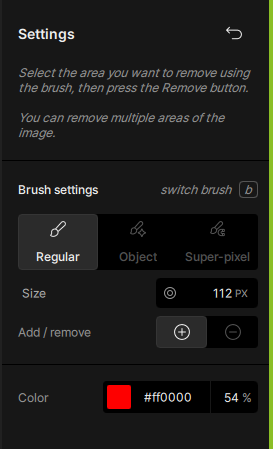
Brush settings
- Regular Brush – Manually paint areas in or out of the selection
- Object Selection Brush – Automatically detects and selects full objects
- Super-Pixel Brush – Quickly selects surrounding areas for faster masking
Brush size
Use the slider or enter a specific pixel value to adjust brush size.
Add/Remove
Switch between Add (+) and Remove (-) to refine the mask as needed.
Preview color
Adjust the overlay color to better visualize the selected area. The default mask color is red (#ff0000).
Best Practices
Make the Remove Tool Your last step
Apply all initial edits first (such as denoise, sharpening, and color adjustments) before you use the Remove Tool. Make this the last step in your Topaz Photo workflow to prevent unexpected outcomes where earlier enhancements get locked or nullified during the object removal process.
Size & Distance
Keep mask sizes below ¼ of the total image size. Process each object individually when dealing with multiple objects requiring separate masks. Ensure that the maximum distance between masked objects does not exceed 2000 pixels.
Inclusion
Mask the entire object rather than a partial section. Include the shadows and reflections of the objects. If those are not removed, the AI model may attempt to replace the object with something similar.
Low Lighting
If your image was shot in low-light conditions, you can use RAW Denoise to remove the overall RAW noise, then can use Denoise to remove any remaining noise.
Why are prior Filters Flattened?
When using Remove, Topaz Photo locks your enhancements in order to safeguard the generative AI model output and prevents reprocessing generative models which can change the results.
It processes and "locks" all prior enhancements before the generative tool and prevents further changes to those enhancements by flattening them.
Locking edits means you cannot make adjustments to other enhancements like sharpen, denoise, or color balance until the "Remove Object" process is completed.