Getting Started with Topaz for Mobile
The Home Screen
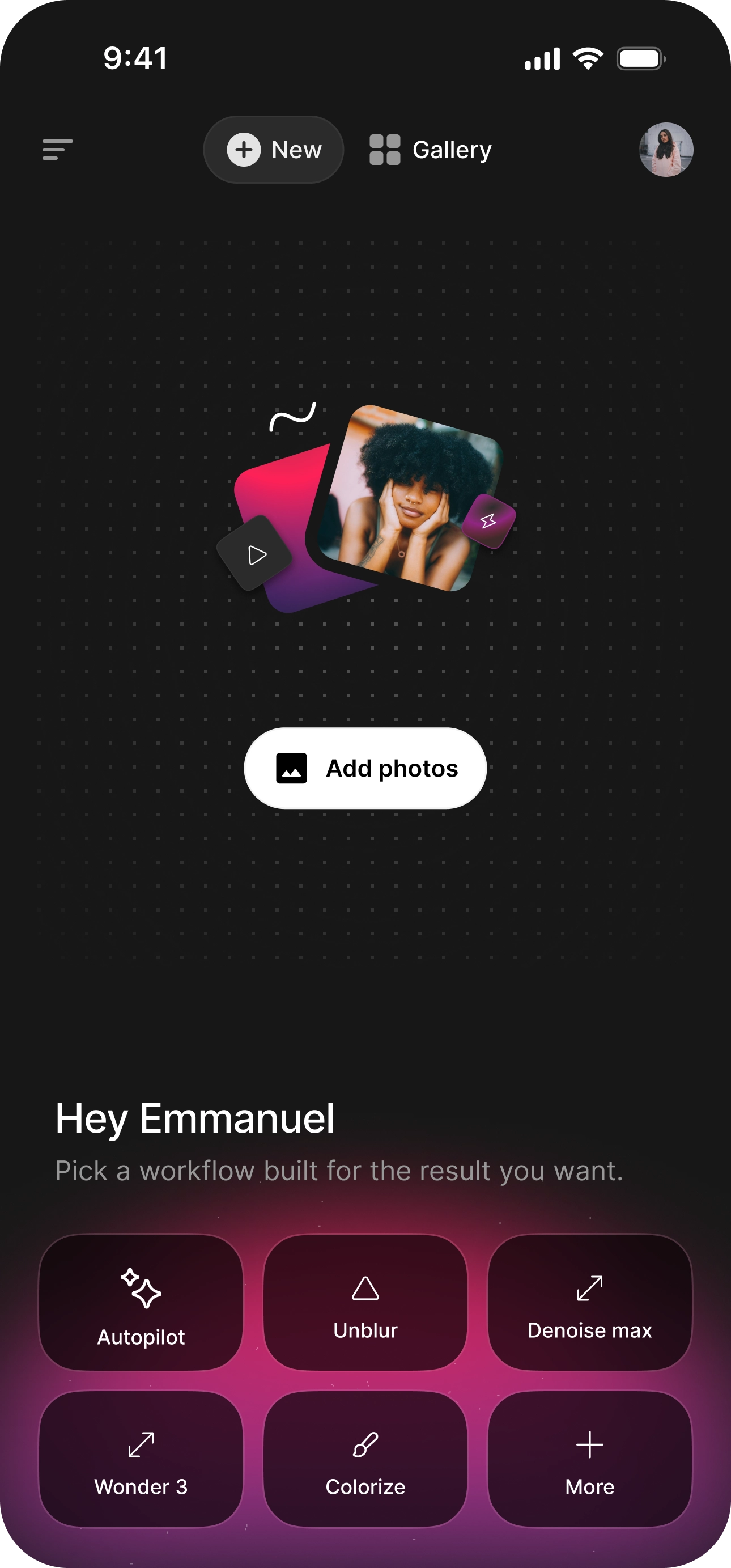
When you open Topaz Image, you'll see:
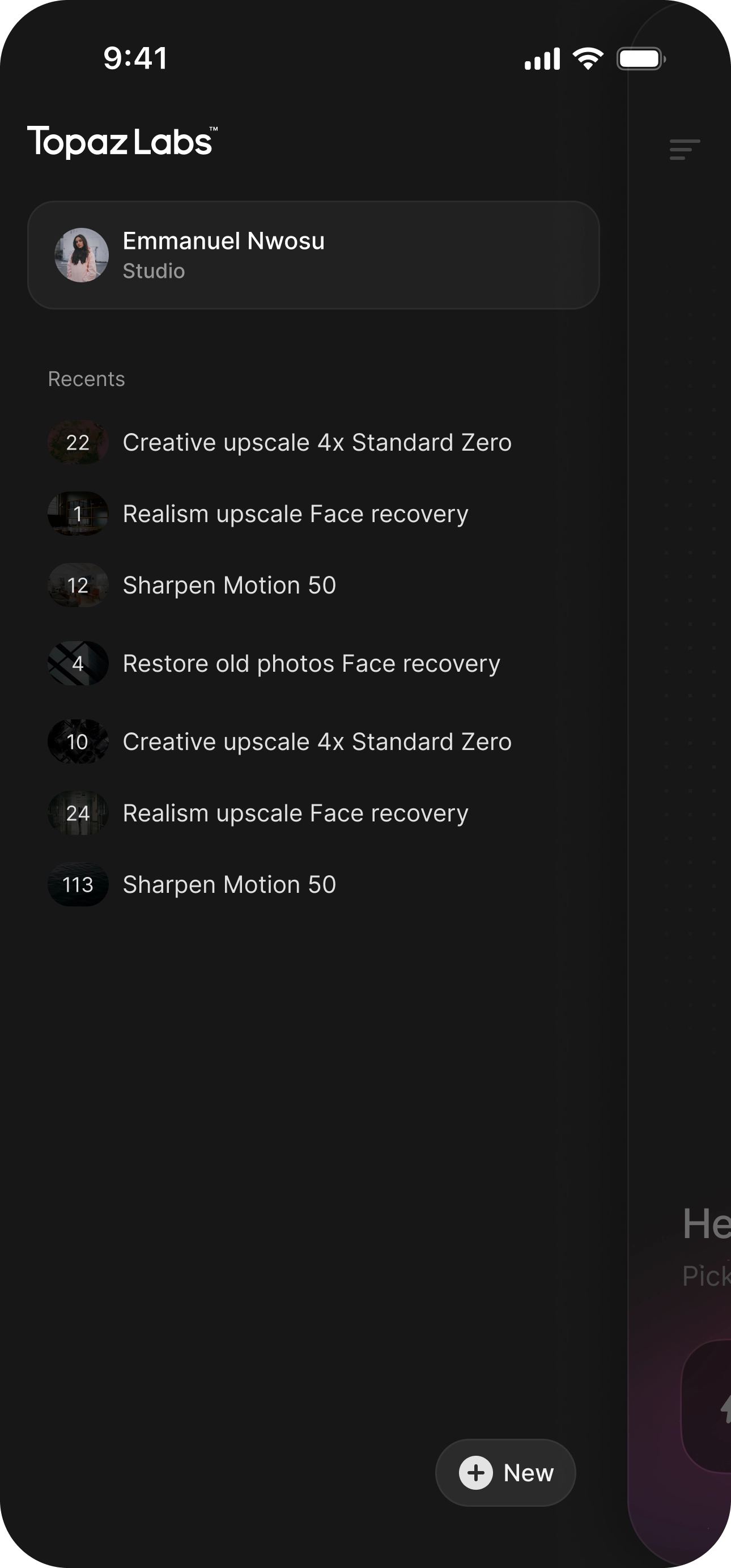
- Menu (top left) — open the sidebar for your account and Recents.
- New — Home page to start a new batch of photos.
- Gallery — browse everything you've already processed.
- Profile (top right) — your account.
- Workflow picker — the grid of workflows under the New / Home Page. Tap one to choose how your photos get processed.
- Add photos — pull in images to enhance.
What Are Workflows?
Workflows are task-based presets that combine the right models and settings for a specific goal — you pick what you want, and the app does the rest. Some workflows give you a few settings to fine-tune; others run fully automatically.
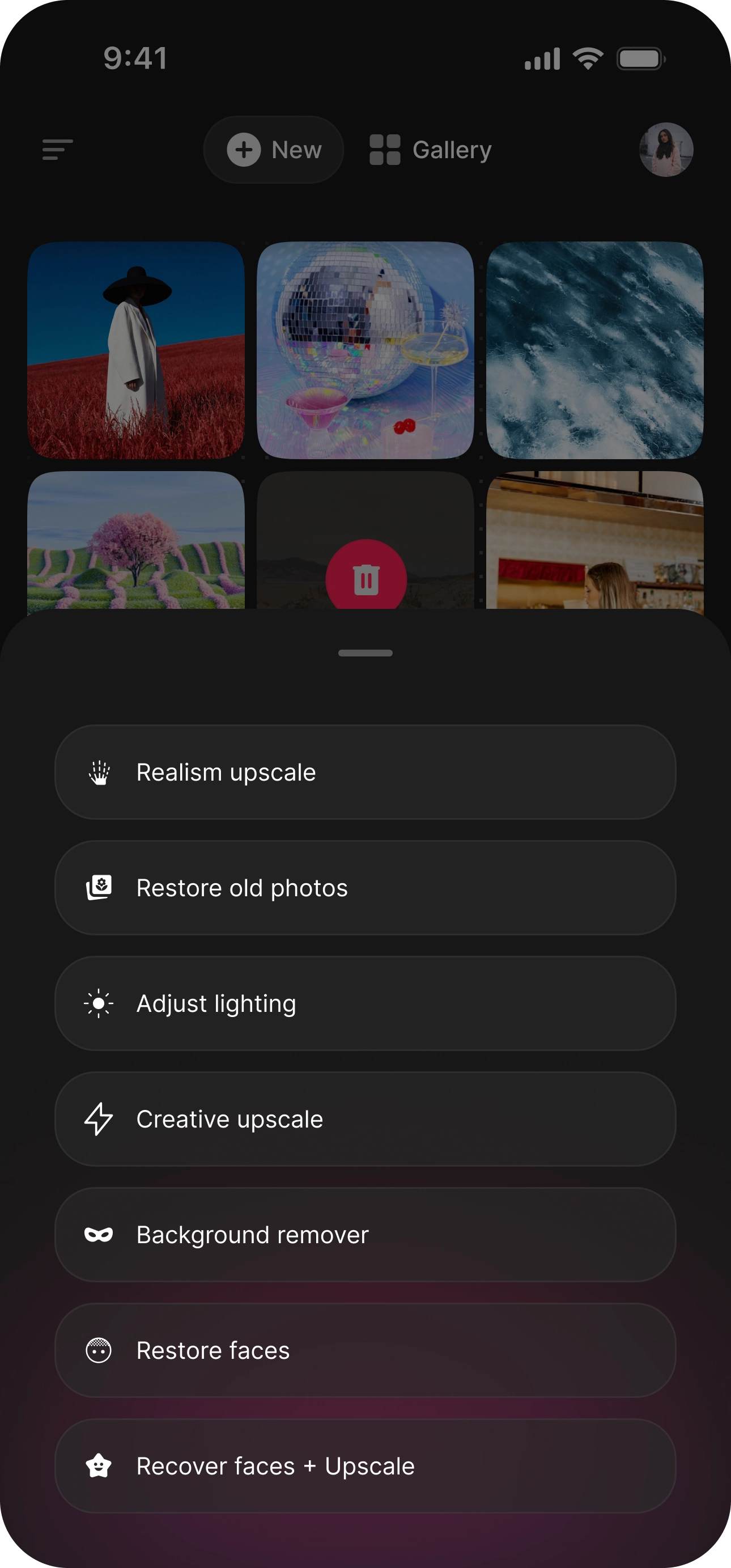
The picker shows common workflows like Autopilot, Unblur, Denoise max, Wonder 3, and Colorize. Tap More to see the full list, including Creative upscale, Realism upscale, Restore old photos, Restore faces, Recover faces + Upscale, Background remover, Adjust lighting, and Sharpen. Go to this page for more info on the workflows and their capabilities:
https://docs.topazlabs.com/cloud-apps/imageweb-workflows
Enhancing Your Photos
1. Add your photos
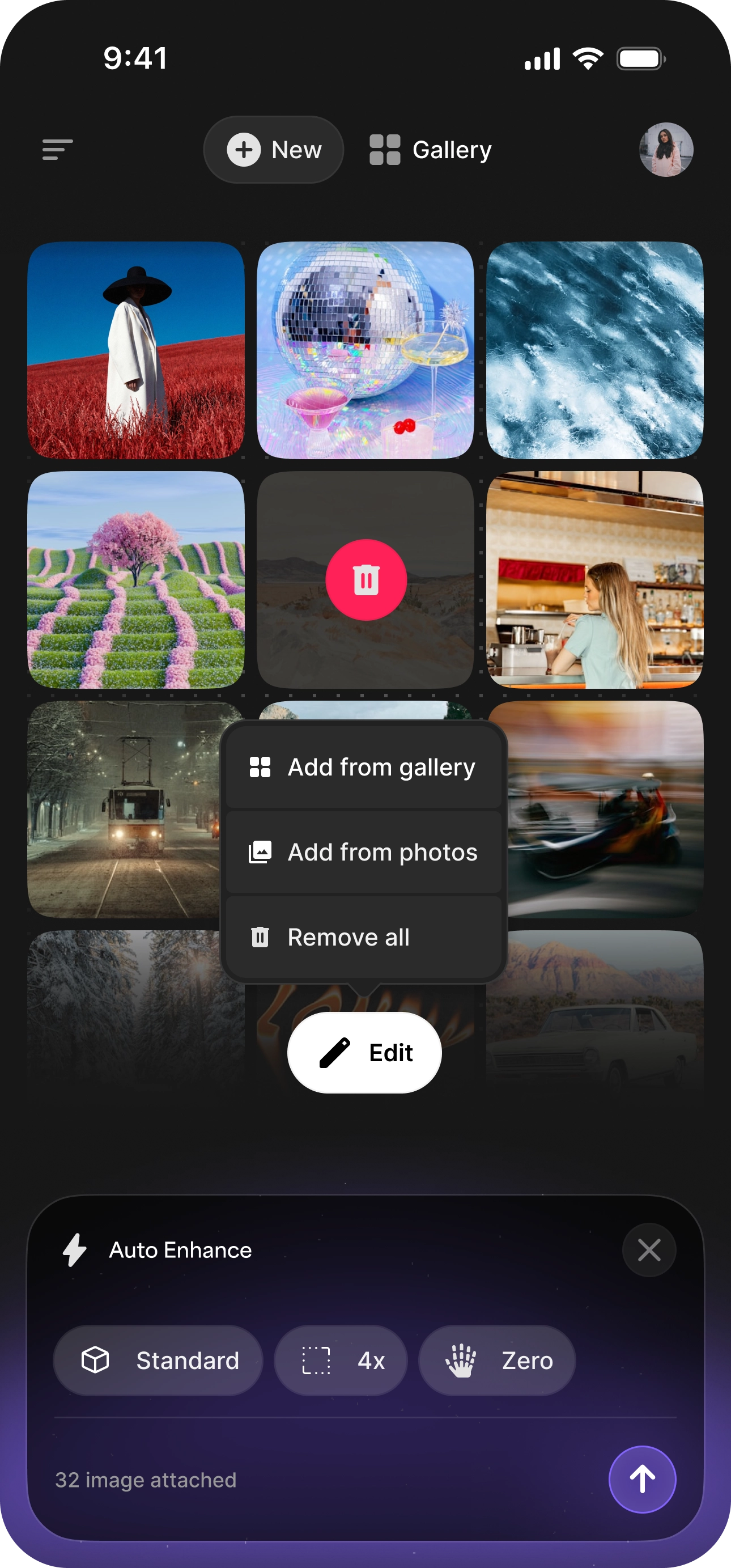
Tap Add photos, then choose Add from Photos or Add from gallery. You can add several images at once for batch processing.
2. Pick a workflow
Tap the workflow that matches what you want to achieve. Tap More if you don't see it.
3. Adjust settings and run
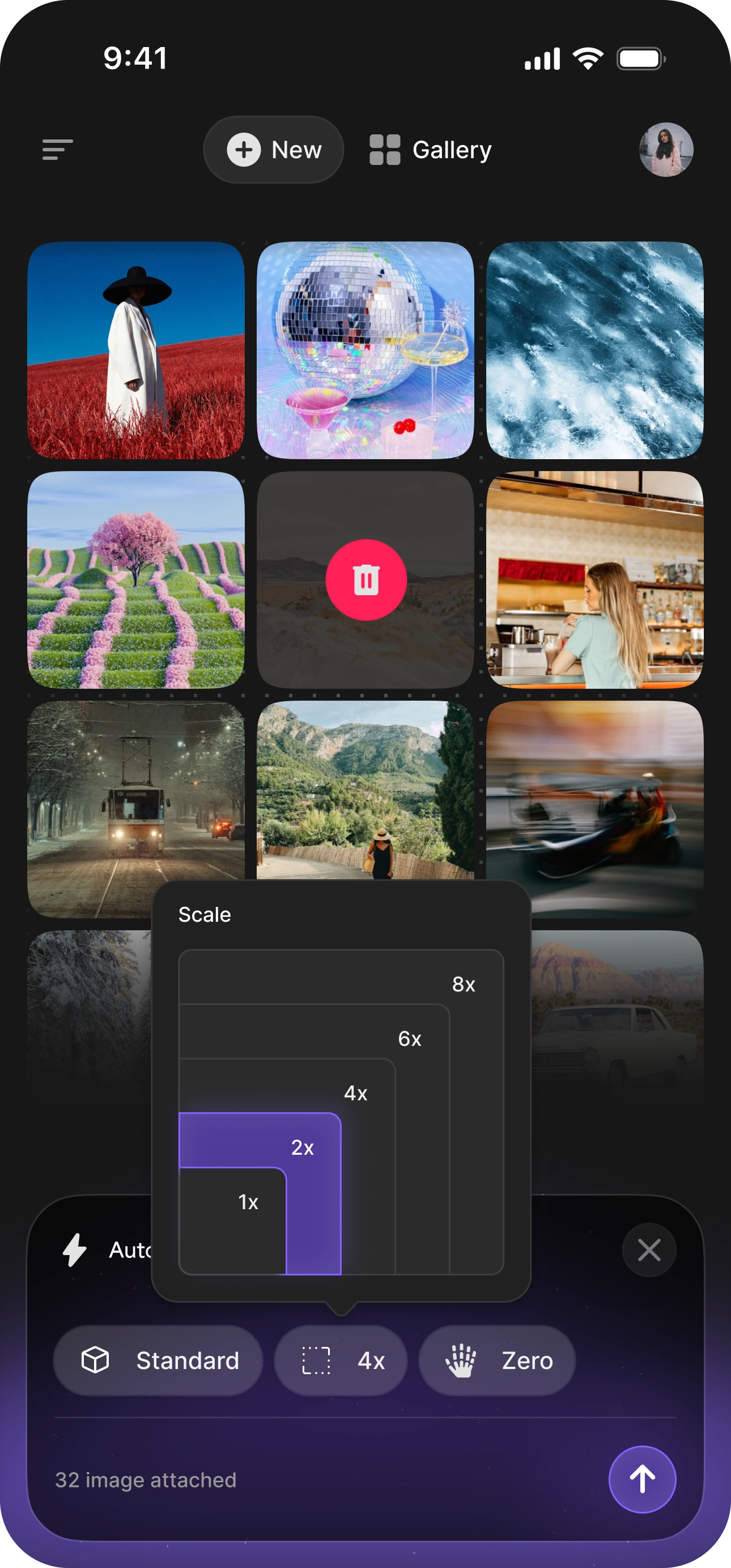
If the workflow has options, they'll appear in the panel. Set what you want, then tap the arrow to start. Once processing starts, you can close the app and come back later — your results will be waiting when they're done.
Reviewing Your Results
As soon as a photo finishes, you can start reviewing it — no need to wait for the rest of the batch.
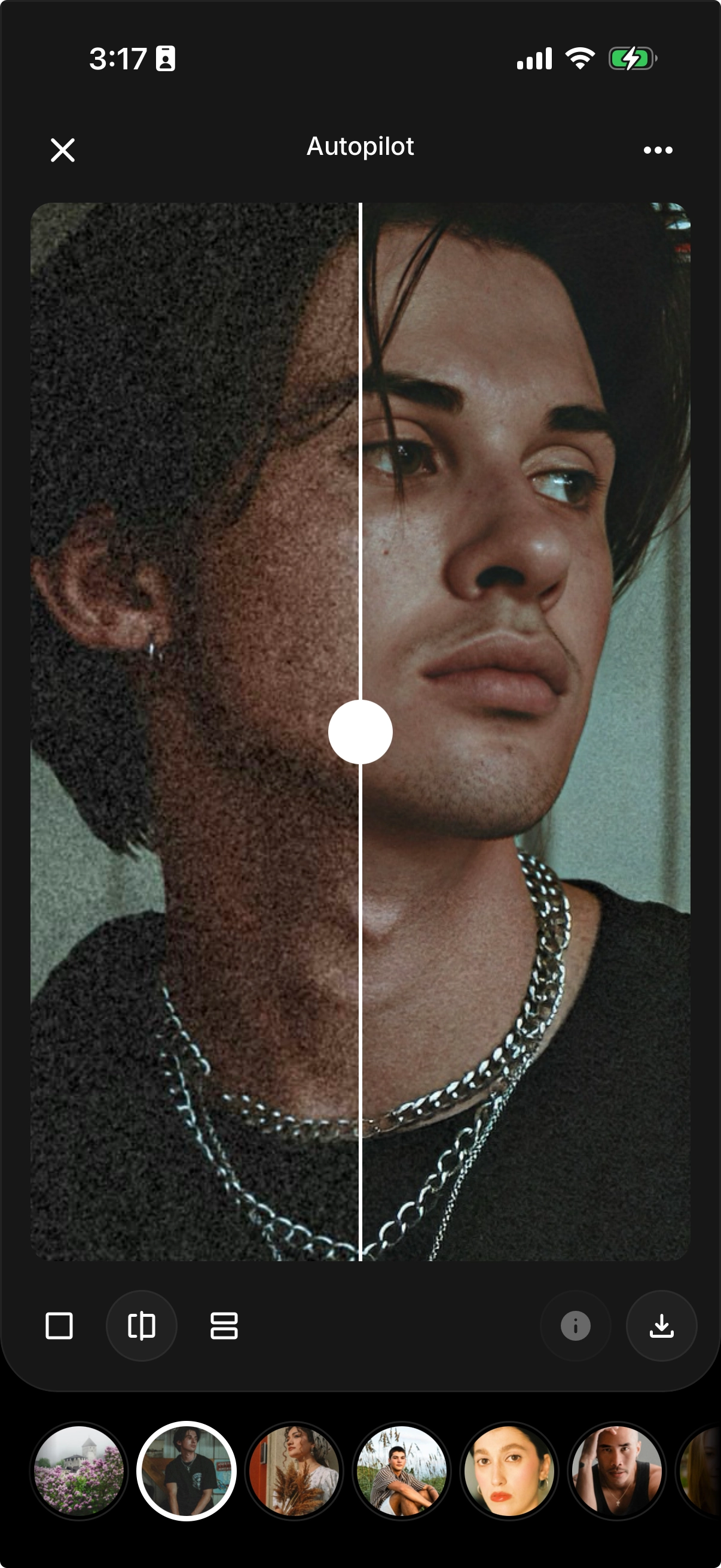
The viewer gives you three ways to compare the original and the result:
- Slider — drag across the image to reveal before and after.
- Side by Side — view original and result in two panels.
- Enhanced only — view just the processed result.
Use the filmstrip at the bottom to move between photos in the batch, and the info button for details about a result.
Downloading and Sharing
At the bottom of the result view:
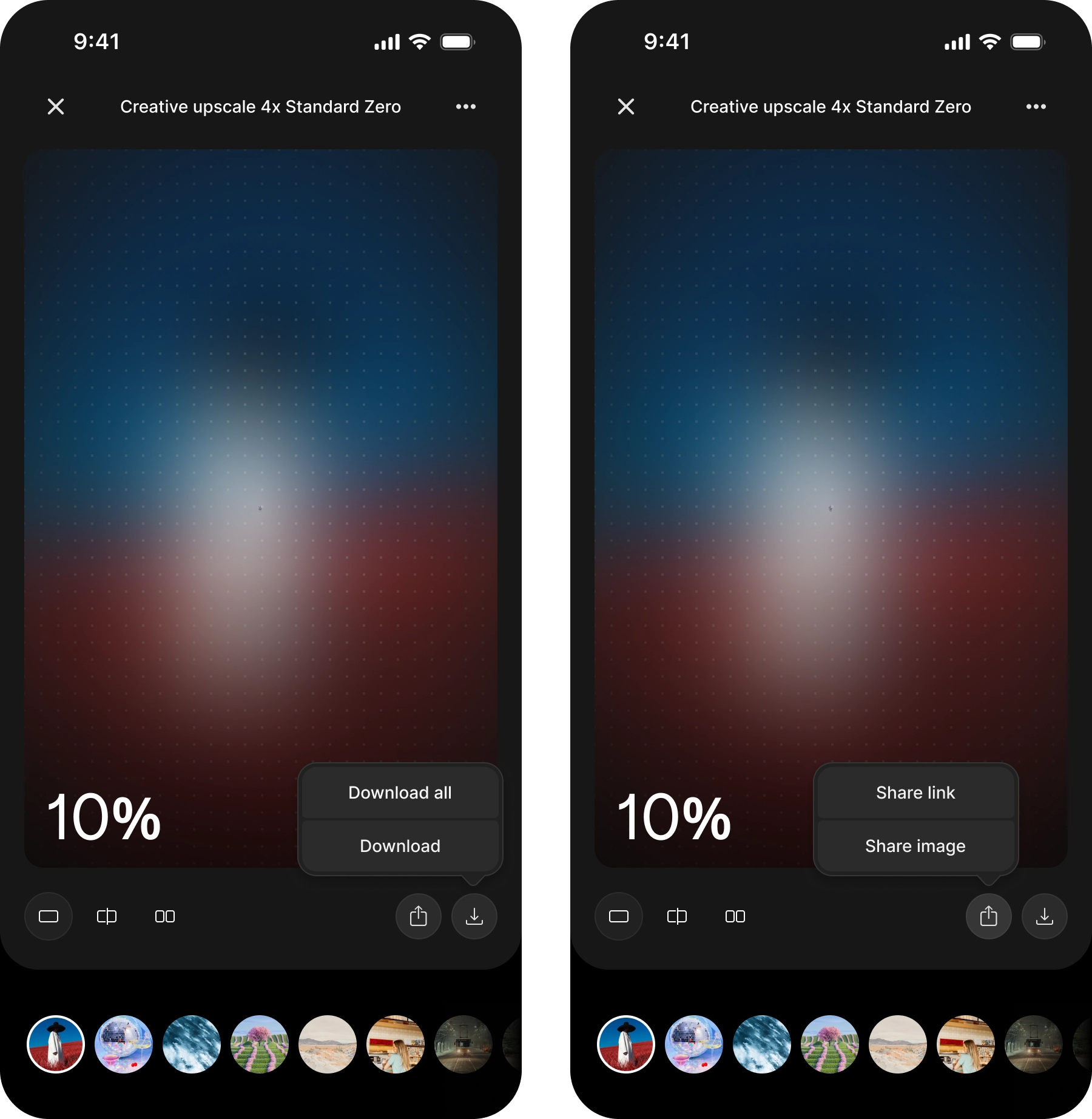
- Download — save the current photo.
- Download all — save the whole batch.
- Share — choose Share link or Share image.
Managing Your Batches
- Recents (in the menu) keeps every batch, named by the workflow and settings used — for example, Creative upscale 4x Standard Zero.
- From a batch's ⋯ menu you can Rename it, Copy debug info (handy when reporting a bug), or Delete batch.
- Gallery shows all your processed photos. Filter by type (All, Sharpen, Upscale) and tap Select to act on several at once.
Supported Formats
Topaz Image supports PNG, JPEG, WEBP, TIF, and HEIC. WEBP, TIF, and HEIC files are converted and exported as PNG.
Requirements
Topaz Image runs on iOS 16.