Batch Processing
See steps below to batch process your images to quickly upscale multiple files at once instead of working on them individually.
Step 1: Set Up Your Upscale Settings
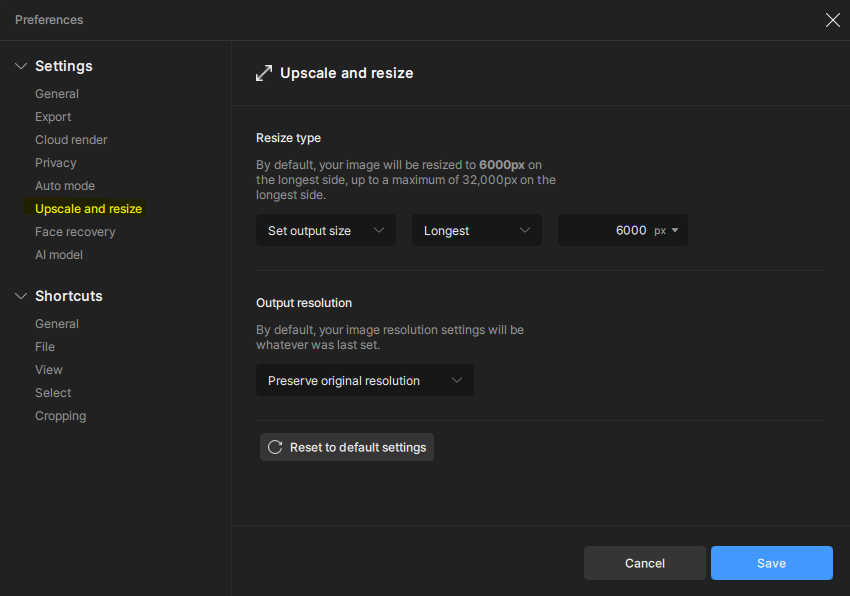
Before importing photos, it is recommended to configure your upscale settings in Topaz Gigapixel Preferences.
This allows you to:
- Upscale all images to the same dimensions
- Upscale all images by the same scale factor
Steps:
- Open your Preferences from File menu (Topaz Gigapixel menu on Mac) > Preferences > Upscale and Resize.
- In Upscale and Resize section, choose Set output size
- Choose between: Scale, Width, Height or Longest.
- If needed, in Output Resolution you can change the resolution
Step 2: Import images
Import multiple images into the application by:
- Clicking the Browse Images option and importing the batch of images
- Dragging and dropping files or folders directly into the app, from File Explorer (Finder on Mac)

Step 3: Choose your Workflow
Topaz Gigapixel supports two batch processing workflows:
- Auto Mode: uses image analysis to automatically choose the most appropriate AI model and settings for each image.
- Manual: allows you to choose the AI model, upscale settings, and output dimensions yourself.
⬇️ Select below the prefered workflow for steps ⬇️
Once the images are imported:
- Click the checkmark to select all photos.
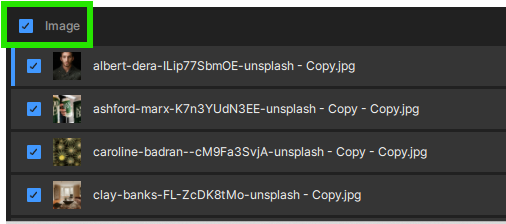
2. Once all photos are selected, check the AI Model column. If you see the lightning bolt icon and Auto, the images are ready to export. Autopilot will automatically choose the most appropriate AI model and settings for each image.

Instead of using Auto mode, you can manually choose the AI model you want to apply.
To do this:
- Select all photos in the batch.
- Click on the desired AI model. The selected model will be applied to all selected images.
- Manually setting the Scale or Dimensions: if you did not configure the upscale settings in the first step, you can manually set the scale factor or output dimensions in the Upscale section before exporting.
Example with a 2x Upscale setting below
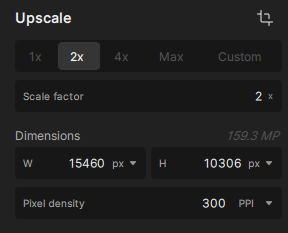
- The MAX option upscales images to up to 32,000 pixels on the longest side or 6x the original size, whichever comes first. For very small images, the 6x limit may be reached before the image reaches 32,000 pixels. This option is intended if you need a very large outputs and it will require significant GPU memory.
- MAX is not related to image quality. It only increases the image size to the maximum output size the app can generate for the specific image (6x or 32000 pixels on the longest side).
- To avoid long processing times, excessive file sizes, or processing failures, we recommend upscaling only to the pixel dimensions you actually need.
Step 4: Export
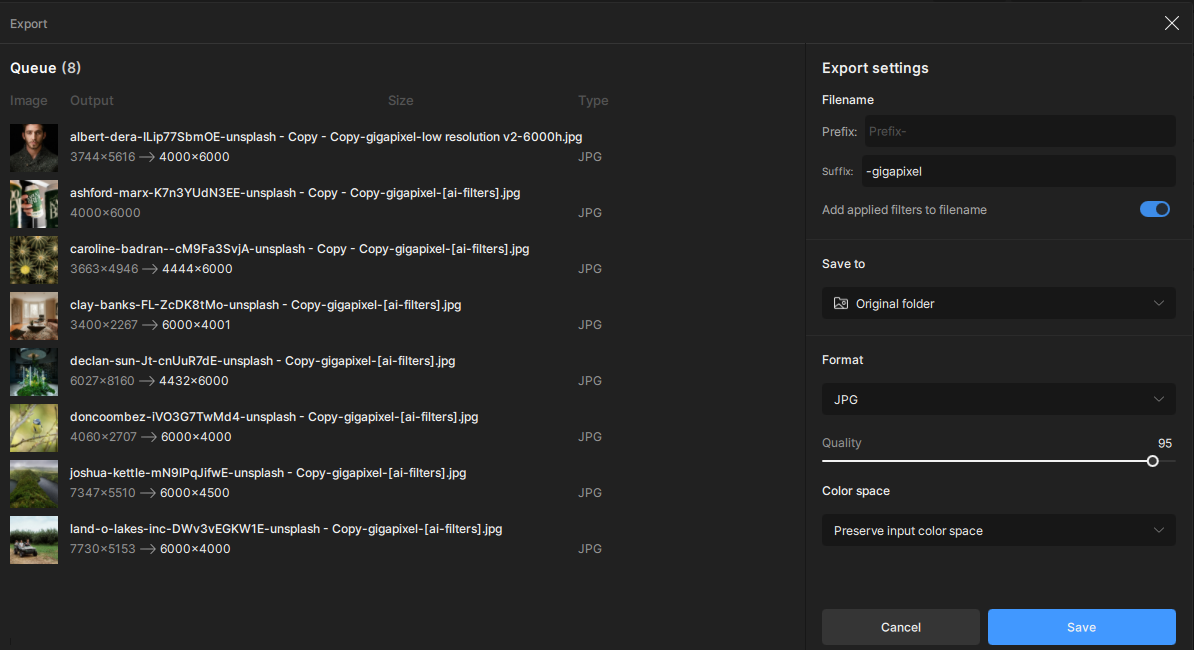
Click the Export button in the bottom-right corner of the application.

This opens the Export window, where you can:
- Review the export queue
- Select the desired Export Settings
Contact Support
Batch size is limited only by your system's available resources. Very large batches and large upscale sizes require additional GPU memory and processing power.
If you encounter processing errors, crashes, or failed exports:
- Reduce the number of images in the batch
- Close any other other applications to free system resources
- Upscale only to the dimensions you actually need
If you continue to experience issues with batch processing, please Contact Support with details of the error and your system specifications and we can troubleshoot.