Quick Start
Welcome to Topaz for Web, where all of Topaz's AI models and capabilities are in one place, for both images and video. Topaz for Web runs in your browser at app.topazlabs.com. Everything renders in the cloud, so you're not limited by your own hardware.
Sign in with your Topaz Labs account. There's nothing to download or install. One login, one subscription, and all your work in one My files library.
Before you sign in
You can browse and explore Topaz for Web without an account. You'll be prompted to log in the first time you try to process something. One Topaz account covers Topaz for Web, the desktop apps, and your credit balance. There's no separate login per mode or per tool.
Finding your way
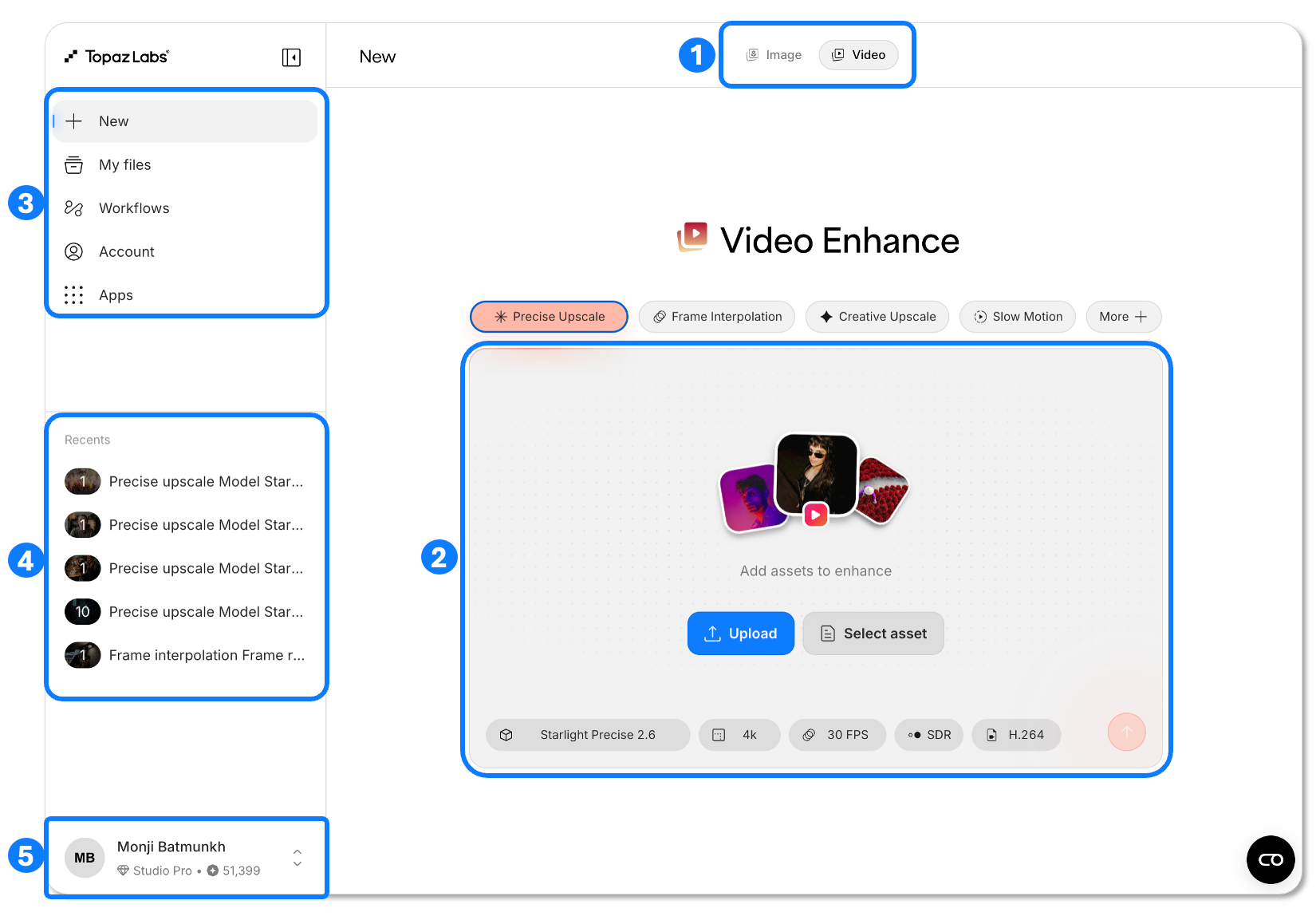
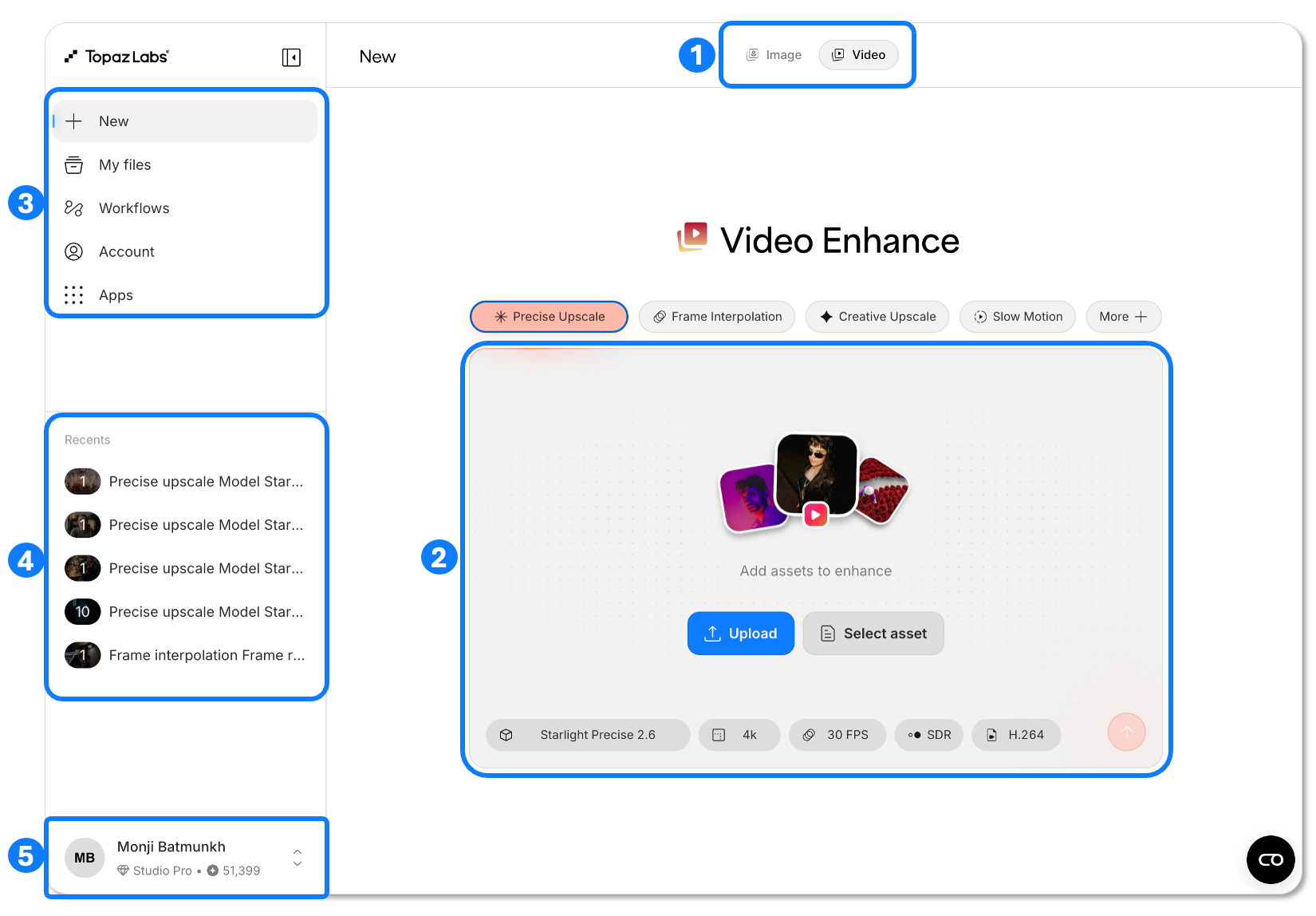
- Image / Video toggle: At the top of the screen, switch between Image and Video workflows.
- Upload area: Where you bring your files in. Drop them here or click to browse (one file or a whole batch, images or video depending on the mode you're in).
- Navigation menu: Where you start a new job and find your work: New to begin a render, My files for everything you've made, Workflows for saved sequences of enhancements.
- Recents: Your most recent renders, with queue status and completed results.
- My account: See and manage your plan, buy credits, change settings, or give feedback.
Enhance your first image
- Upload or drag in your images. You can process several at once.
- Choose a workflow. Not sure? Start with Autopilot, which picks settings for you.
- Review your results and download. Everything is saved to My files.
See Image below for the full guide.
Enhance your first video
- Upload your video. You can batch process multiple videos.
- Choose an enhancement model. Not sure? Start with Starlight Precise 2.6 for most footage.
- Review your result and download. Everything is saved to My files.
See Video below for the full guide.
Key concepts to grasp
- Model: A single AI model that does one specific job, e.g. Starlight Precise 2.6 for video upscaling and Wonder 3 for creative image upscaling
- Workflow: A task-based preset that combines the right models and settings for a specific goal. Pick one and Topaz handles the rest. Some workflows are built on a single model.
- Batch: Every time you process one or more files together it becomes a batch, kept in Recents and viewable in My Files.
- Branch: Feed the results of one batch into a new workflow, to chain enhancements together.
- My Files: Where everything you upload and everything you generate lives, images and video together.
- Credits: The currency for cloud processing. One balance, shared across web and the desktop apps.