Compare
Utilize the Compare tool to review different AI models at a glance.
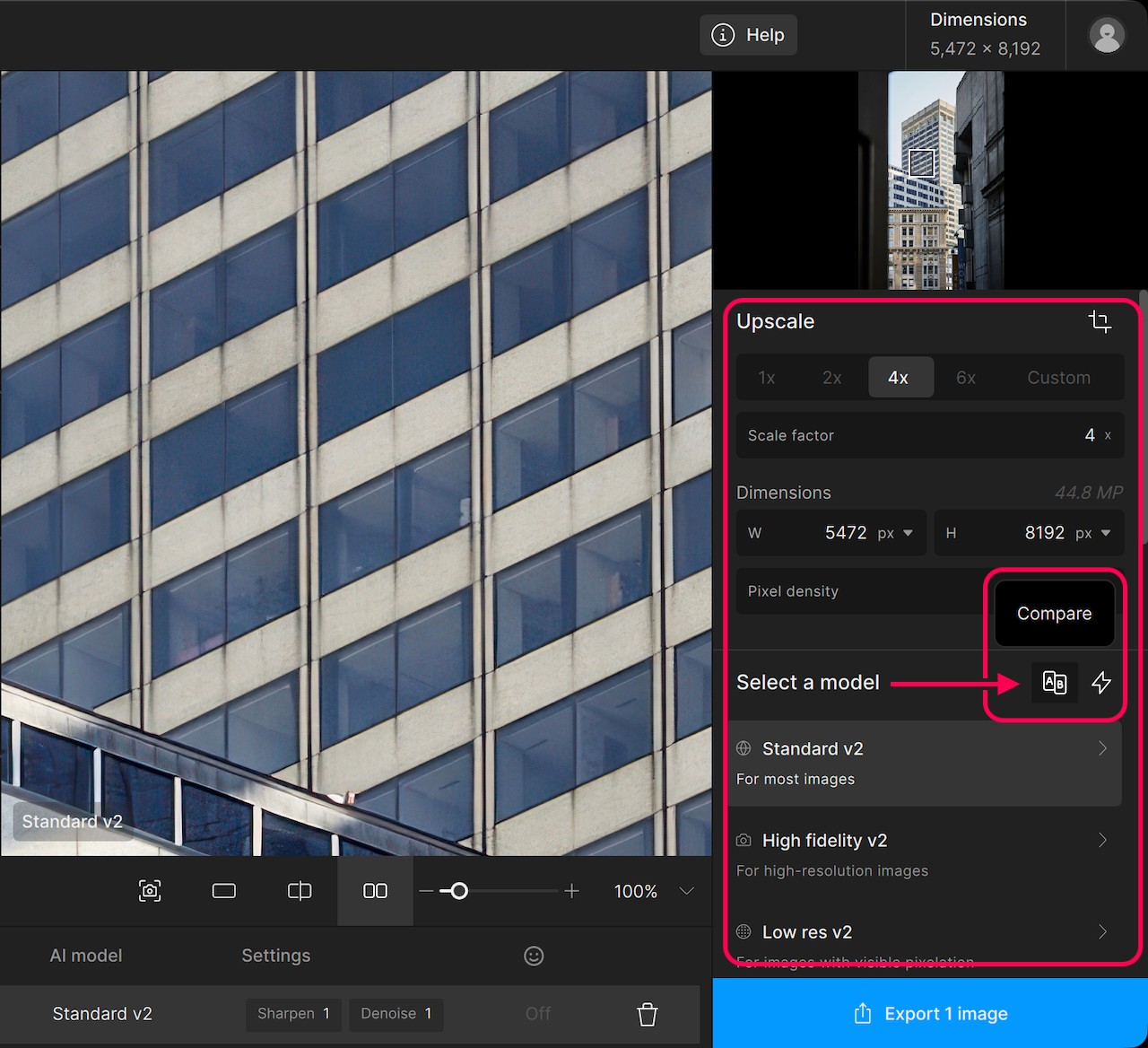
Locate the Compare tool at the top of the AI models list.
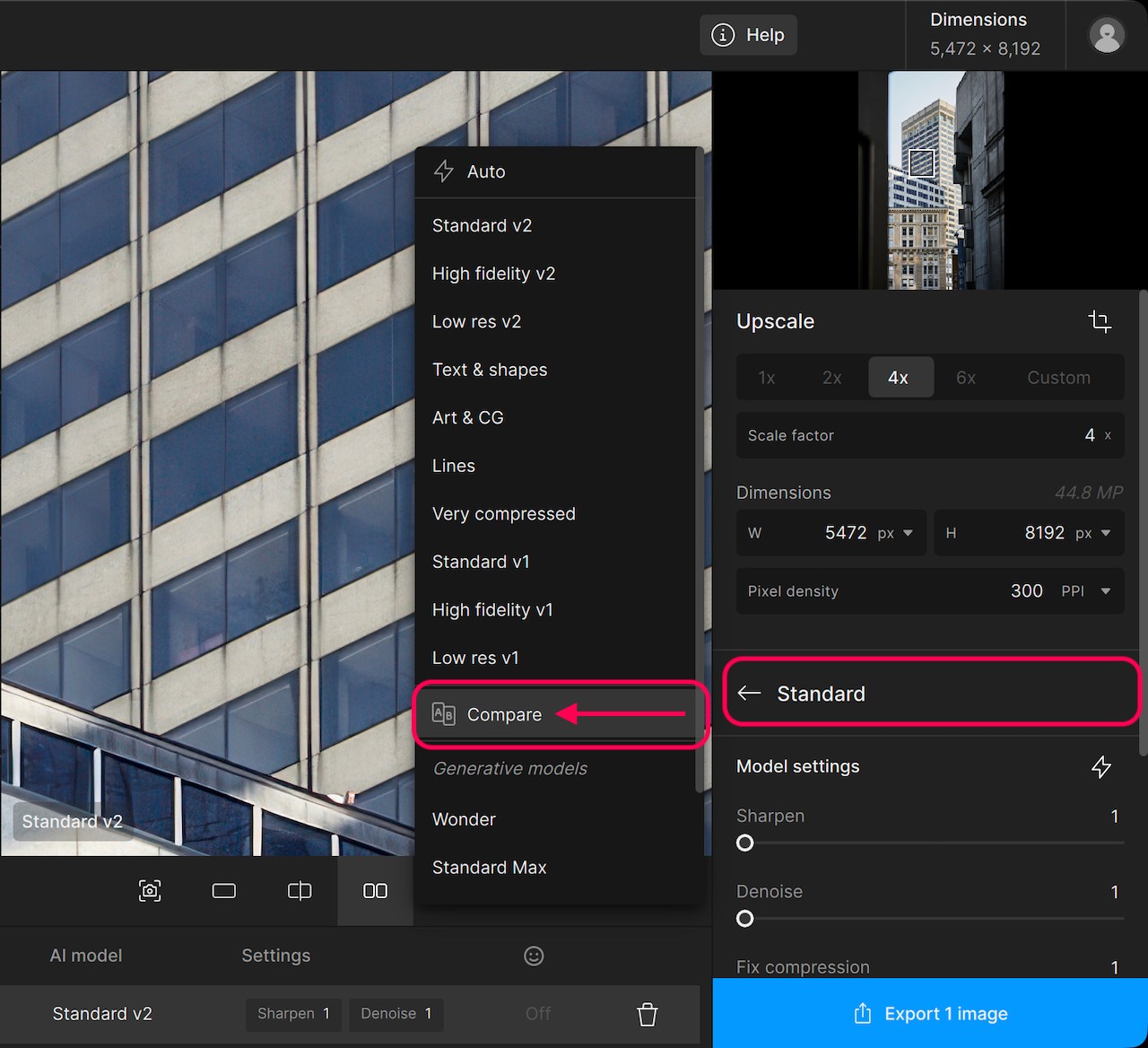
You can also locate the Compare tool when you hover over a model name.
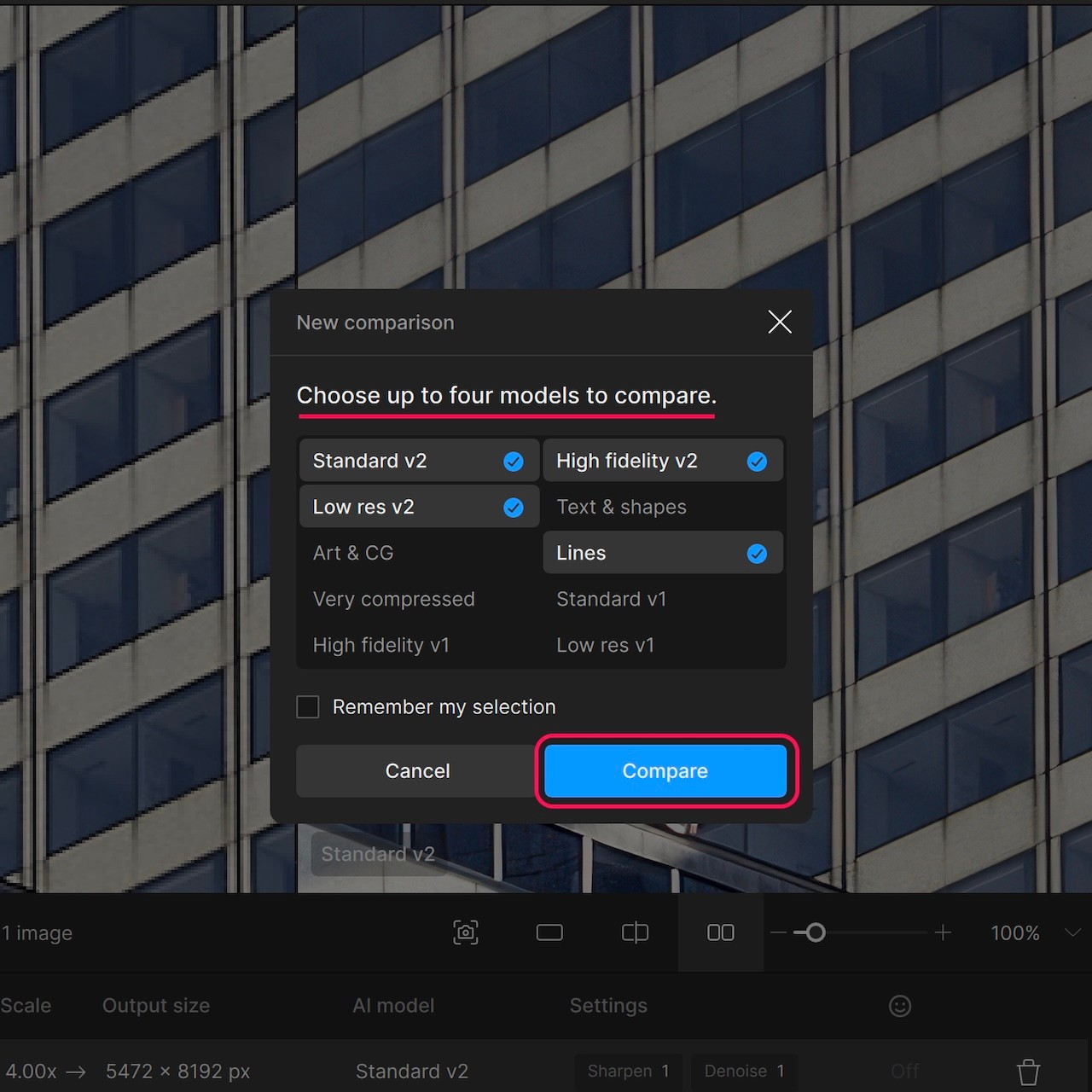
A pop up prompts you to select up to 4 different AI models to compare. You do not need to select 4 models every time. 2 or 3 models still make the Compare tool work.
Click Compare.
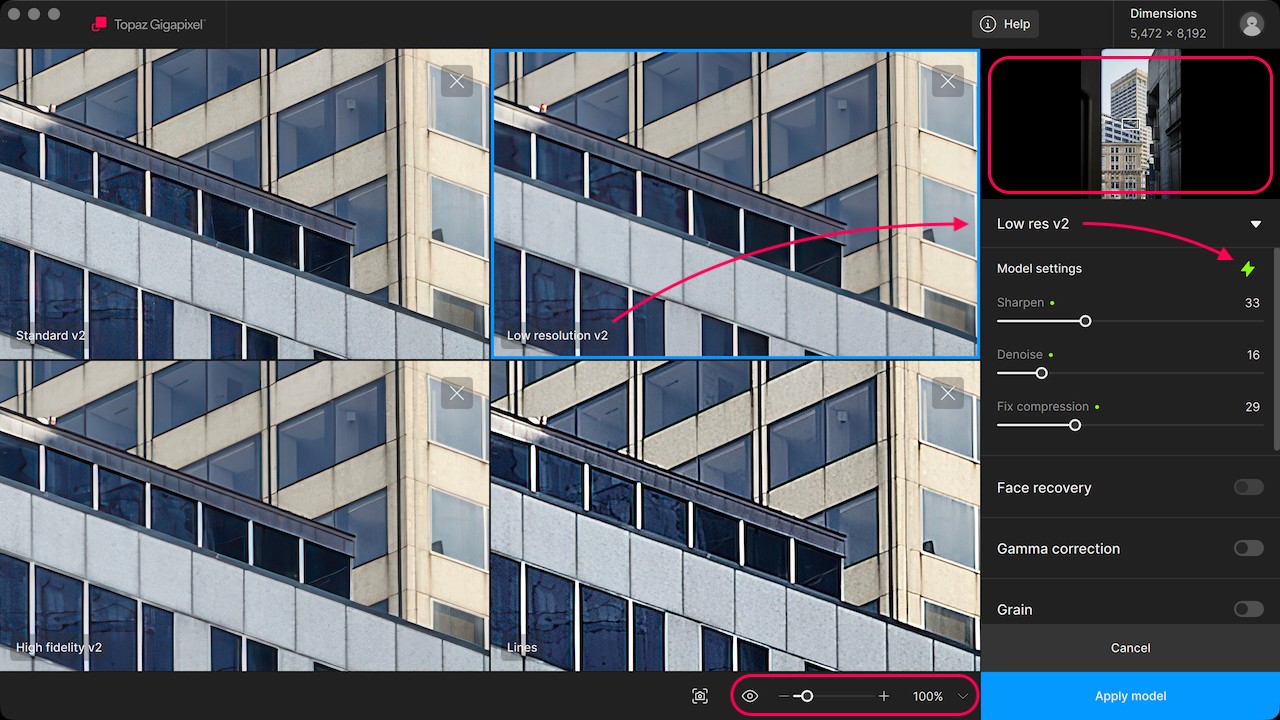
The viewer will split into panes, each showing one of the selected AI models. A blue outline highlights the active pane, seen here with Low resolution v2 selected.
You can click on a pane and change the AI model using the model header in the right panel. Select Auto mode as a starting point for settings.
Use the navigation control in the upper right and the zoom control at the bottom right of the preview to adjust the area seen in the compare panes.
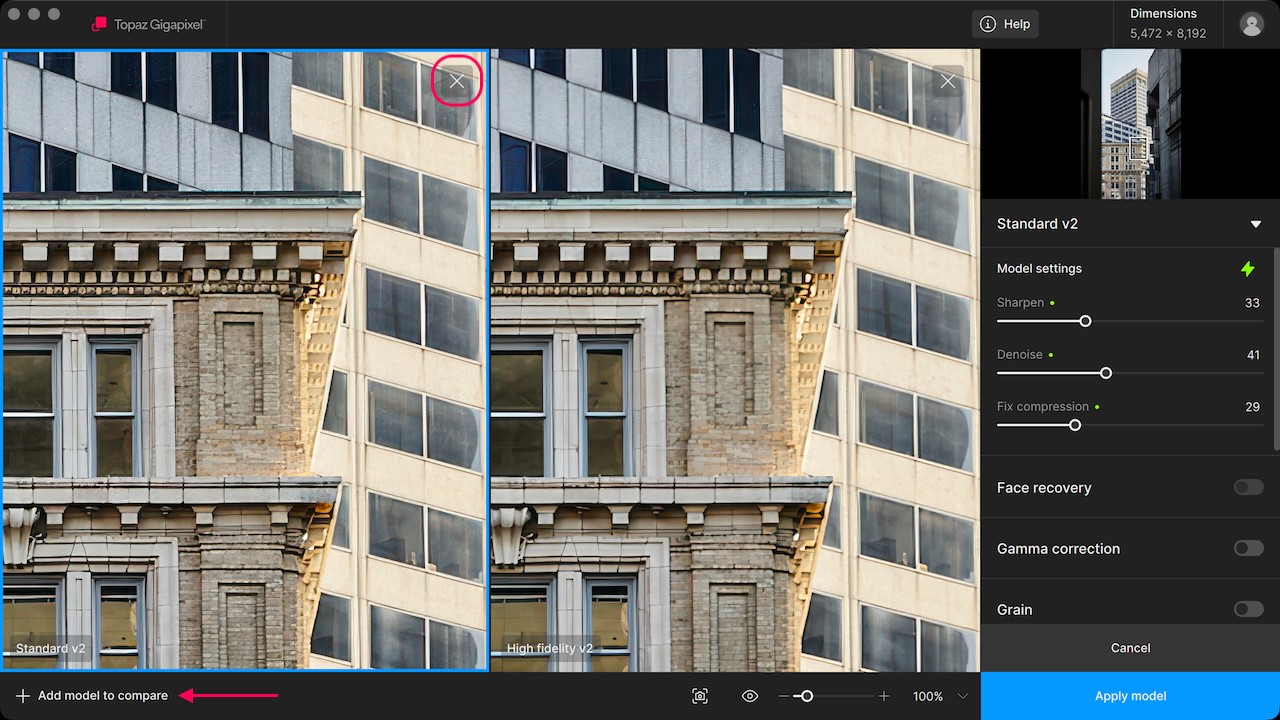
Remove a window by clicking the ╳ in the top right pane corner.
If there are less than 4 models being compared, select the + Add model to compare button in the bottom left to add more.
Once you are satisfied with your selection and settings, click on Apply model.