Troubleshooting
Here below are Common Issues that can occur, with fixes or workarounds, a section to Revert to a prior version and a section to Contact Support if any issues remain.
Installation or Update Issues
If you encounter issues while installing a Topaz app, or experience issues after updating to a newer version, please follow the troubleshooting steps in the Guide below.

Update or installation issues - Troubleshooting Guide
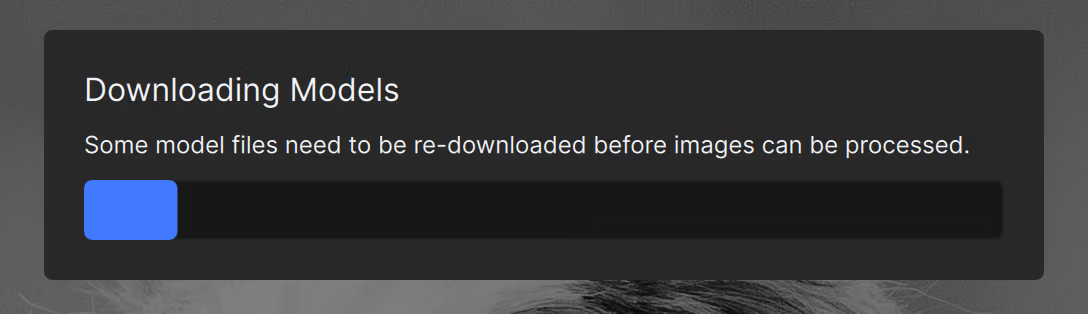
Downloading models
If the app is downloading models each time you open it, it means that they are missing, and the app is trying to repair itself. If downloading models doesn't work from inside the app, please see this page that is explaining how to identify the blockers and install all missing models.
Other Common Issues and Fixes
Topaz Photo will require a stable, high-speed internet connection to install. If you get any issues during installation, see below for potential fixes.
If your installer shows as "unconfirmed 199138.crdownload" file
- This crdownload file is a temporary download file created by Google Chrome. This means that the download hasn't been completed yet.
- If it doesn't finish and remains as crdownload, it can mean you have a security blocker preventing the download. Make sure to test turning off the firewall and anti-virus momentarily to see if the install picks up and finishes. Test connecting to a hotspot from your mobile phone as an internet connection to rule out the router being the blocker.
- If nothing works to get it to work again, delete it and test a fresh installer from your “My Products" page.
- Once the crdownload file is complete, it will change it's name to: TopazPhoto-X.X.X.msi in your Downloads folder (the X parts will be the version number you are installing). Then you can double-click on it and the Install Wizard Steps will appear.
If you get a “Your CPU must support AVX instructions to install this program" error preventing the install, click on the button below to access our Community forum thread with solutions posted for this error:

AVX Blocker | See solutions
If you get the "Error opening installation log file. Verify that the specified log file location exists and is writable." error when trying the in-app update:
- This error means that the in-app installer has a blocker. Until this blocker is found, it will be best to update using the direct links.
- Direct links for the Installer for all Topaz Photo versions will be found here on the Releases Page. Make sure to bookmark and save this link if a blocker also stops the in-app installer in the future.
If your Models are installing but seem stuck, no visible progress:
- There could be a blocker preventing the AI Models from installing. Make sure to test turning off the firewall and anti-virus momentarily to see if the install picks up and finishes. Test connecting to a hotspot from your mobile phone as an internet connection to rule out the router being the blocker.
- Once the security features are momentarily turned off or once you are connected to a mobile hotspot, rerun the installer, available from your “My Products" page. There is no need to uninstall; just rerun the installer, and it will pick up where you left off and install only the missing models.
If the Model Install is taking a long time:
- Topaz Photo will initially take some time to install, as all the AI models will be installed directly on your machine, to allow local and offline processing once completed.
- Once an initial install is completed, when you update versions, you will not have to reinstall all the AI models again. This makes installing updates much quicker than the initial install.
- If you do not see any progress, make sure to check the steps in the "Stuck" section above.
If you get the error "This installation package could not be opened. Contact the application vendor to verify that this is a valid Windows Installer package."
- First test is to make sure to use a Direct Link: they will be found here on the Releases Page. Make sure to bookmark and save this link if a blocker also stops the in-app installer in the future.
- If the error occurs with the direct link, test moving the installer on your Desktop and to run it from there.
- Also make sure to test with firewall, anti-virus off to see if this is the blocker.
If you encounter issues while installing a Topaz app, or experience issues after updating to a newer version, please follow the troubleshooting steps in the Guide below.
Update or installation issues - Troubleshooting Guide
If your computer meets the requirements and you get crashes on Windows:
- Ensure the drivers for your graphics card(s) are current. If you would like assistance with this, send us your System Profile to support@topazlabs.com.
- If you are editing files from/to a hard drive, test with the image placed locally (Desktop for example) - to rule out any hard drive issues (space, permissions, corrupted)
- If you get a crash using the plugin, see the Plugin Section.
If your computer meets the requirements and you get crashes on Mac:
- If you are on OS (operating system) 15, test these steps, and delete your Photo AI coreML cache folder.
- If you are editing files from/to a hard drive, test with the image placed locally (Desktop for example) - to rule out any hard drive issues (space, permissions, corrupted)
- If you are on an older OS, see if you can update to OS 14 or 15 to avoid any limitations with Photo AI enhancements.
- If you get a crash using the plugin, see the Plugin Section.
If you encounter issues while installing a Topaz app, or experience issues after updating to a newer version, please follow the troubleshooting steps in the Guide below.
Update or installation issues - Troubleshooting Guide
Topaz Photo is a supported Plugin for these programs listed here. The link will show the supported workflow for each program. Using Topaz Photo as a plugin splits the graphic memory of your computer, and it will be important to make sure your machine meets Topaz Photo's Minimum Requirements.
If you are not finding the plugin, it could be incorrectly installed:
- If you have multiple versions of the host program (Photoshop 2023 and 2024 for example) uninstall the older version to avoid conflicts.
- Then ensure all programs are closed, and rerun the installer from your My Products page to install the plugins correctly. (Affinity needs manual additional steps, see here)
If on Mac and you get any issues using a plugin, test the steps below:
- Make sure all programs are closed.
- Go to Apple menu > System Settings (or System Preferences) > Privacy & Security > Full Disk Access
- (If applicable, Click the padlock icon 🔒 to unlock) - Then click the + button, find the Adobe Photoshop program (or any other plugin program you are using) in the Applications folder and make sure it's Toggle is turned on.
- You may need to enter your administrator password for the changes to take effect.
- Then retest the plugin.
If you get any issues during Export:
- Make sure your computer meets the System Requirements for Topaz Photo.
- If doing Batch Processing, see the link to make sure the proper workflow is being used.
- Confirm that the image used is from a Supported Camera and Supported Format
- Check that you are using your full machine's capabilities:
- In the "Edit" menu (1) then in Preferences > General > AI Processor > to be on Auto (2).
- Being on Auto AI Processor will use your RAM and VRAM memory together. - If you are editing files from/to a hard drive, test with the image placed locally (Desktop for example) - to rule out any hard drive issues (space, permissions, corrupted)
(1) The "Edit" menu is the "Topaz Photo" menu on Mac.
(2) Auto is the default AI Processor option to be on. Only use other AI Processor options if suggested by our Support Team as part of troubleshooting steps or if you have an unsupported, underpowered machine that does not meet the minimum requirements for Photo AI (to test CPU if that is the case).
First step is to make sure your computer meets the minimum requirements for Photo AI. Underpowered computers will have issues with Topaz Photo and have inconsistent behavior, slow processing and crashes.
If you are editing files from/to a hard drive, test with the image placed locally (Desktop for example) - to rule out any hard drive issues (space, permissions, corrupted)
If you own a Topaz Photo subscription and are stuck in Trial mode:
- Make sure to check your Account page, to confirm the Topaz Photo app is Owned on this email you are logging in with.
- Make sure you are in the correct app. Some apps will have similar names; the apps you have access to will be in your Account page. Example Photo AI is a discontinued app vs Topaz Photo is the subcription newer app. The newer app does not have AI in it's naming. All the installers will be in your Account page. Comparison Page here.
- Make sure the email used to log into the app is the same email. To check what email you are logged in with, in-app, click on the grey rounded icon top right of the app. This menu opened will show what email you are logged in with. You can also click on the Account Settings to see what products are owned on this specific email. If the email is not the one you purchased your Topaz Product with, click on Log out and log back in again with the correct email.
If you get any "AVX" errors, a "0xc0e90002” error or any ".dll" errors:
See This Guide for steps to follow
If you get any "Error Loading Model" or "Error Running model" errors:
See This Guide for steps to follow
Check if a Known/Resolved Issue
Make sure to check our Community Forum. The known issues will be in the In-Progress and Resolved Sections, and workarounds/resolutions will be posted.
Known Issues reported by users are in the "In Progress" Section of our Forum:

In-Progress | Bugs and Issues Forum



Revert to a prior Version
If you run into any issues on the latest version:
- Contact Support so we can collect the details needed to help pinpoint and sort out the issue.
- While we investigate, you can temporarily revert to a previous version to keep your workflow moving. All prior Topaz Photo releases are available here, just select your preferred version and you’ll find the installer links at the top.
How to Reach Support
If you encounter a new bug or issue with Topaz Photo, the fastest way to reach us is to write to us at help@topazlabs.com. This will open a support ticket for our team.
In the email, please include:
- What Topaz Photo version are you using? (top of the app will mention the version).
- What email was your Topaz Photo license purchased with? You would have received a purchase confirmation email, with a Order #TS-XXXXXXX.
- The bug/issue and behavior you have encountered. Give as many details as you can.
- Details on your workflow: RAW or JPEG files? Plugin or Standalone? If using as a plugin, what menu path is used to send the file to Topaz Photo? Etc.
- Any screenshots, as necessary.
- Your System Profile (Instructions for Mac or Instructions for Windows)
- Logs: These can be found in-app, then go to Help > Open Log Folder. Zip all the logs you see and send us the zipped file in your email. If your app immediately crashes, you can skip this part as it will not allow you to get the logs.