Wonder
Wonder is an upscaling image repair model designed for small to medium-sized low-resolution images that are soft, noisy, or affected by compression artifacts. It helps restore clean, realistic detail without the artifacts that can occur when stacking multiple enhancements.
Wonder v1 or v2 are not intended and are not supported for RAW files or images from modern cameras. For those files, use enhancements such as RAW Denoise, Denoise, Sharpen, Recover Faces, and Upscale. While Wonder 3 and 3.5 can be used on high-resolution or RAW images at the Low setting, the changes will generally be minimal.
Cloud rendering has a 128MP limit, and local will have limits depending on which Wonder version you use.
How to access the model
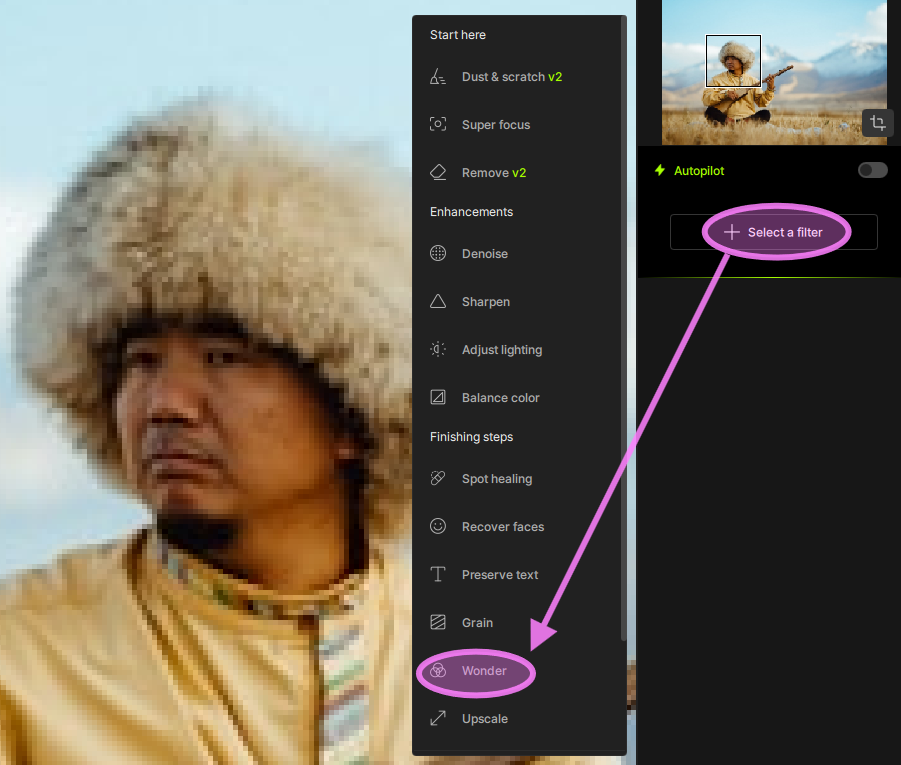
You can access Wonder from the "Select a Filter" button in the right panel.
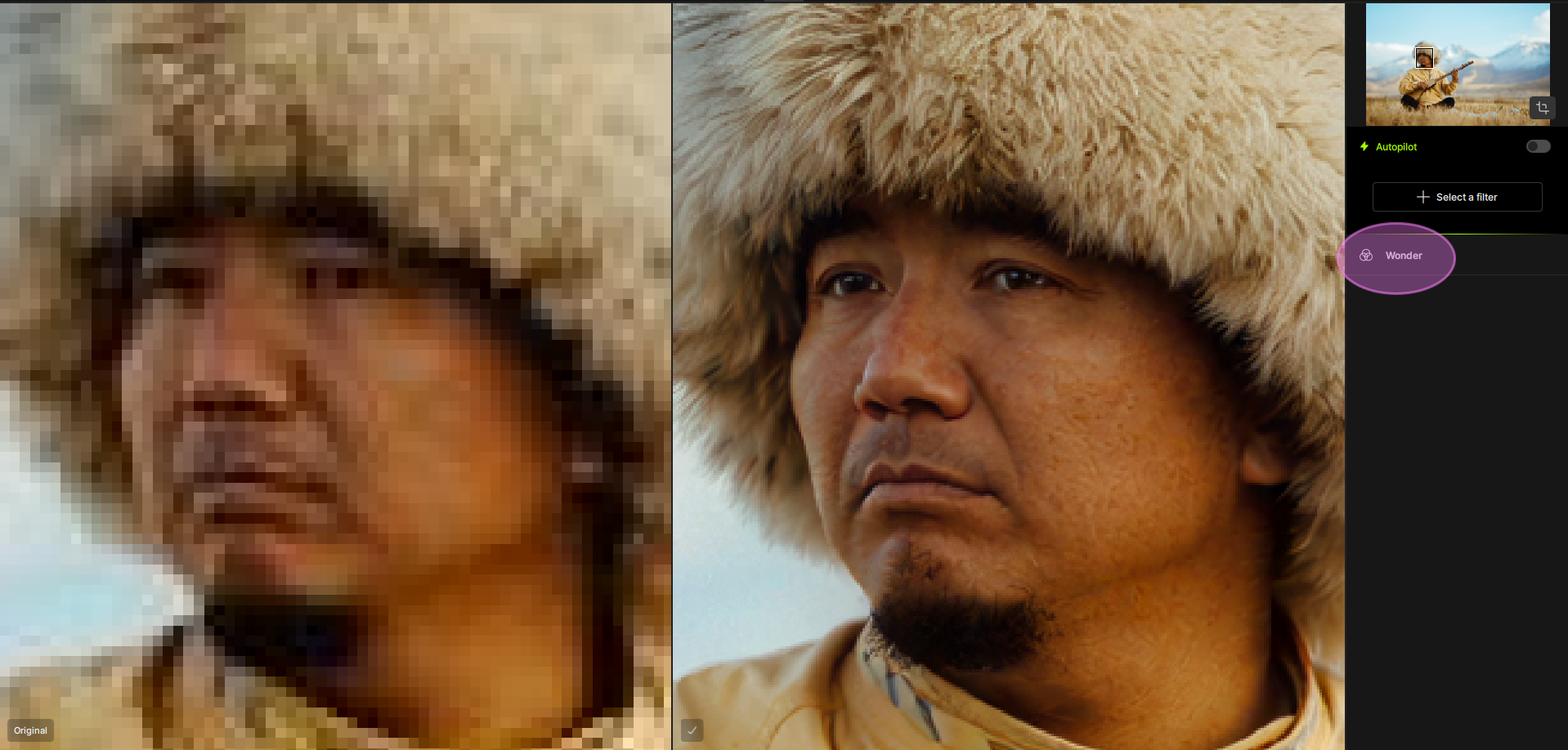
Results examples on this heavily compressed file:
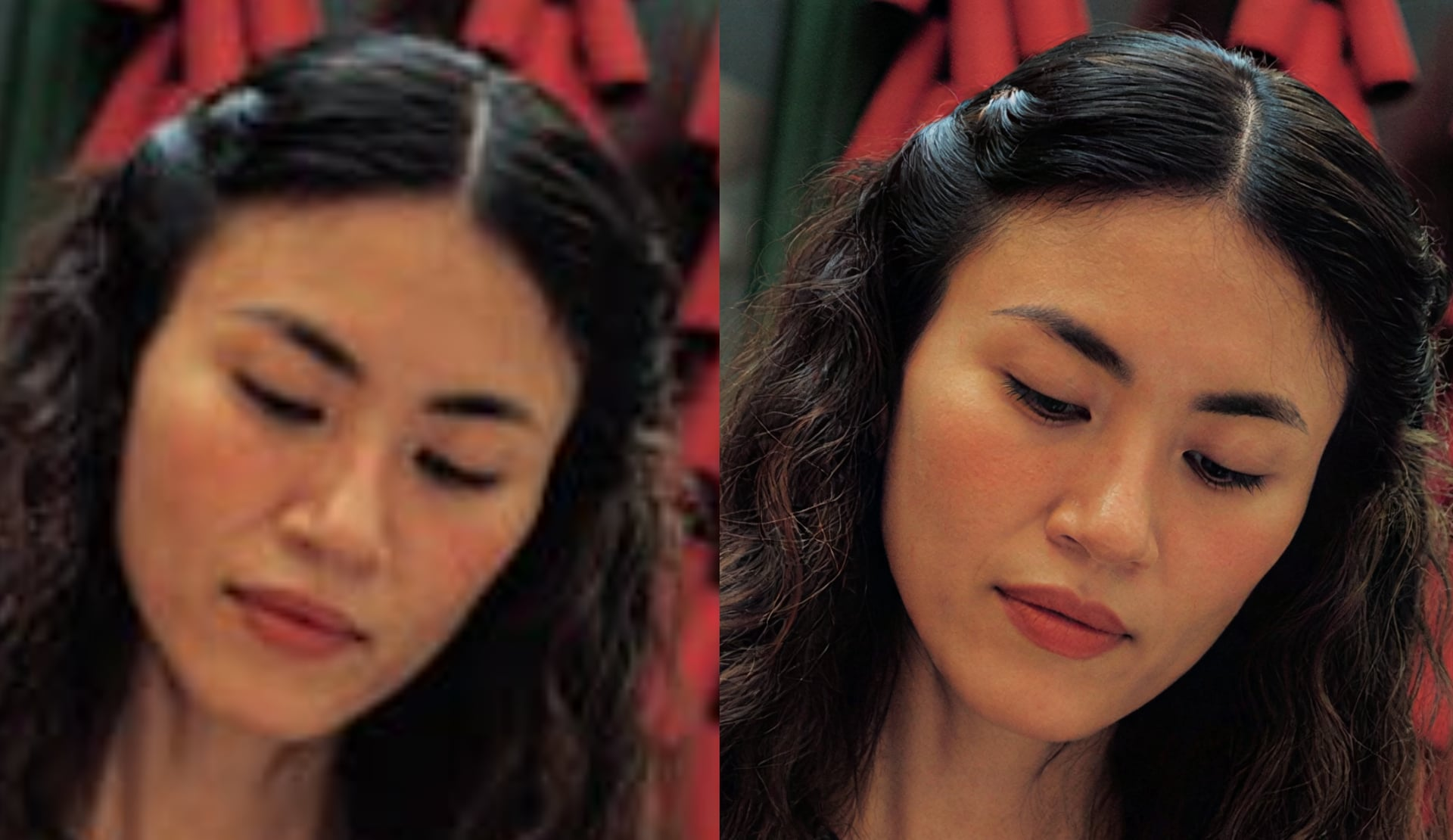
Wonder Versions
- Wonder (v1): Released in Topaz Photo v1.0.0. Best for heavily compressed or very low-quality images that need stronger cleanup. Produces more aggressive, stylized results and may over-process some images. Best for small to medium images.
- Wonder (v2): Released in Topaz Photo v1.2.0. Best for low-resolution or challenging images where realism is the priority. Produces cleaner, more natural results than v1, but may be more conservative with very low-detail images. Best for small to medium images.
- Wonder (v3): Released in Topaz Photo v1.5.0. Recovers detail across a wider range of low to mid-quality images, with more realistic textures and improved handling of false resolution with minimal user input. Works with small, medium or large images.
- Wonder (v3.5): Released in Topaz Photo v1.7.0. Provides more realistic results with improved detail and text clarity, especially for low-resolution or compressed images, while reducing repetitive patterns and visual noise. The 192 MP local output limit has been removed. Works with small, medium or large images.
- Low setting: Best for preserving the original input data. It stays most faithful to the source, though it may appear slightly softer at 4x.
- Medium setting: A balanced middle ground.
- High setting: Can be more ‘creative’ with detail reconstruction. It’s best suited for heavily degraded images or large upscale factors, such as 6x.
Key things to know
- Wonder works best with Cloud Processing: Because of the computational resources required to run this model, Wonder will give best processing speeds on the Cloud.
- Wonder is a Single-step model with no preview controls.
- Not recommended for low-light phone images with heavy noise or already sharp and high-quality images.
- Wonder cannot be used as a Preset, but it can be used in Batch Processing workflows. See details here.
Local Rendering
Wonder v1
Local rendering is available if you:
- Have a Topaz Pro license or Founder status
- Use a machine that meets the minimum system requirements. When these conditions are met, Wonder v1 can run locally on your machine, on small or medium-sized images.
Wonder v2 and v3
- Windows: NVIDIA or AMD Graphic card with 8GB VRAM or more
- Mac: Apple Silicon (M-series) machines with 16GB RAM minimum
- 192 MP local output limit
Wonder v3.5
- Windows: NVIDIA or AMD Graphic card with 8GB VRAM or more
- Mac: Apple Silicon (M-series) machines with 16GB RAM minimum
- No 192 MP local output limit. Wonder 3.5 follows the standard export limit: Scale 6x or 32,000 pixels on the longest side, whichever is reached first.
Local processing is not supported on:
- Intel Macs
- Windows ARM / Snapdragon systems
(Use Cloud Rendering on those setups)
Cloud Rendering
You can run Wonder (all versions) using Cloud Processing.
- Faster processing: Cloud Rendering is generally faster than processing Wonder locally.
- Limitation: Wonder has a 128 MP output limit when using Cloud Rendering. For an image that's already close to the limit, use Scale 1x..
- Need a larger output? You have two options:
- Process Wonder locally if your machine meets the minimum requirements.
- or Use Wonder at 1x with Cloud Rendering, export and reopen the result, then use a non-generative Upscale model such as Standard to reach the final size.
Contact Support
If you have issues using the model, contact us at Support at help@topazlabs.com and we can troubleshoot. When you write in, make sure to provide:
- The image you are trying to upscale. Make sure it's a small or medium low-resolution or compressed file, which will be the best cases for the Wonder model.
- Details on the issue: Are you using Local or Cloud processing? Which version? Attach the file used to the email and send Details on the behavior and screenshots of the error you get, if any.
- Your app's logs: Help menu > Open Logs folder > Attach all the logs you see in the email to Support