Crop
Locate the Crop button at the top right of the enhancement panel below the Navigation.
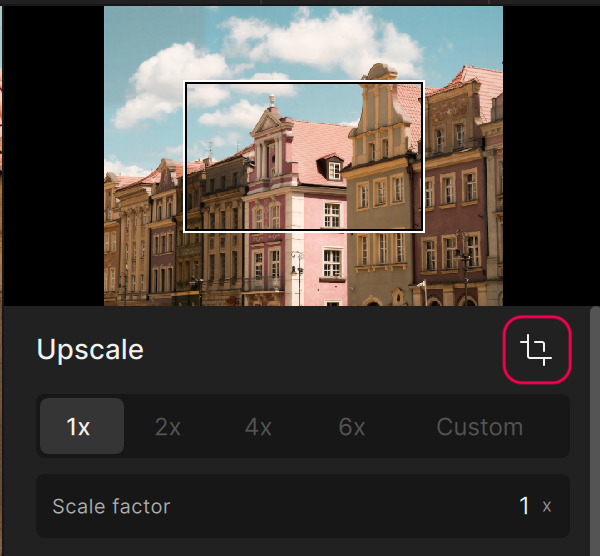
The Crop panel opens and shows the different options to change the file dimensions of your image.
Select from different aspect ratios provided in the dropdown menu or set your own custom crop using pixel dimensions.You can type your specific width or height or resize the image manually.
Use the crop corners and lines to create a crop.
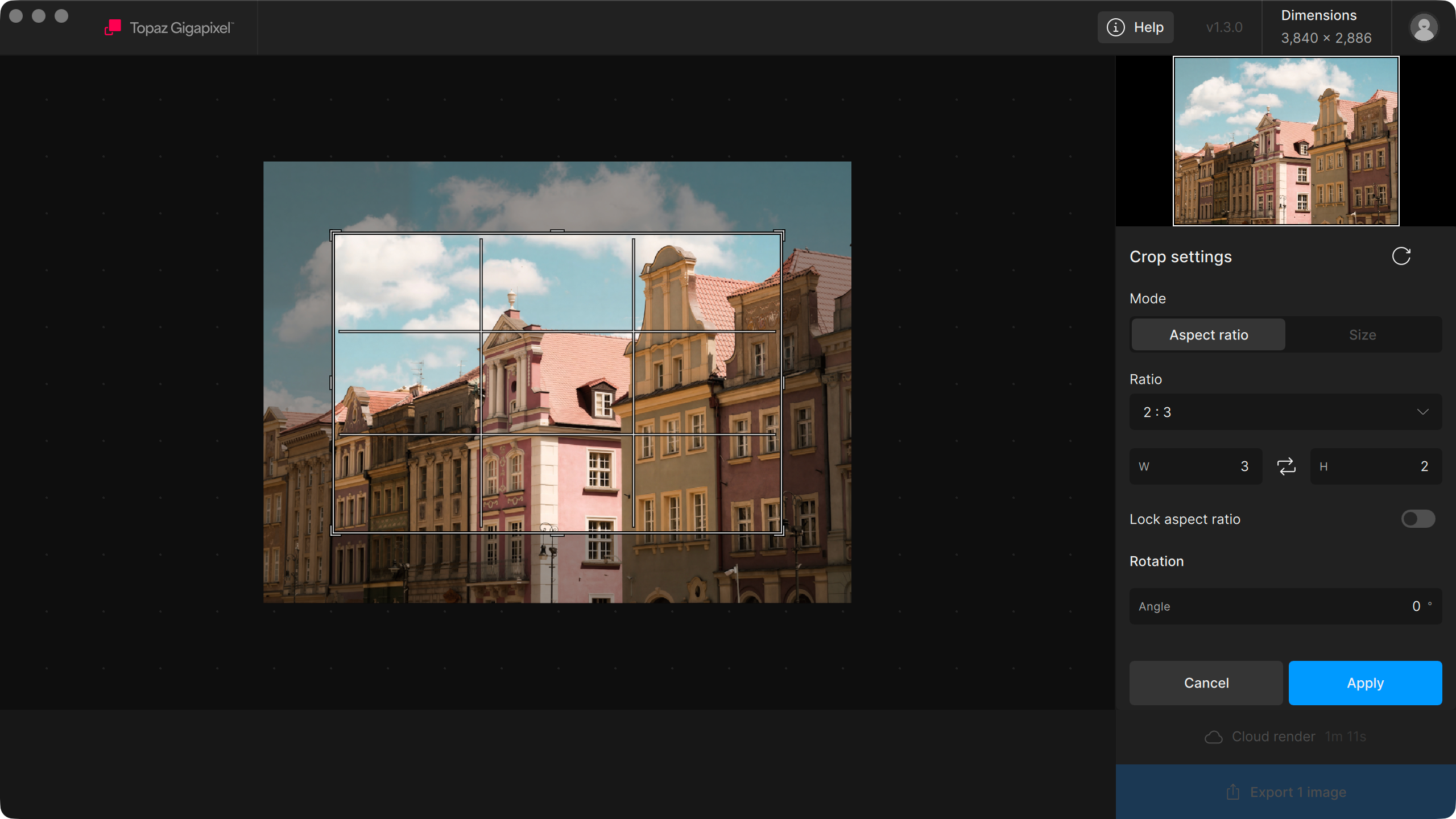
Change the rotation of your image by clicking anywhere around your image in the preview and drag it around. You can review the degree of the angle rotation located in the Crop panel.
To undo your custom crop, click on the "Reset" button to return the crop to its original ratio.
Change the orientation of your crop by selecting the opposing arrow symbol between the Width and Height.
Once you have decided on your crop, click Apply.