My Files
My Files is your library: every asset you've uploaded and every result you've generated, images and video together, including your past Astra renders. Find it at app.topazlabs.com/files.
Finding a file
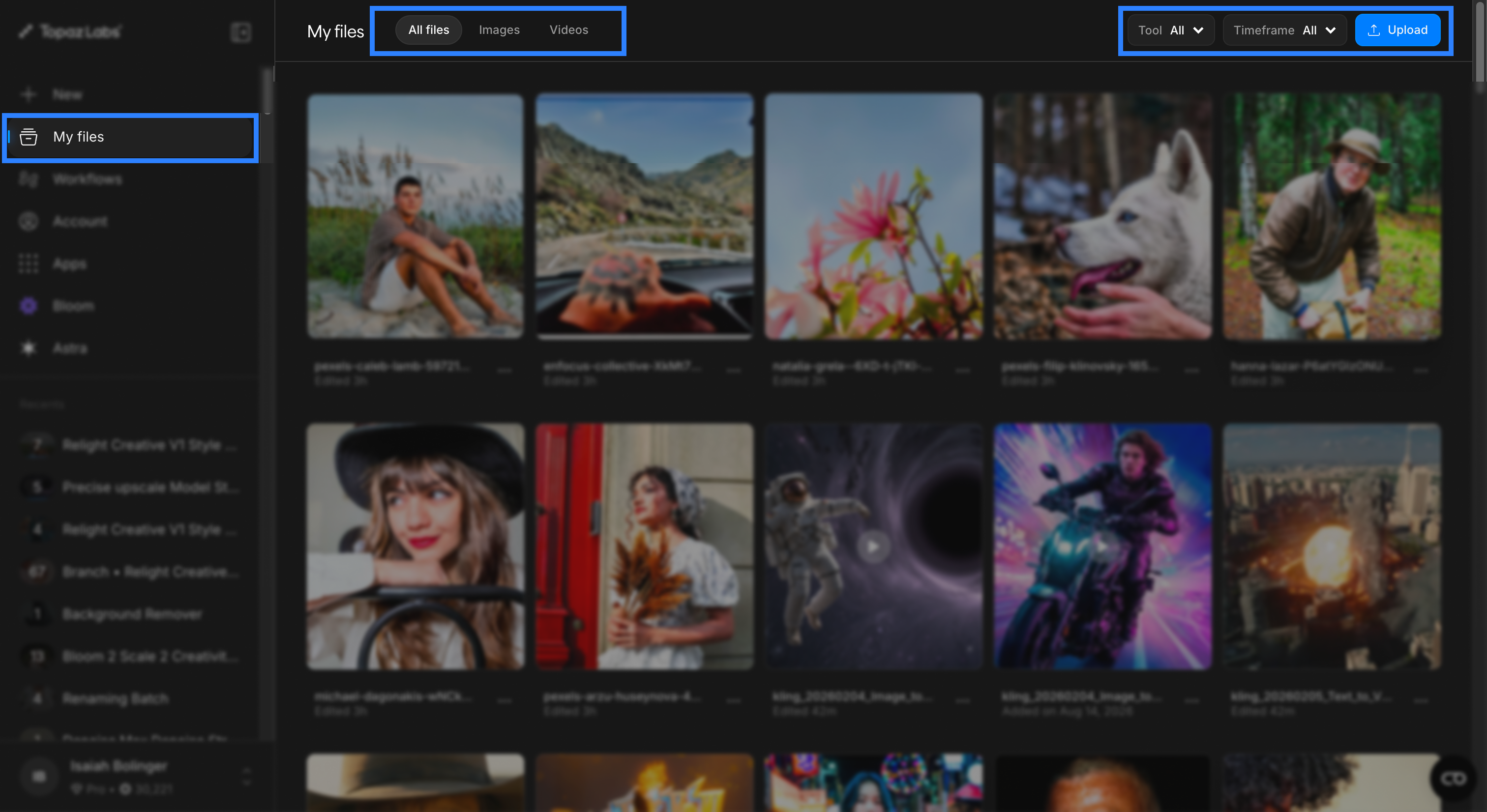
Three tabs across the top split your library by type: All files, Images, and Videos.
Two filters narrow things further:
- Tool: Filter by the tool that produced a result. Image tools and video tools are listed separately, so you can jump straight to everything you ran through Autopilot, Bloom 2, Precise Upscale, Starlight, and so on.
- Timeframe: Filter by when a file was last worked on. Recent covers Today, Yesterday, individual weekdays, Last week, and This month, with Months and Years below for anything older.
Upload in the top right adds new files to your library directly, without starting a batch.
Reading the grid
Each card is one source file. Underneath, you'll see its name and either when it was last edited or when it was added.
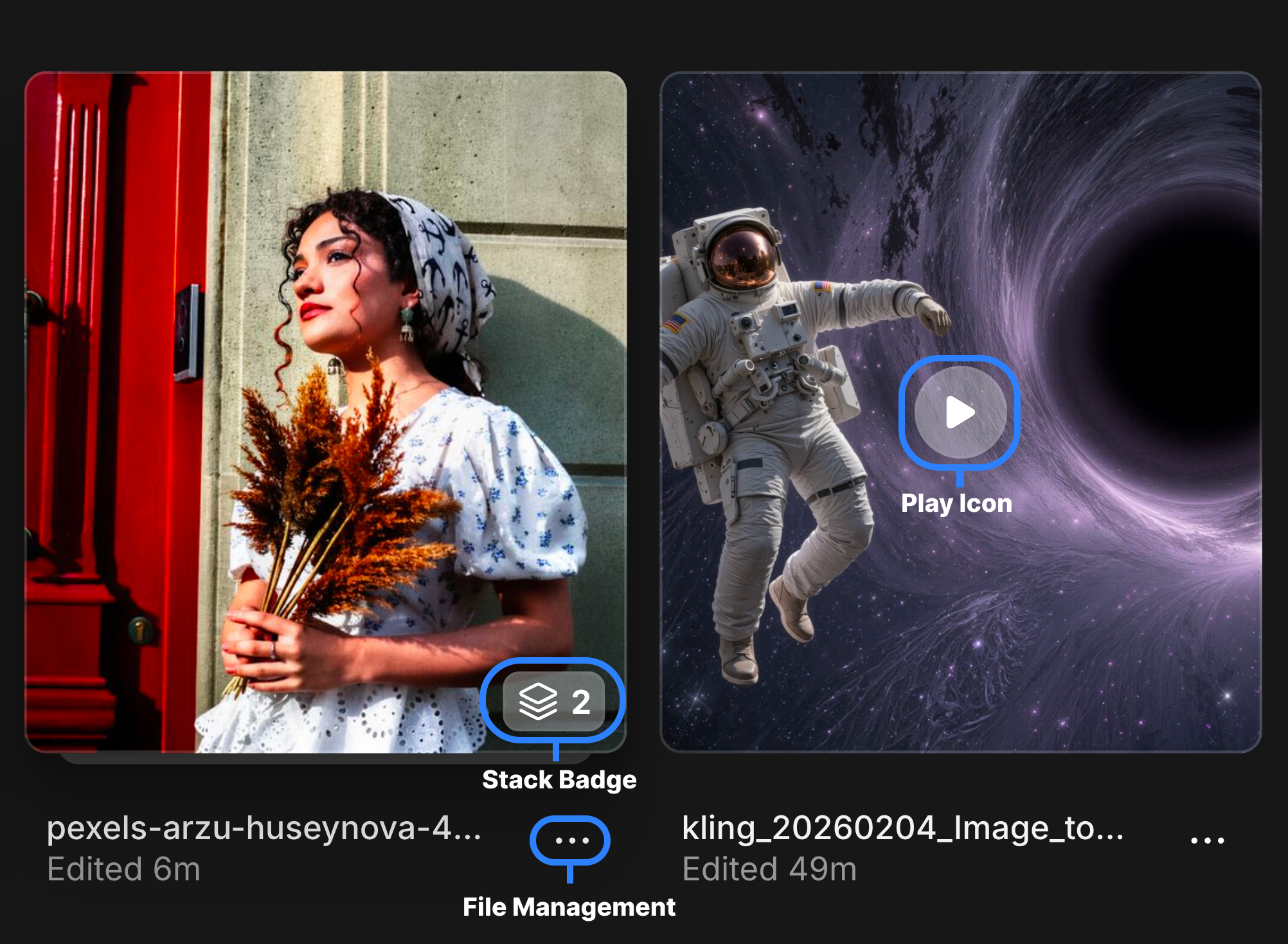
- A stack badge in the corner shows how many enhancements exist for that file. A badge reading 3 means three renders plus the original.
- Video files show a play icon on the thumbnail.
- The ··· button next to any file lets you Download, Rename, or Delete it.
Opening a file
Click any file to open it full screen.
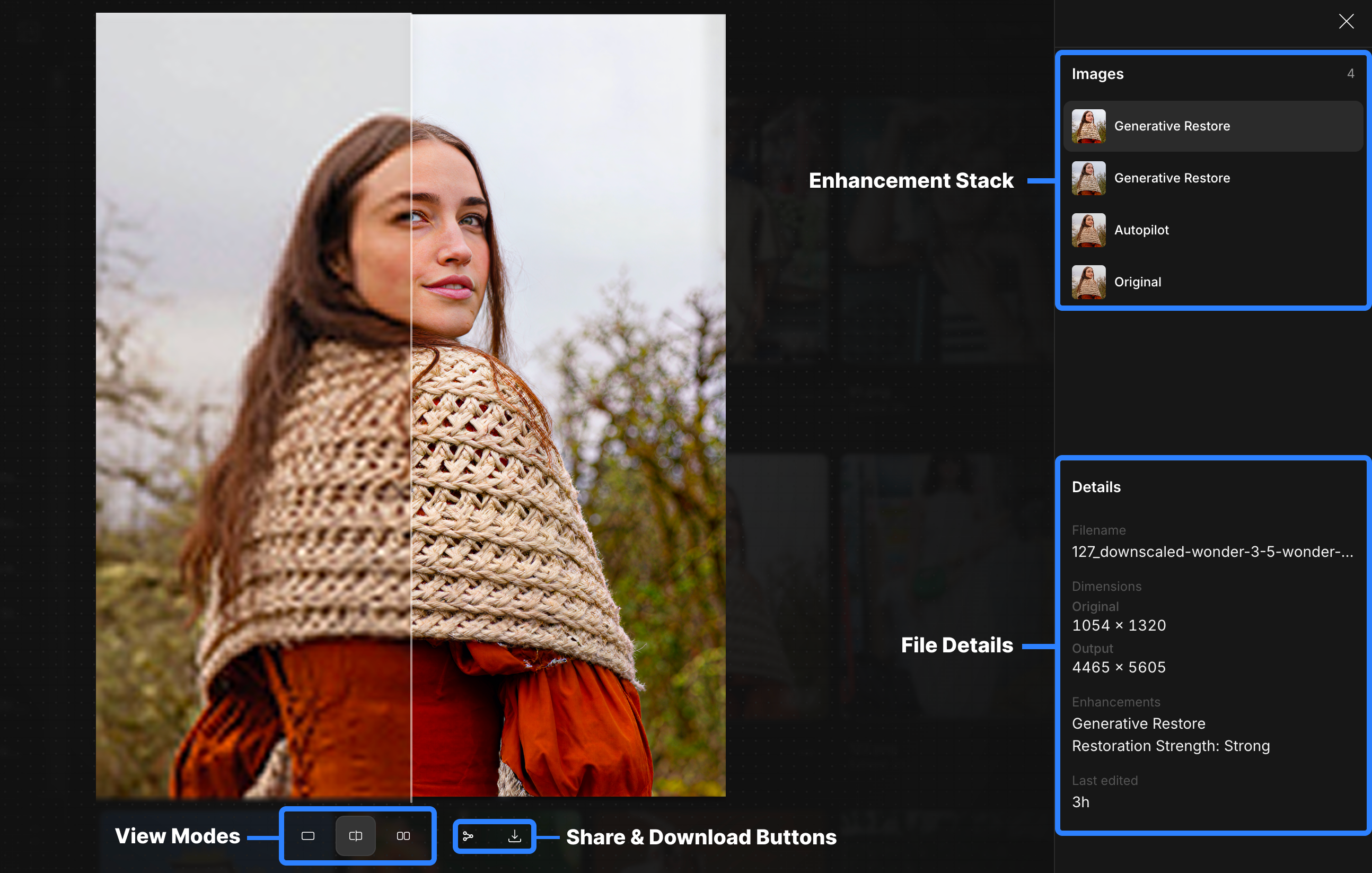
Every enhancement stacks onto its source file, so the panel on the right lists all of its variations, each render named for the workflow that produced it, with Original at the bottom. Click between them to compare.
Below Details, you'll find:
- Filename
- Dimensions: Original and output
- Enhancements: The workflow used and every setting applied
- Created date
- For video, also Duration and Frame rate
Use the view modes at the bottom to switch between the enhanced result, a slider, and side by side. From here you can also download the file or share the before and after.