Denoise Non-RAW
The Denoise enhancement eliminates distracting noise caused by low-light conditions or file compression while recovering crisp details. It also handles slight chromatic aberration.
- Denoise is not meant to remove RAW noise on RAW files. It is meant to remove noise in shadows from low-light conditions, and using it for RAW noise will cause artifacts and overprocessed results.
- See section below if working with RAW files for workflow on how to access RAW Denoise for better results.
Controls
Use the Controls tab to select the AI model and adjust the settings. View the Selection article for more info on how to adjust the mask and select different parts of the image.
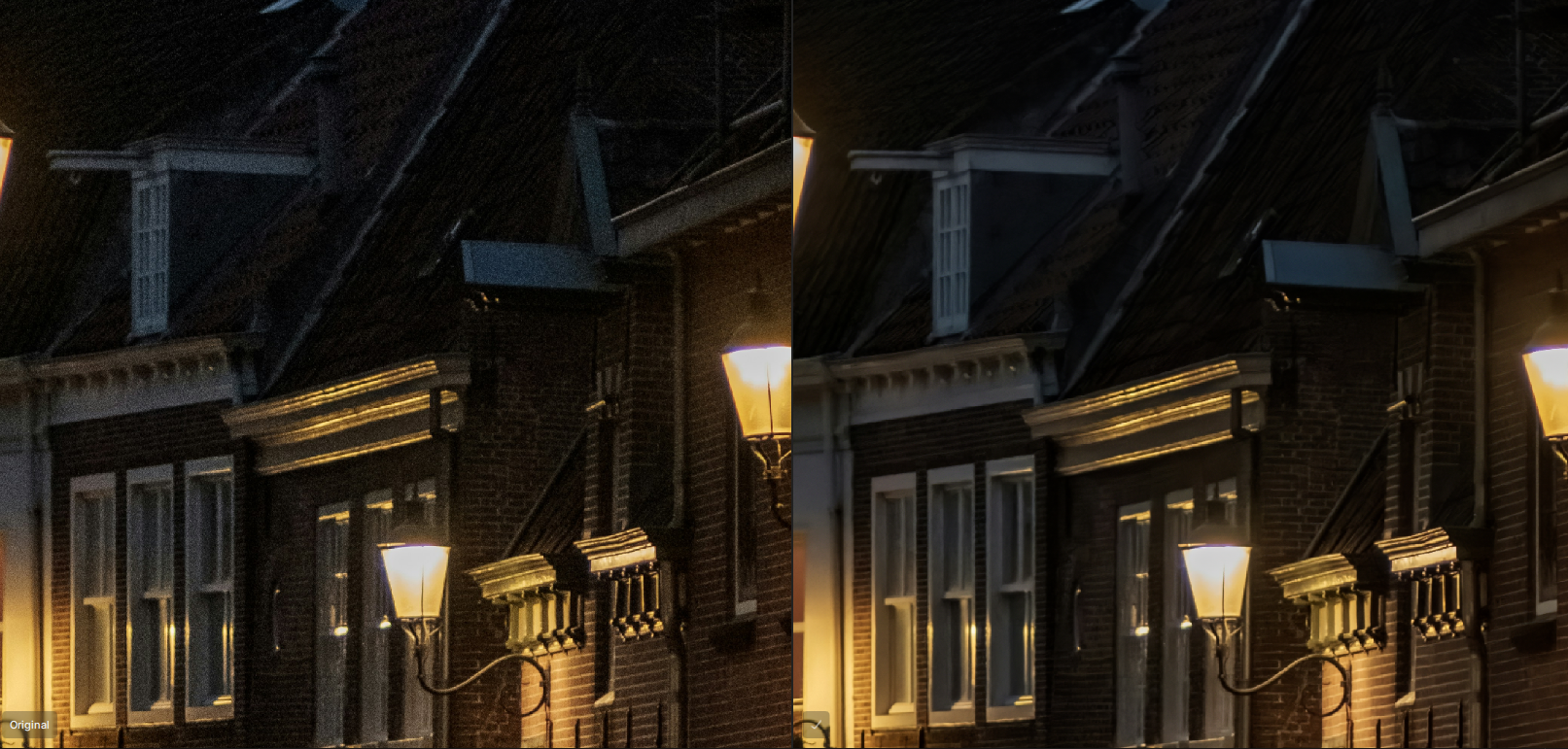
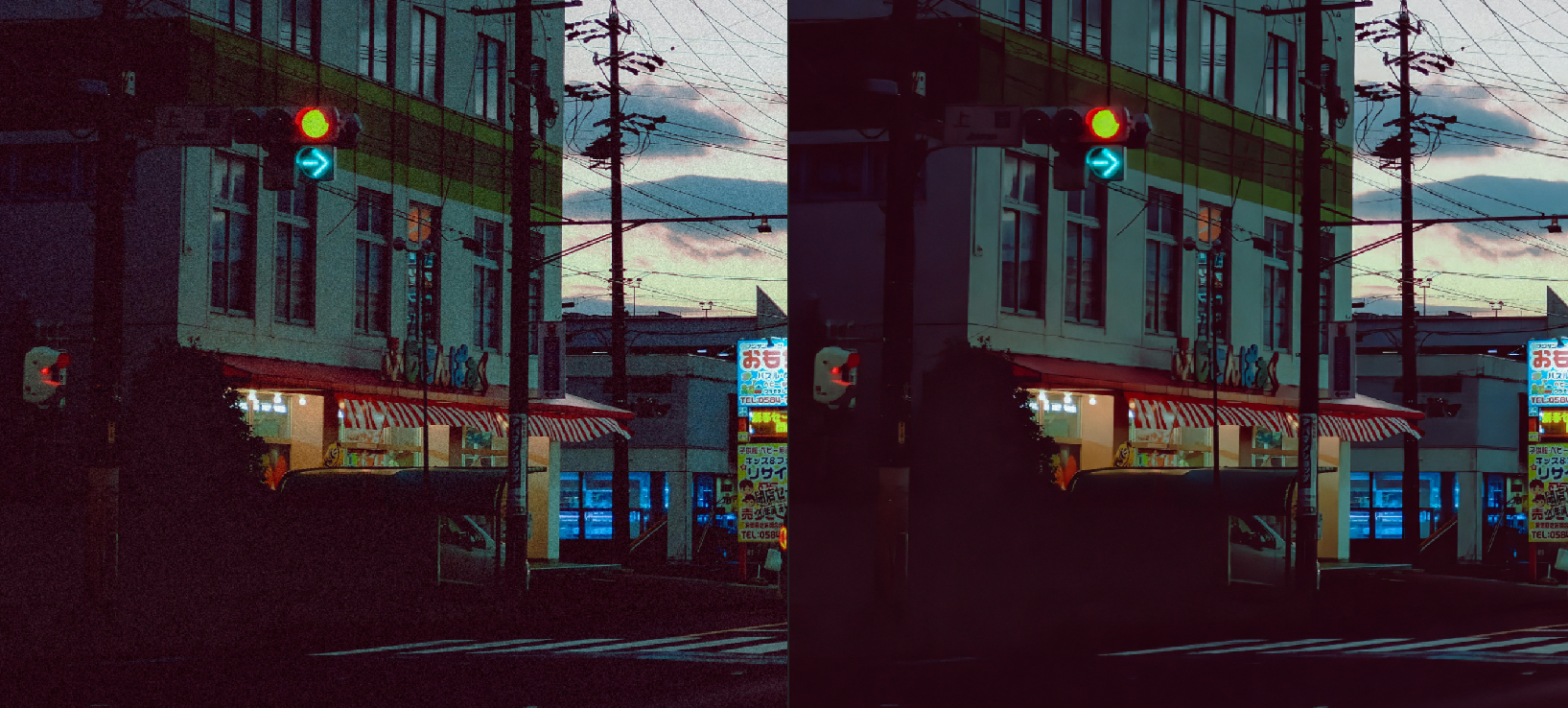
AI Models
Normal
Use the Normal model to remove low to medium noise caused by low-light conditions or compression artifacts. Ideal for images from smartphones and cameras with built-in denoise, where preserving a natural look is important. Start with Normal and move up only if noise remains.
Strong
Use the Strong model for medium to high noise images. It balances noise reduction with detail retention and works well for low-light shots where more cleanup is needed without losing too much texture.
Extreme
Use the Extreme model for very high noise or heavy compression. It prioritizes removing as much noise as possible, even if some detail is lost. Best for difficult images where cleanliness matters more than fine detail.
Denoise MAX
Released in v1.5.0 - This is our first generative denoising model, designed to reconstruct detail rather than just remove noise. It is slower due to its generative approach and works best on high-resolution images.
Use Denoise Max for extreme noise where other models cannot recover detail.
Local Rendering
- Windows: NVIDIA or AMD Graphic card with 8GB VRAM or more
- Mac: Apple Silicon (M-series) machines with 16GB RAM minimum
Local rendering is not supported on:
- Intel Macs
- Windows ARM / Snapdragon systems
Cloud Rendering:
You can also use Cloud processing (up to 100MP), which provides the best performance and results.
Additional Settings
Strength
Adjust the Strength slider towards higher values to remove more noise. Moving it lower preserves more detail but allows more noise in the output.
Minor Deblur
Use the Minor Deblur slider to counteract some of the smoothening done by removing noise. Avoid using this if the Sharpen filter is already on to prevent over-processing.
Original Detail
Use the Original Detail slider to restore fine details lost during noise reduction. Unlike reducing the Strength slider, the slider brings back some of the original details. Some luminance noise will also return, but not color noise, which is preferred for a natural look.
If you shoot RAW
It's important to mention that if you shoot RAW, with a camera that has a Bayer sensor, make sure to import your RAW file directly in Topaz Photo (in standalone or from a plugin that supports sending the RAW file to Topaz Photo), to benefit another enhancement -> RAW Denoise.
- This RAW Denoise enhancement is different then Denoise. RAW Denoise will only kick in by importing the RAW file in Topaz Photo.
- It will remove the RAW noise and hotpixels on this RAW file. Denoise is a different enhancement and is meant for low-light noise, not for RAW noise removal.
- Using Denoise to remove RAW noise may create artifacts and will not allow for hot pixel removal.