Legacy Creative Apps
Legacy Creative Apps
Classic Studio, Topaz Studio 2, and the classic Topaz plugins are discontinued and no longer receive updates or technical support.
These products were developed for older operating systems and host applications. Compatibility with newer versions of macOS, Windows, and Adobe applications is not guaranteed, and functionality may degrade over time.
If the troubleshooting steps on this page do not resolve the issue, no further support is available for these products.
About Topaz Studio
Topaz Studio and Topaz Studio 2 were creative-editing desktop applications discontinued in 2019 and 2020.
Today, Topaz Studio refers to a subscription bundle containing current Topaz products. Although it shares the same name, the current Topaz Studio bundle is not the discontinued Topaz Studio or Topaz Studio 2 creative-editing application.
Review Legacy Product Downloads for available installers.
Review Legacy System Requirements before attempting to install or troubleshoot these products.
Classic Plugin Replacements
Many classic plugin features were incorporated into Topaz Studio 2 or replaced by newer Topaz applications.
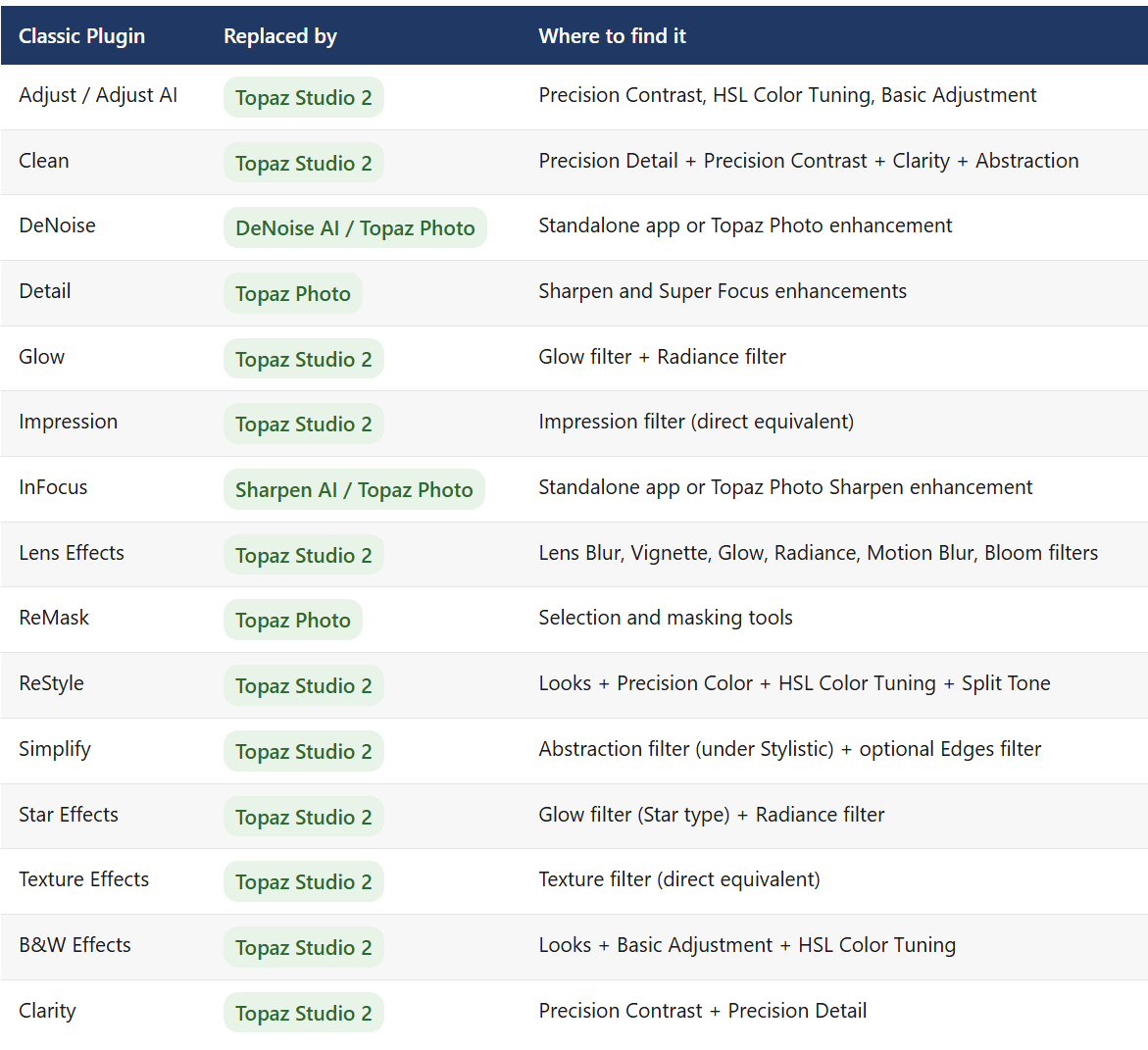
A feature listed as available in Topaz Studio 2 does not mean that Studio 2 is a currently supported replacement. Compatibility with newer computers and operating systems is not guaranteed.
Recreating Classic Effects in Topaz Studio 2
Topaz Studio 2 includes more than 40 filters and 300 Looks that can recreate many effects previously available in the classic plugins.
Because Studio 2 is discontinued, these workflows are provided for customers who already have a functional installation.
Adjust and Adjust AI
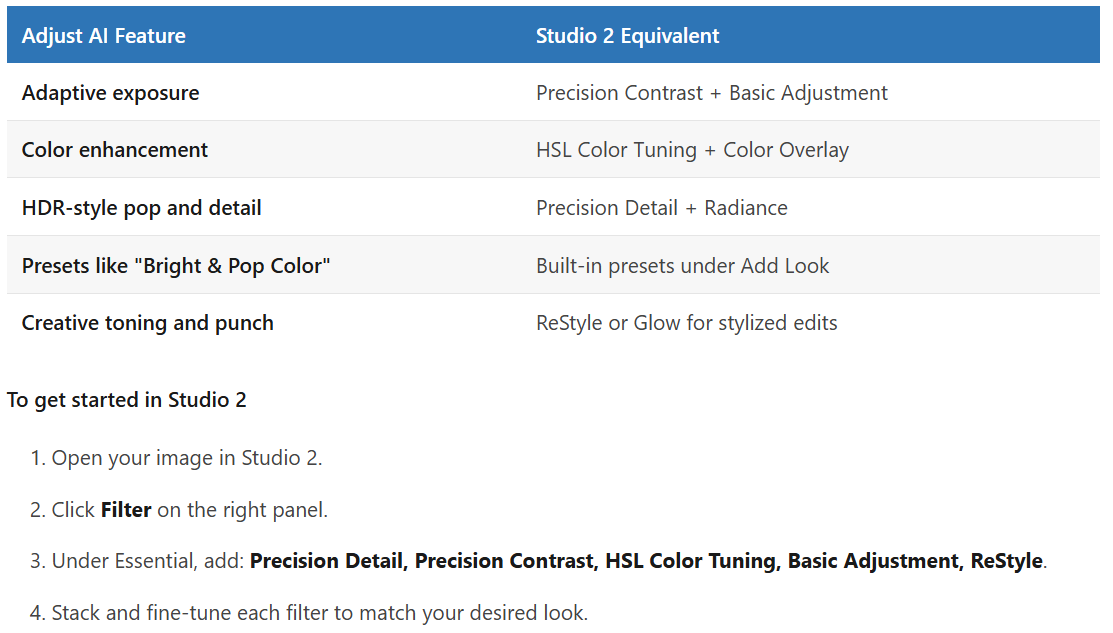
Use the following Studio 2 filters to recreate Adjust and Adjust AI functionality:
B&W Effects
Black-and-white effects can be recreated by combining:
- Looks
- Basic Adjustment
- HSL Color Tuning
- Precision Contrast
- Precision Detail
- Vignette
Adjust the individual filters to control contrast, tonal range, detail, and the brightness of specific colors in the black-and-white conversion.
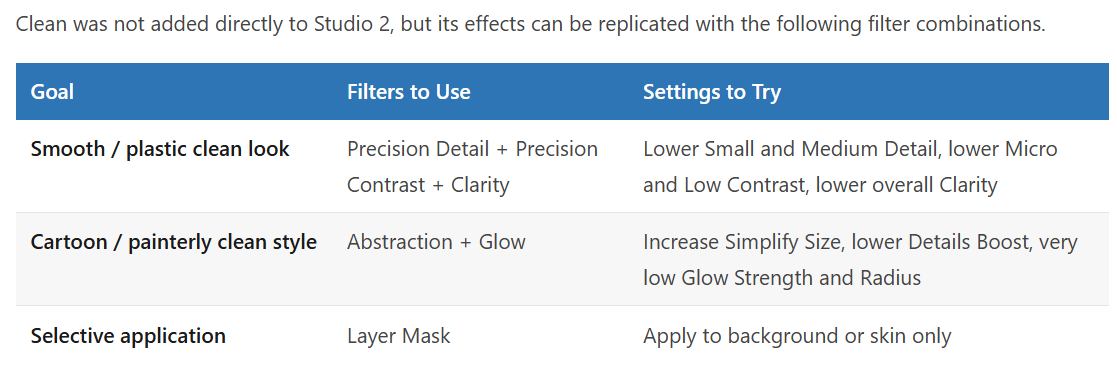
Clean
Glow
Use the Glow and Radiance filters to recreate effects from the classic Glow plugin.
Adjust the strength, radius, opacity, and blend mode to control the intensity and spread of the effect.
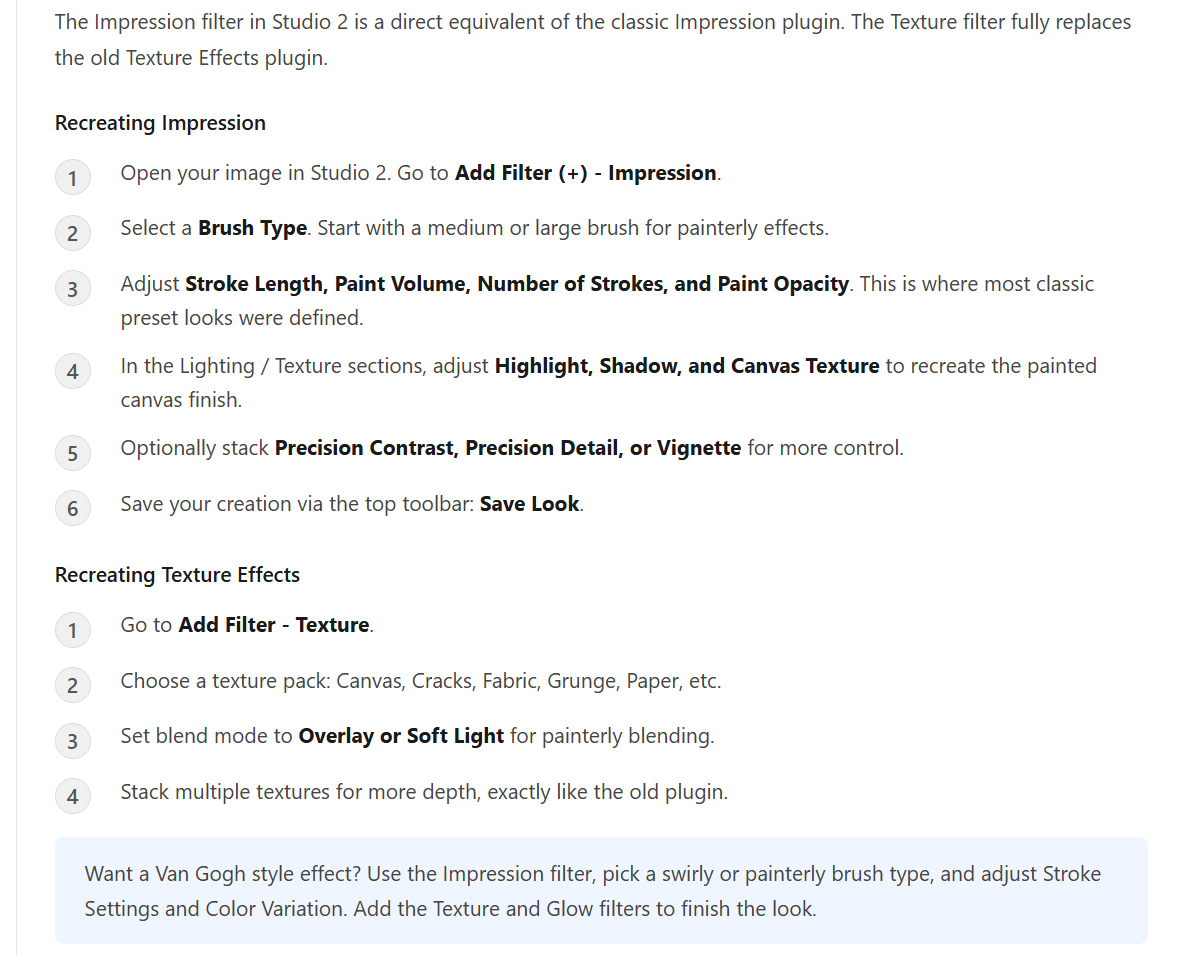
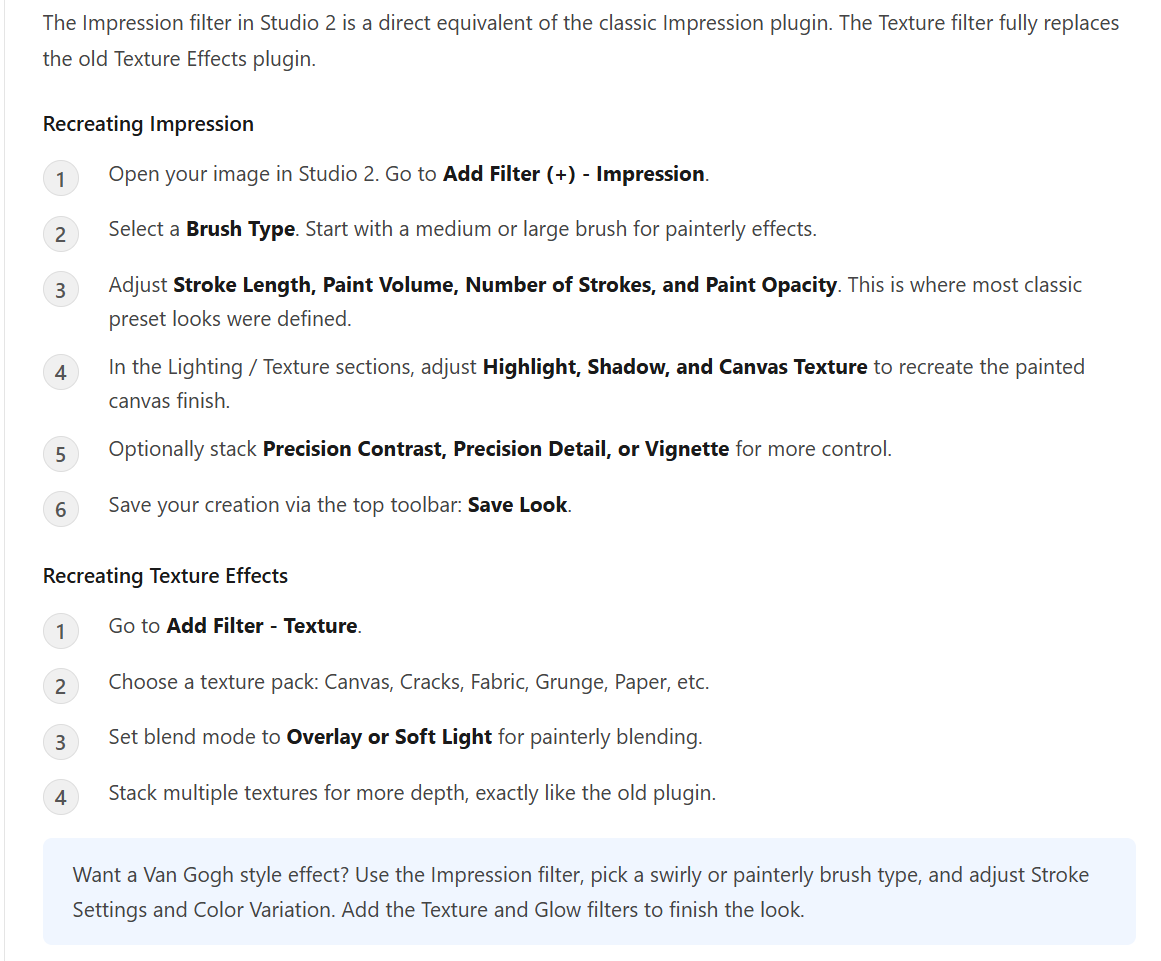
Impression & Texture Effects
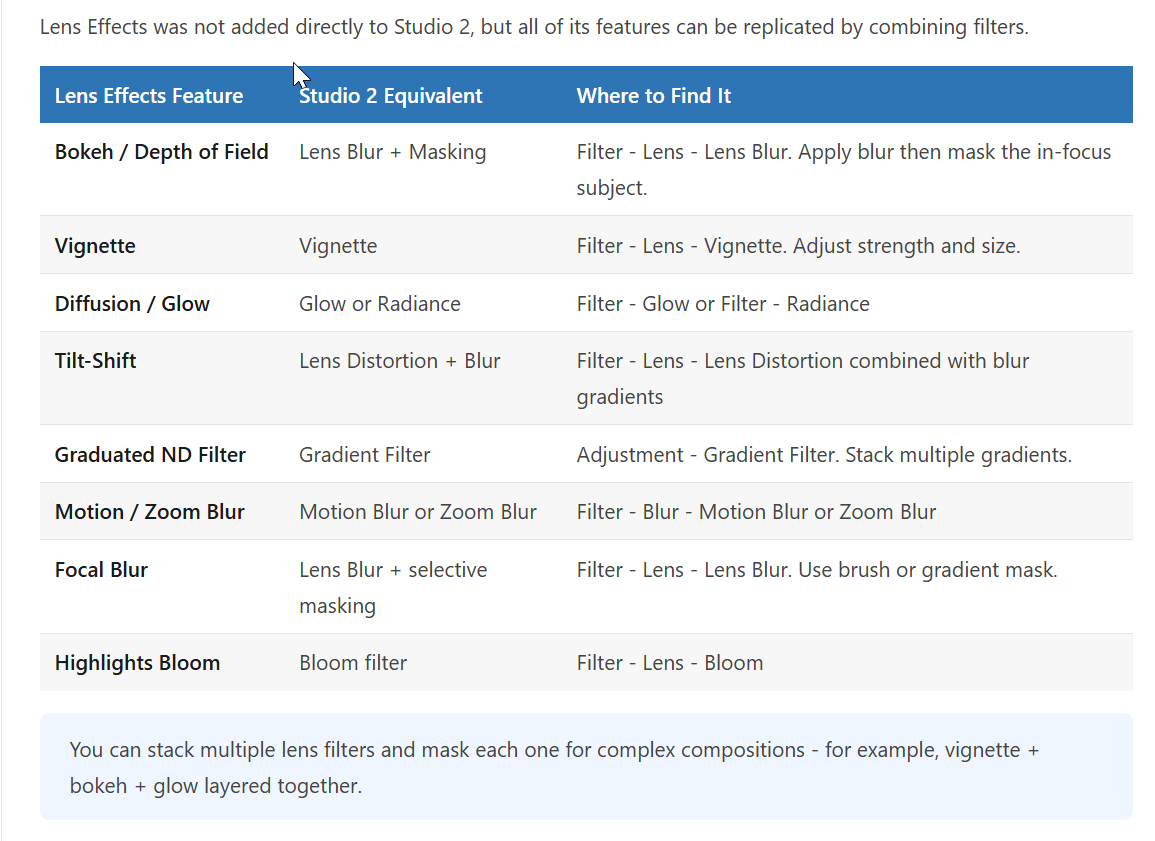
Lens Effects
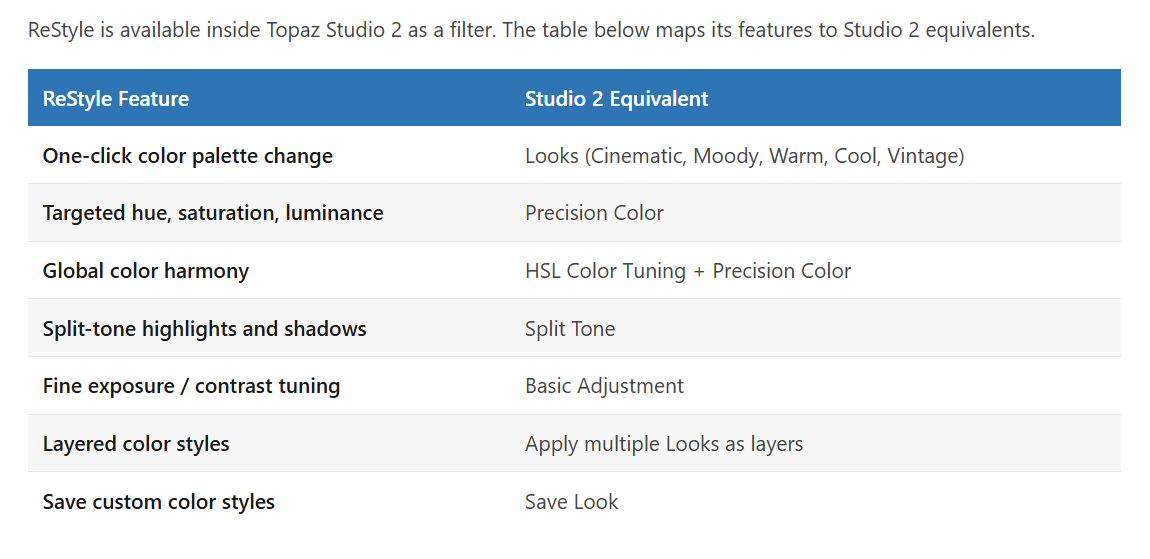
ReStyle
Simplify
Studio 2 does not include a filter named Simplify. Similar results can be created using Abstraction, located under the Stylistic filters.
- Select Filters > Stylistic > Abstraction.
- Increase the strength or scale to flatten fine detail.
- Adjust the detail and texture controls to preserve larger shapes.
- Add Edges to restore outlines if desired.
- Reduce the Edges opacity or use the Multiply or Overlay blend mode if the outlines are too strong.
For a painted effect, add Impression or Smudge after Abstraction. For a graphic effect, use Abstraction and Edges.
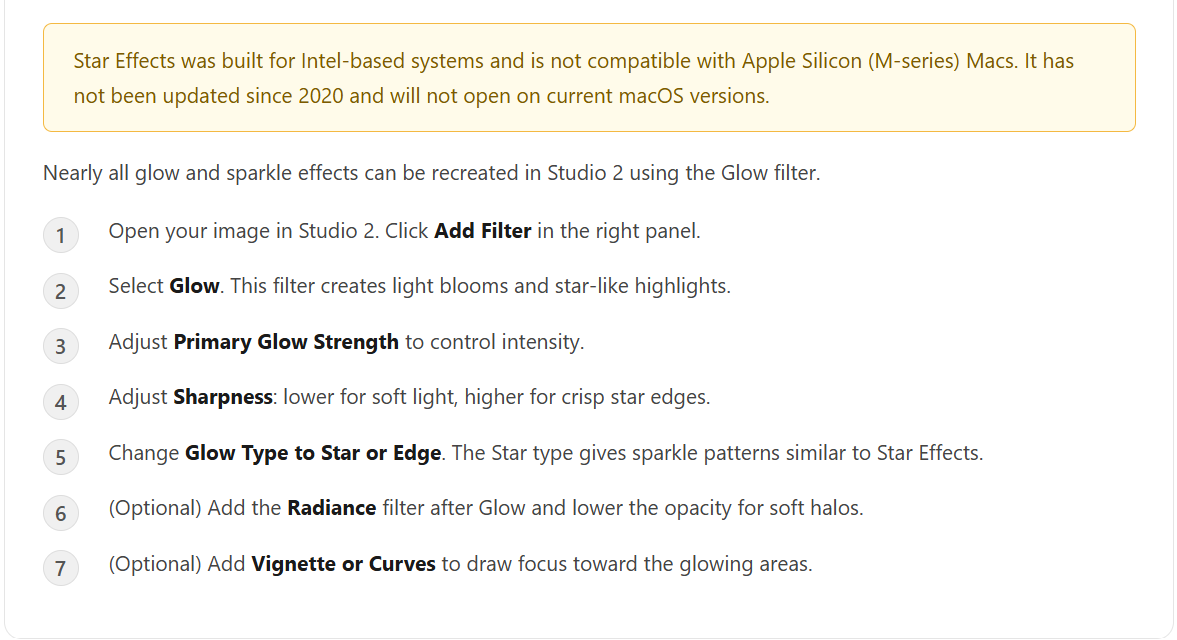
Star Effects
License Keys and Trial Mode
Classic plugins use individual license keys instead of an email address and password.
After reinstalling a classic plugin, its original license key must be entered again.
- Sign in to your Topaz Labs account.
- Open the My Products page.
- Locate the license key for the specific plugin.
- Open the plugin and enter the key when prompted.
Each plugin has its own license key. A key for one classic plugin cannot activate a different plugin.
If the correct license key is not accepted, no additional activation troubleshooting may be available for the discontinued product.
Back Up Custom Looks
Uninstalling Topaz Studio 2 may remove custom Looks. Back them up before uninstalling or reinstalling the application.
Windows
The default Looks folder is:
C:\Users\{YourUsername}\AppData\Local\Topaz Labs LLC\Topaz Studio 2\Looks
- Navigate to the folder above.
- Copy the entire Looks folder to a safe location.
- Reinstall Topaz Studio 2.
- Copy the Looks folder back to the same location.
macOS
The default Looks folder is:
~/Library/Application Support/Topaz Labs LLC/Topaz Studio 2/Looks
- Open Finder.
- Press Command + Shift + G.
- Enter the folder path above.
- Copy the entire Looks folder to a safe location.
- Reinstall Topaz Studio 2.
- Copy the Looks folder back to the same location.
The exact location may vary depending on the installed application version.
Limited Troubleshooting
Troubleshooting for Classic Studio, Topaz Studio 2, and the classic plugins is limited to a clean reinstallation.
Windows
- Uninstall the application using Add or Remove Programs.
- Restart the computer.
- Download a fresh installer from Legacy Product Downloads.
- Reinstall the application.
- Launch it once as a standalone application.
If the application continues to fail after reinstalling, no additional troubleshooting is available.
macOS
- Move the application to the Trash.
- Remove its associated
.plistpreference files. - Restart the computer.
- Empty the Trash.
- Download a fresh installer from Legacy Product Downloads.
- Reinstall the application.
- Launch it once as a standalone application.
If the application still will not launch, no supported fix is available.
Third-Party Plugin Compatibility
Classic plugins and Topaz Studio 2 may not function in current versions of Adobe Photoshop, Lightroom Classic, Photoshop Elements, or other third-party host applications.
Updating a host application may cause a previously working plugin to:
- Disappear from the host application
- Fail to launch
- Crash during processing
- Return the user to the host application without applying the effect
- Open in trial mode
- Stop functioning entirely
Compatibility with current or future third-party applications is not guaranteed.
Manual installation instructions and workarounds for unsupported host applications are not available.
When to Stop Troubleshooting
No further troubleshooting is available if:
- The application fails to launch after a clean reinstallation.
- The application repeatedly crashes.
- A classic plugin does not appear or launch in a third-party application.
- The application is incompatible with the installed version of macOS or Windows.
- A license key is no longer accepted by the discontinued product.
- Topaz Studio 2 cannot load or restore custom Looks.
- The application or plugin previously worked but stopped functioning after an operating-system or host-application update.
Because these products are discontinued and no longer under active development, Topaz Labs cannot provide compatibility updates, patches, or additional workarounds.