Recover Faces
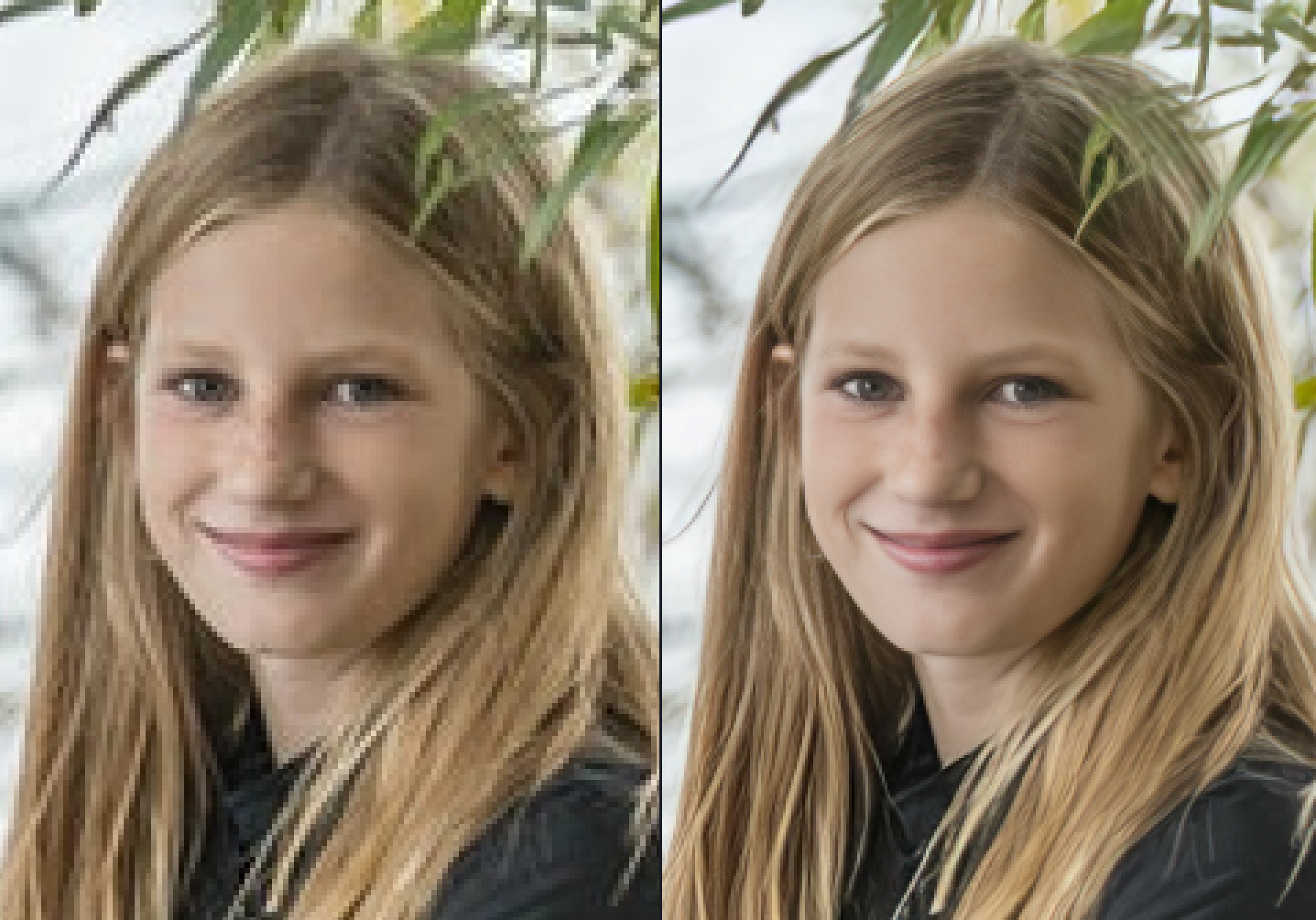
Clarity in facial features enhances an image’s communicative value. The Face Recovery enhancement recovers small or low-resolution faces by generating a high-quality version and blending it with the current face.
Versions
Recover Faces v3 is the newest model available, and was released in v1.6.0. The new v3 model is a generative recover faces model that processes each face separately. Each additional face selected will increase processing time. For example, 4 similarly sized faces will take 4x the time compared to 1 face of the same size.
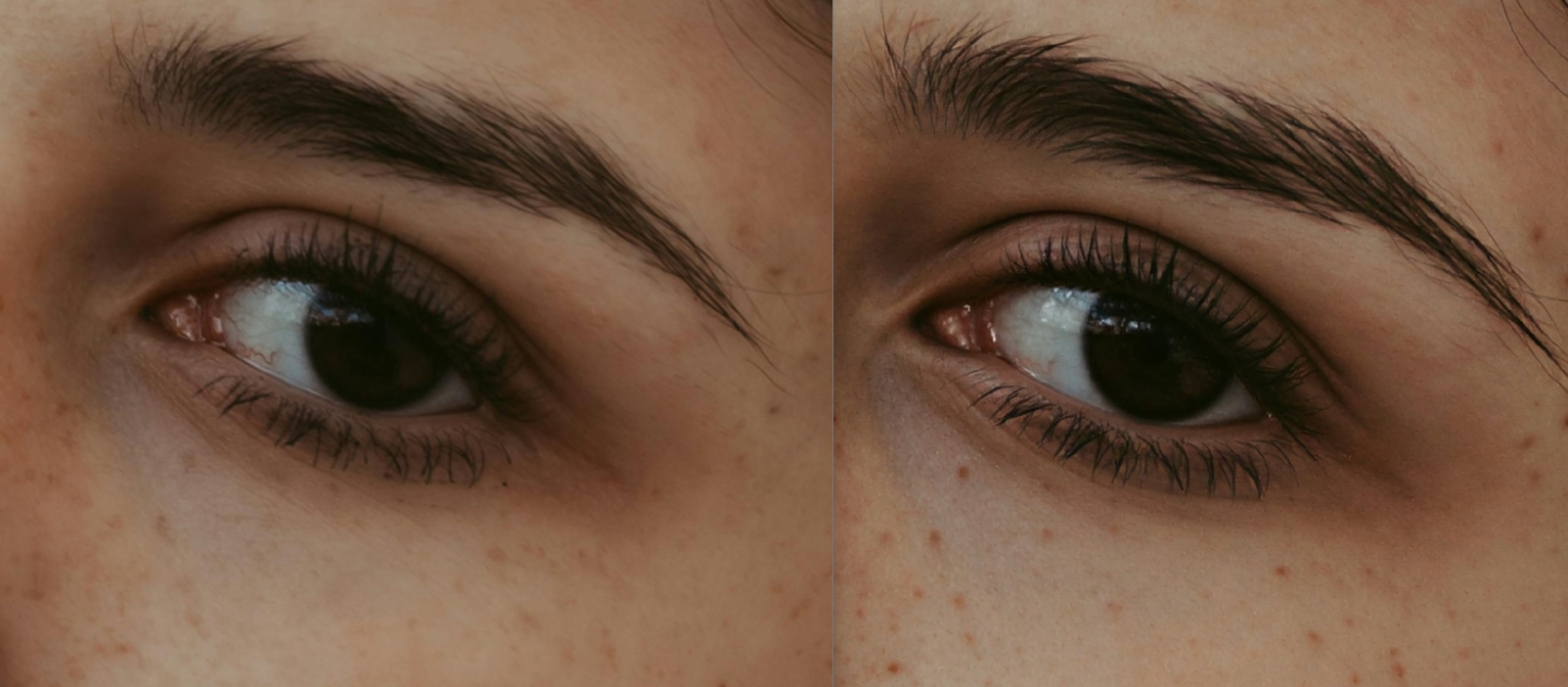
For faces already with decent quality and below the 512x512 pixel limit, Recover Faces v2 will still do the job and process faster. For large faces that need recovery, blurry faces, or anything degraded enough that Recover Faces 2 struggled, 3 is the better starting point. and the quality difference is worth the extra processing time.
Availability
Recover Faces 3 runs on NeuroServer and processes locally on NVIDIA, AMD, and Apple Silicon (macOS 14 or later). Cloud render is available for unsupported hardware, up to a maximum output size of 100MP.
System Requirements for Local processing:
- Windows: NVIDIA or AMD Graphic card with 8GB VRAM or more
- Mac: Apple Silicon (M-series) machines with 16GB RAM minimum
Not supported on:
- Intel Macs
- Windows ARM / Snapdragon systems
How to use
On file import, Topaz Photo will analyze the file and look for faces. Then, you can either manually add the "Recover Faces" enhancement or if you have Autopilot on, it will kick in automatically when faces are detected.
- Once the Recover Faces enhancement is added, make sure that all the faces you want to enhance have a yellow selection around their faces.
- Use the Controls tab to change the Strength for Recover Faces.
- To get a good blend, check to see if Hair and Neck should be toggled on or off. You can toggle this on/off in your Selection Menu of Recover Faces or in your Edit (Topaz Photo menu on Mac) > Preferences > Recover Faces > Parts to enhance.
When to Use
Low Resolution Faces
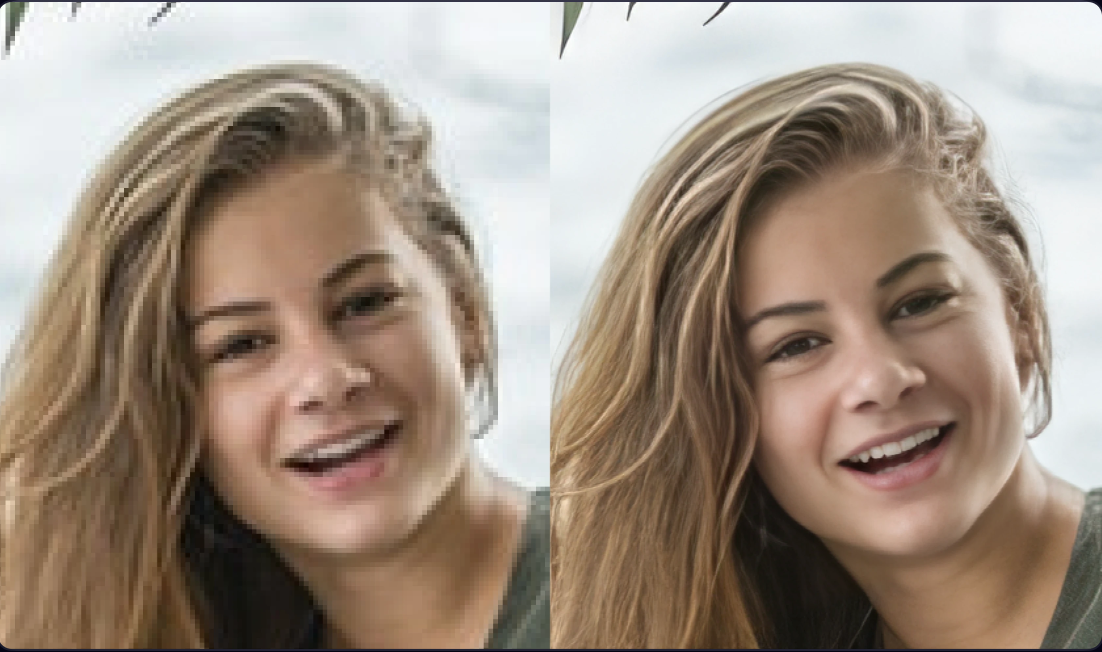
Use the Face Recovery filter on low resolution faces, even if it is large and takes up most of the image. Resolution is measured in pixels.
Small Faces
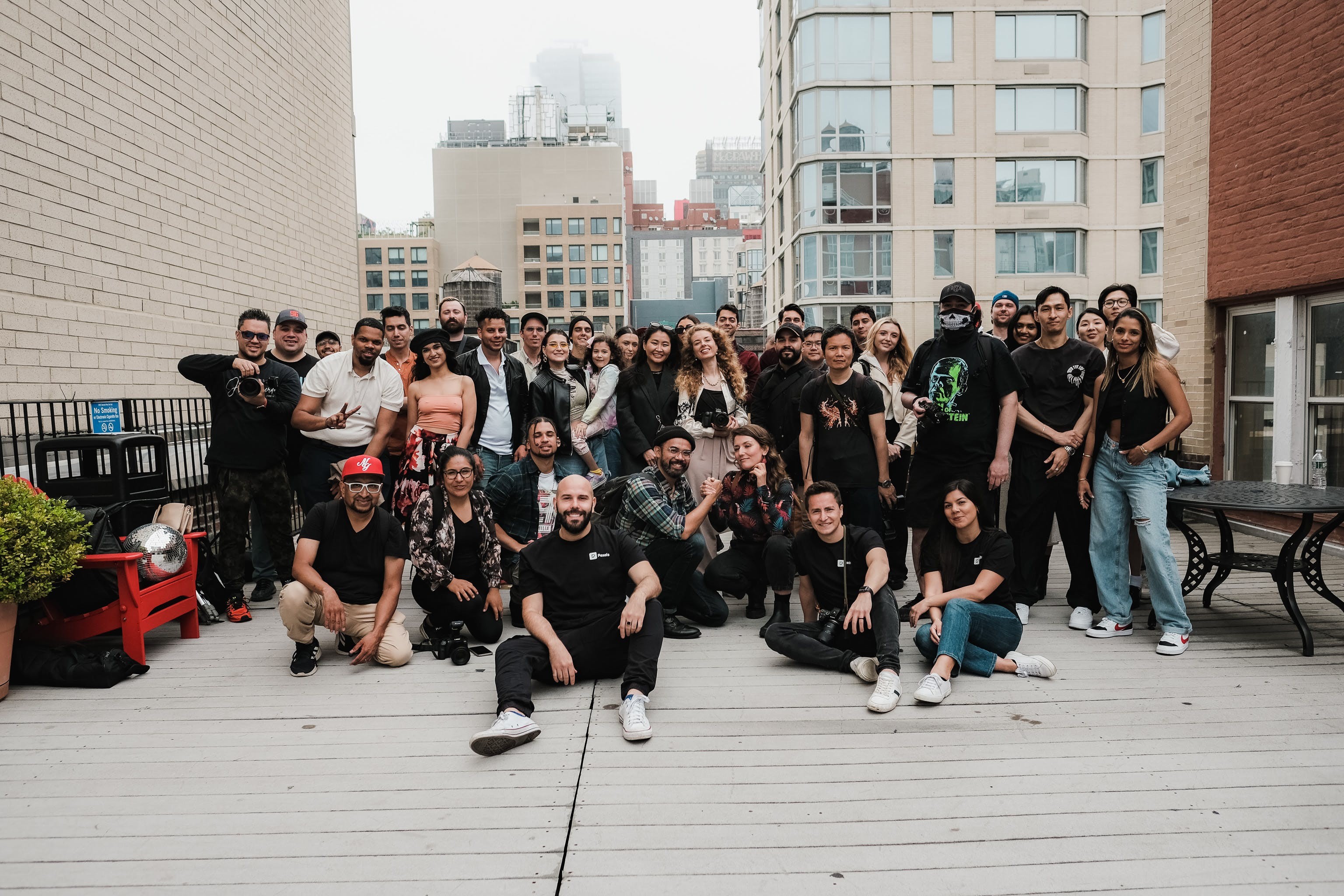
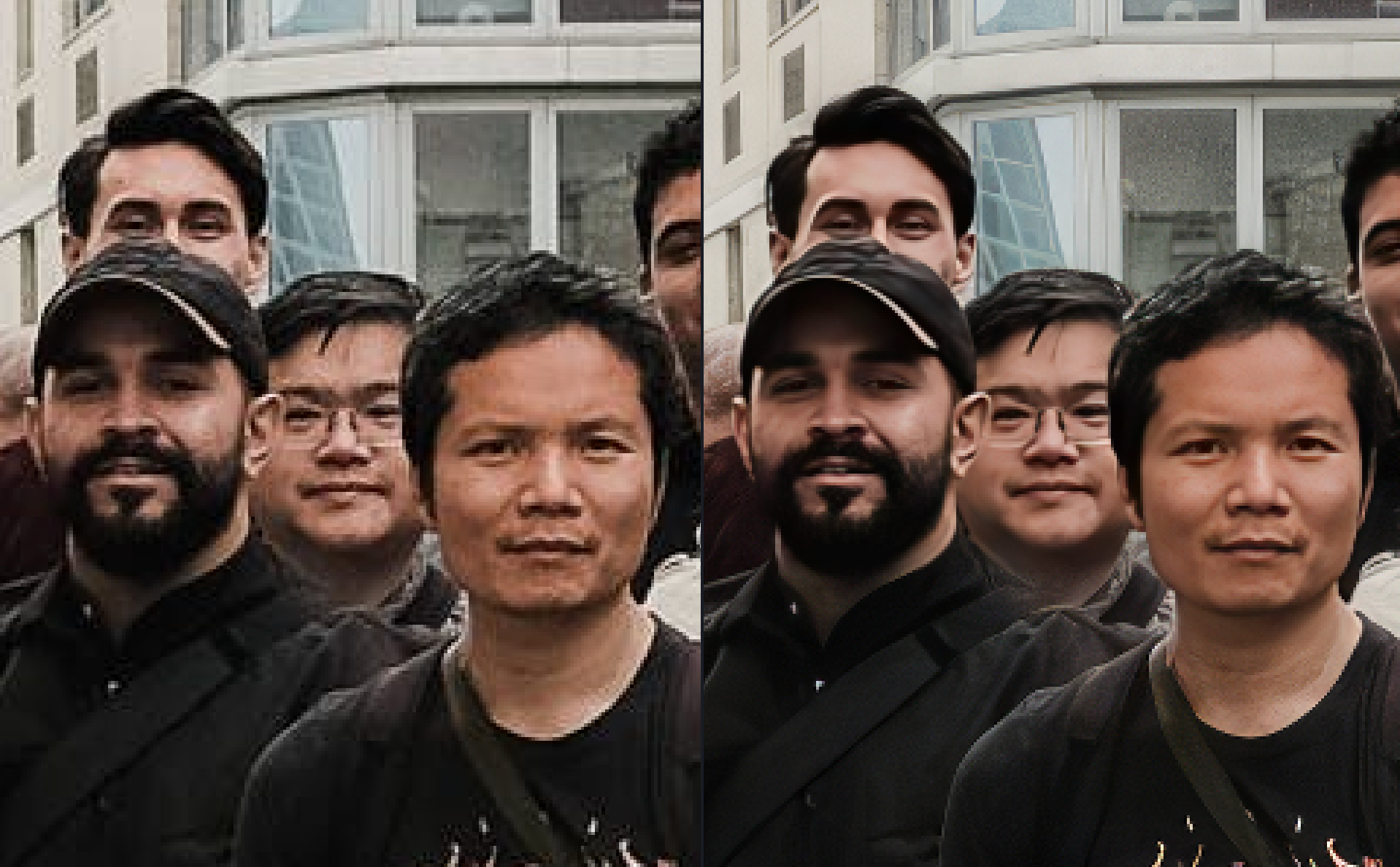
Use the Face Recovery filter when the faces are small and far away from the camera. The model generates the best results when the face still has sufficient detail. See the full image and zoomed-in portion below.
When Not to Use
Portraits
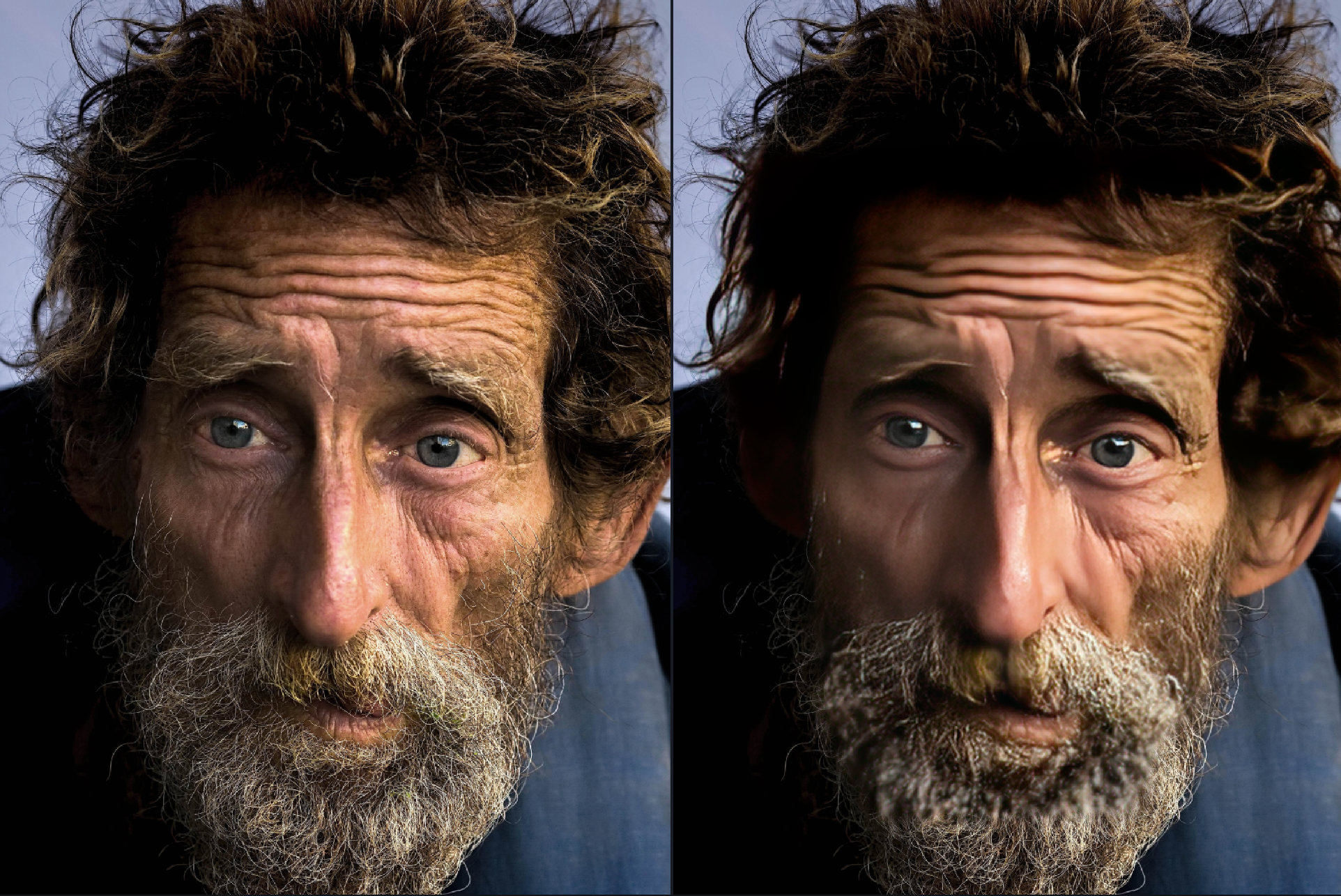
Using the Face Recovery filter can over-process faces that are already high resolution. This causes a loss of detail and creates a “plastic” feeling because it is too smooth. Make sure to look at the Sharpen Portrait enhancement instead.
Unrecognizable Faces
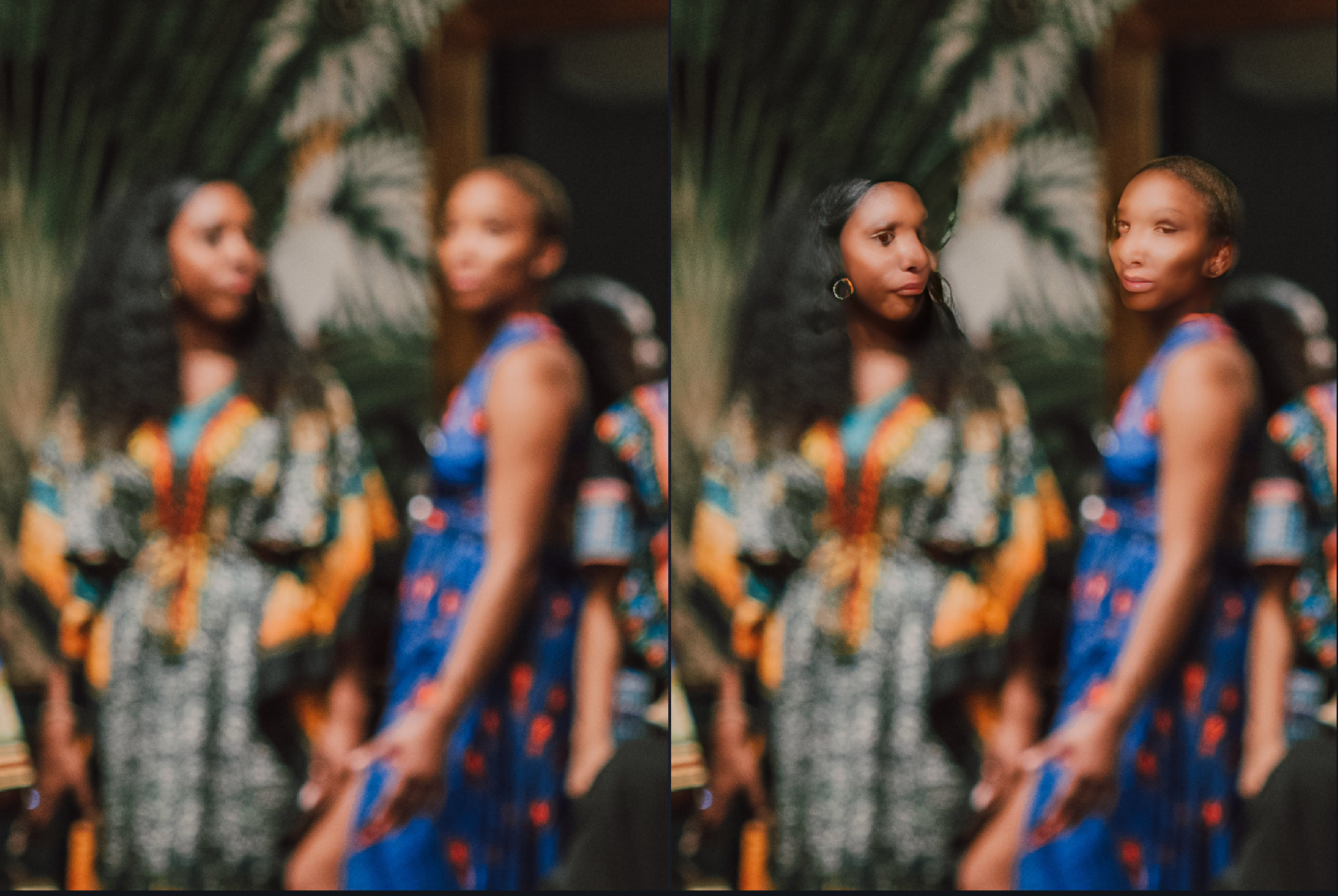
Do not use the filter for out-of-focus images, very low-resolution faces, or on faces that lack key details. The lack of detail hinders accurate facial reconstruction and will generate unrealistic artifacts.
Support
If you get any unwanted results or issues, send in the Original file and current results you are getting to support@topazlabs.com and we can provide steps to get the best possible recovery for your file.