Dust & Scratch
This is the first AI model of its kind, built specifically to handle one of the most time-consuming tasks in photo restoration—removing dust, scratches, and surface damage.
System Requirements
The Dust & Scratch AI model has higher requirements for processing than other AI models.
See the full System Requirements page here.
For Windows:
- 8GB VRAM is required for processing locally.
For Mac:
- Only supported on Mac M-Chip machines (Apple Silicon): Requires macOS 14 (Sonoma) or higher. The model also requires 16GB RAM minimum, more is recommended.
Overview
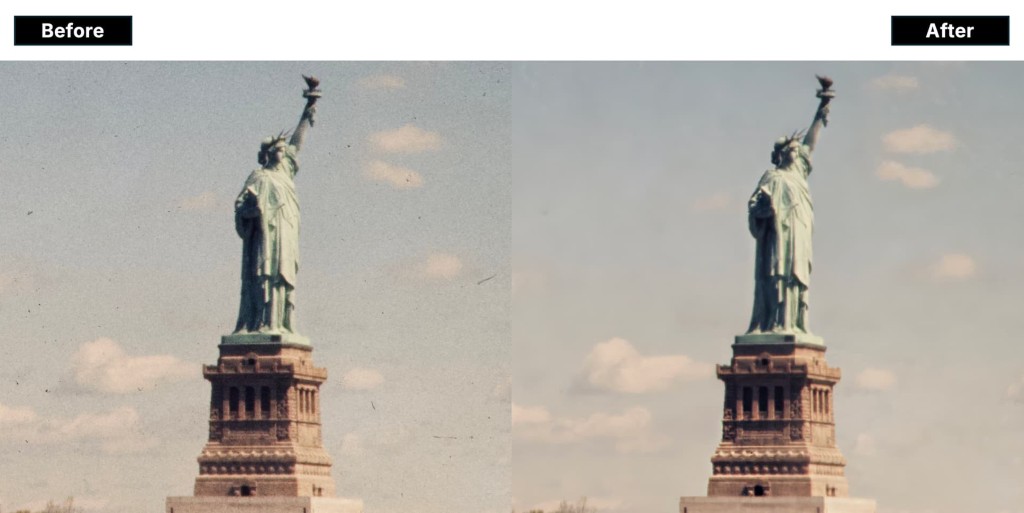
Dust & Scratch is a powerful, time-saving tool for anyone working with film scans, archival photos, and damaged prints. With Dust & Scratch v2, we’re introducing a major model update focused on improving cleanup quality while better preserving original image detail.
The Dust & Scratch model has no controls—it’s designed to give great results right out of the box and should be used early in your editing workflow.
The v2 model includes several key improvements:
- Better dust removal for small particles and fine surface debris
- Better scratch removal for thin scratches
- Improved edge handling, eliminating cases where borders and edges had worse results than the rest of the image
Dust & Scratch v2 is available for both local render and cloud render so you can use it on-device or take advantage of faster processing in the cloud.
Changes to Workflow
The v1 model is no longer available for use. All local and cloud render will use the v2 model only as the v2 results are much better the previous model.
We removed the spot healing step that ran directly after Dust & Scratch processes, as this tool is now included in the enhancement list to be used as needed.
How to use
- When running autopilot, select the “Choose Something Else” option to locate and select the Dust & Scratch model.
- When not running autopilot, choose "Add enhancement" to locate the Dust & Scratch model.
- You can choose from "Process in cloud" for quicker processing or if your machine does not meet the system requirements for this model or "Process on computer" for local processing.
- Choose from "Process in cloud" and "Process on computer" options.
Best Practices
- Use the tool as the first step before Denoise and other enhancements.
- It's best to use the Healing brush on smaller areas when possible
- Once the Dust & Scratch removal is complete, use the Spot Healing in your enhancements list to select areas with larger scratches or damage.
- If the original file lacks detail, you can use other enhancements to bring back detail such as Sharpen. If the file is out of focus you can test Super Focus.
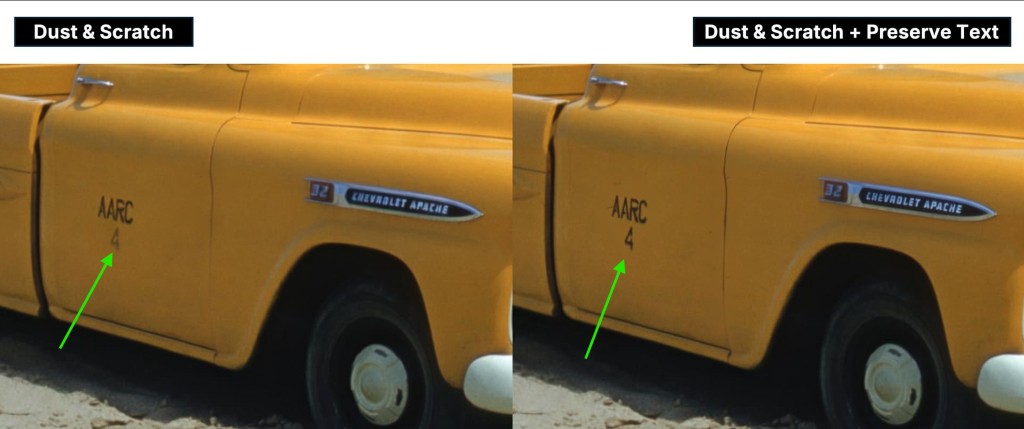
A major piece of feedback we have heard so far is that the v2 model can remove details from the image. We will continue to improve the model to improve fidelity and detail preservation now that it is able to clean dust & scratches with high confidence. See Pro Tip below on how to resurrect areas in the meantime.
What if I don't get good results?
Sometimes your images may be slightly too soft, over-processed, or details from the background may be removed, resulting in unwanted results.
Feel free to send us your original file, your current results, and any feedback to support@topazlabs.com. We're here to help you achieve the best results and share your input with our development team to continue improving the tool.
Pro Tip to Recover Removed Areas
If your file has text in some areas - you can resurrect some of these details using the Preserve Text enhancement. This would also work for any areas that were removed that you wanted to keep from the original. Here’s an example: