Super Focus
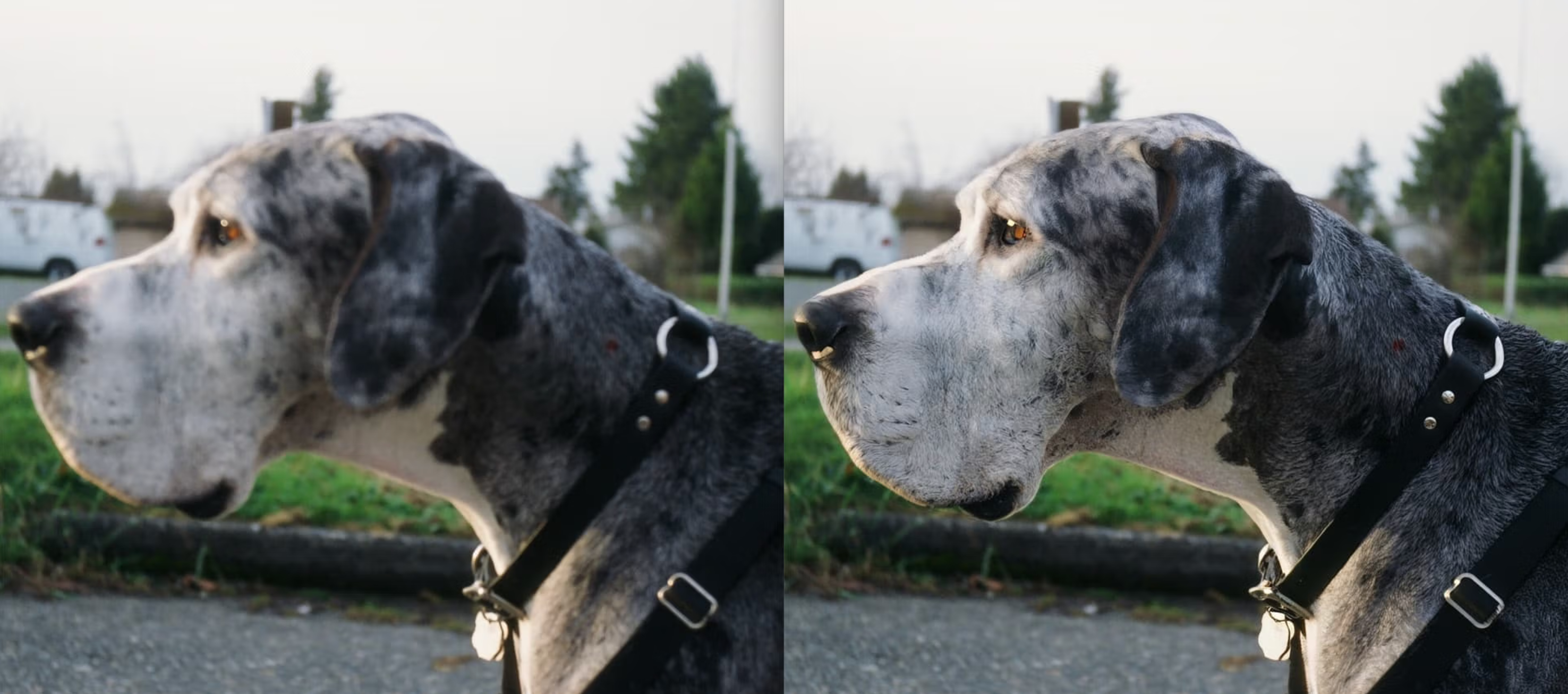
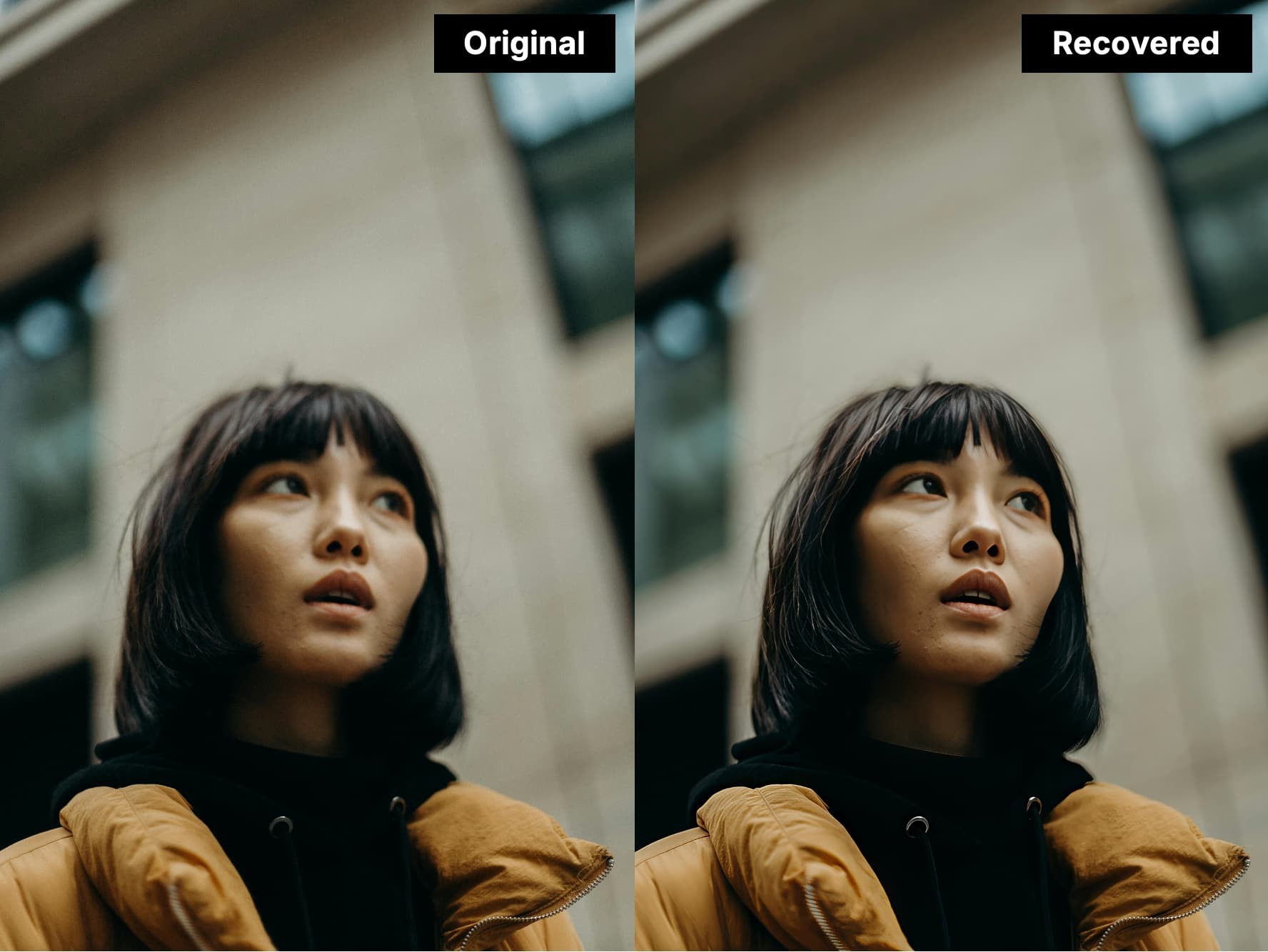
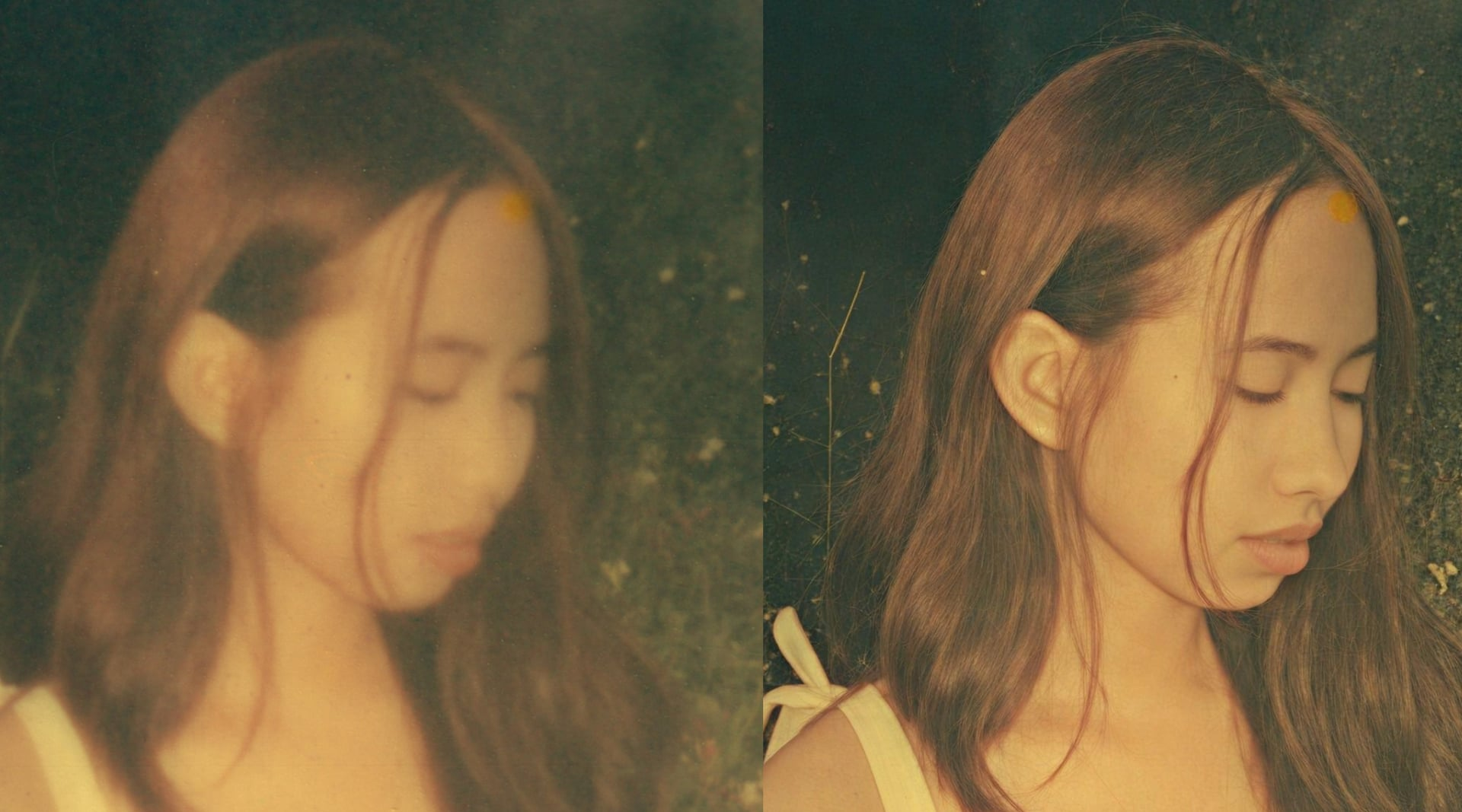
Super Focus is a generative AI tool that has the ability to fix blur and extract detail. This tool acts as an alternative solution for those stubborn and more difficult images that cannot be enhanced through Topaz Photo’s other sharpening models.
System Requirements
The Super Focus model has higher requirements for processing than other AI models.
| Dedicated Graphics Card | NVIDIA AMD or ARC card with 8GB VRAM (1) |
| Integrated Graphics card only | Not supported (2) |
(1) 6GB of VRAM can work for Super Focus v1 and v2, but will be slow. For Super Focus v3, 8GB VRAM minimum is needed, if you have 6GB VRAM, it will not work and is not supported locally. You can use Cloud processing instead.
(2) If all you have is an Integrated graphic card (no dedicated Graphics card), it will not work locally, as integrated graphic cards usually only have 0.1GB of VRAM and that is not sufficient for memory-intensive generative AI models. If you have both a Integrated and Dedicated Graphic card, make sure the Dedicated Graphic card has 8GB of VRAM to work properly.
| Mac with Intel CPU | Not supported locally |
| Mac with M-Chip (Apple Silicon) | macOS 14 (Sonoma) or higher |
| 16GB RAM minimum, 24GB RAM recommended |
How to Use Super Focus
-> Before launching the process
- Remove all prior enhancements (except RAW Denoise) - as Super Focus is best used as the very first enhancement.
- Add Super Focus from right panel in the list of enhancements by clicking on the 'Choose something else' or 'Add enhancements' button.
- Choose the Super Focus version you wish to use: v3* would be the lastest version.
- If you use v1 or v2 with a large file, you can pick a Focus Boost option depending on your blur level. Extreme blur should use Major focus boost. The Focus Boost option will only appear if you have a large file as it uses downscaling. Small images will not have that option. Focus Boost is not possible for v3.
- On large images, you can generate a quick Preview by clicking on an area of the picture. It will create a preview of the results for that specific area. This Preview option will not be available for small images.
-> To launch the process
- Then you can launch the render locally or on the Cloud (1)
- Important: Once the process done - change the affected areas in Selection panel (2) and tweak the Strength to fine-tune your result.
-> After Super Focus
- Once the process is is completed, to fine-tune your Selection, open the Selection Tool.
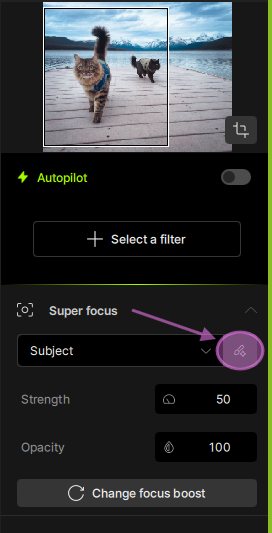
2. Use the (+) and (-) brush to select the area to be affected. It is important to only select the area that needs to be recovered.
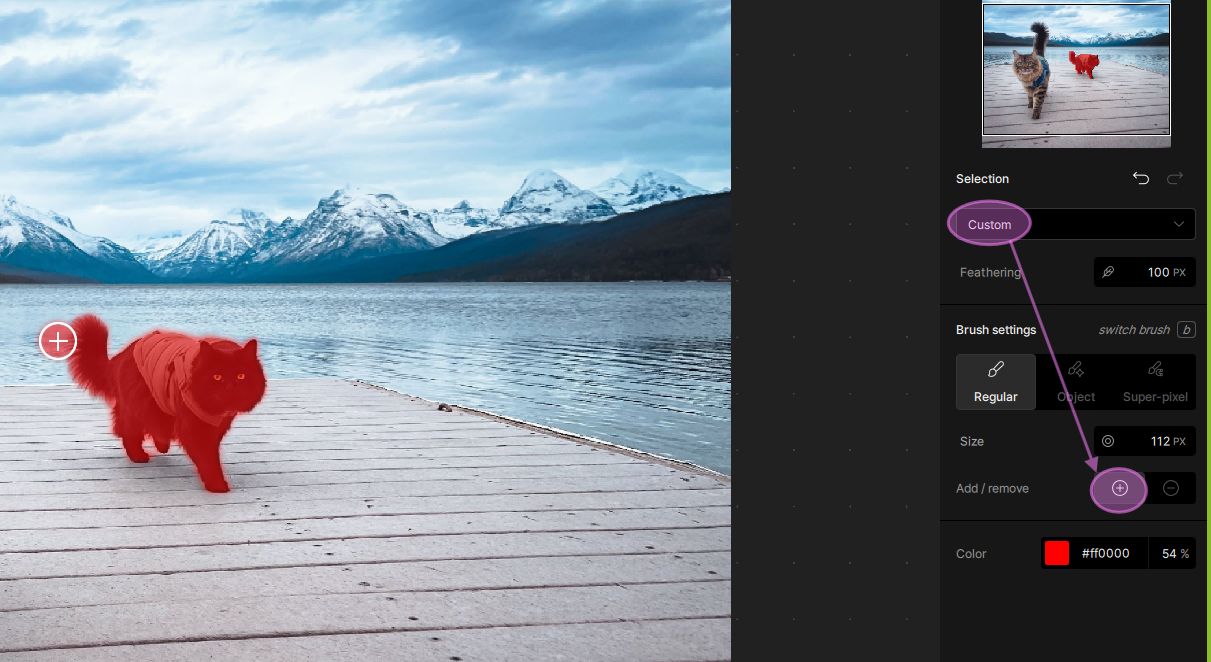
3. Once you are happy with the Selection and affected areas, inspect the file to see if any other enhancements are needed to add, for example Recover Faces or Preserve Text.
4. Once all enhancements needed are added, you can Export the image.
(1) Here is more documentation on Cloud Rendering
(2) Important: The Selection panel will be available once the render is made. The Super Focus AI model is designed to render the whole image, and will allow you to tweak your selection once the render done. You will not need to reprocess when you customize and tweak the affected area in the Selection panel. Once Selection options are applied, the in-app preview and file output will only apply to these affected areas.