File List
Review and see changes you have made to images with the File List located at the bottom of the Topaz Gigapixel screen.
Views
There are two ways to expand or collapse the file list.
Manual Expander
Hover on the black line that separates the Preview and the File List. The line changes to blue. Click and drag the file list to the desired location across the preview.
Expander Button
Below the preview to the left side, locate the arrow button on the left side of the + Add image button.
Click on the arrow to collapse or expand the file list.
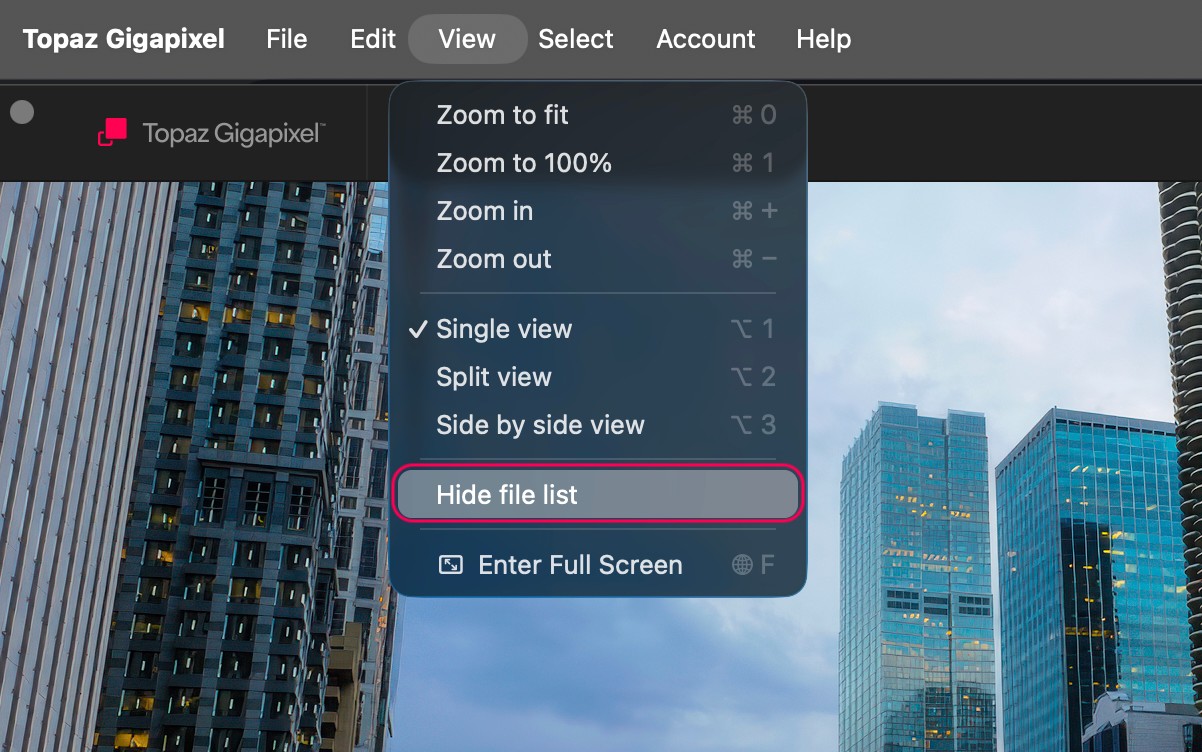
From the View menu you can also choose, select View > Show/Hide file list
Interface
Use the file list to compare and review what settings you have applied.
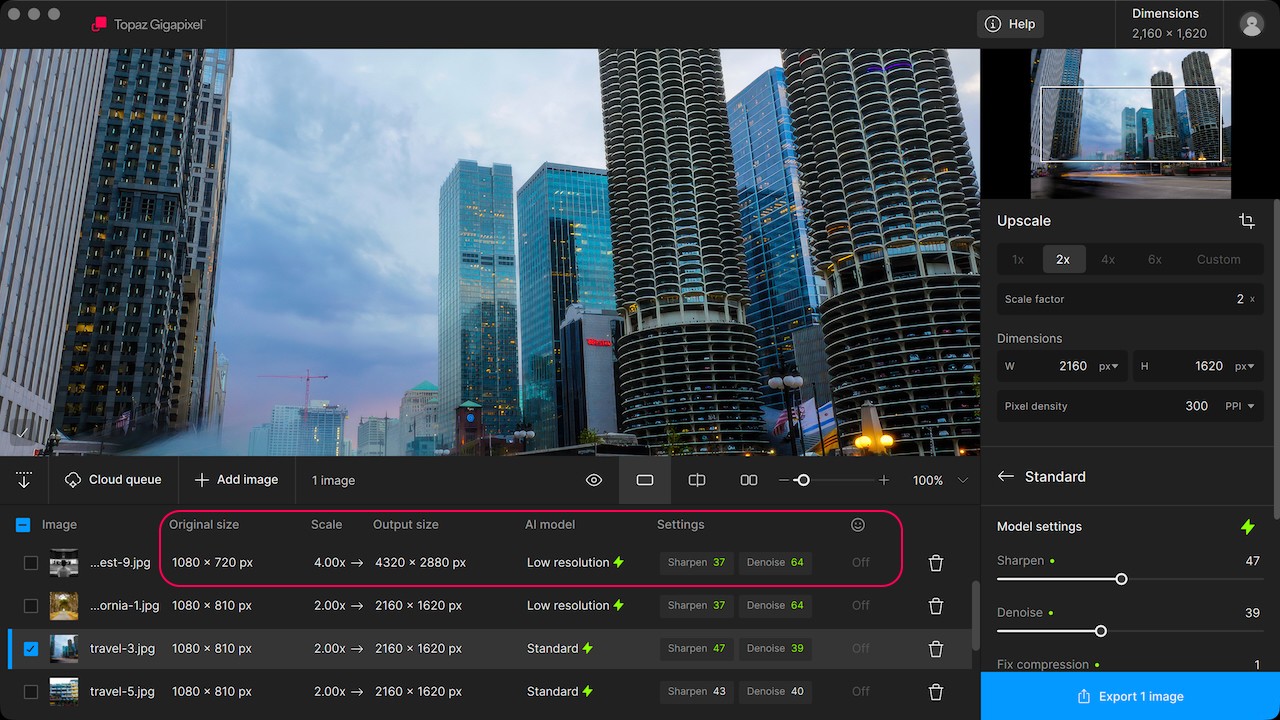
The file list includes several columns of information:
- Name - files are listing in the order they were imported.
- Original size - source file dimensions or the resulting dimensions of a crop. These values will change based on your Upscale settings.
- Scale & Output size - the multiplier by which your image is upscaled
- AI model - the model used to enhance the file, the lightning bolt icon shows if Auto mode was enabled.
- Settings - the values assigned for the various model parameters.
- Face Recovery - when face recovery is turned on, a value will appear.
Batching
Use the file list to see the list of imported items for a batch.
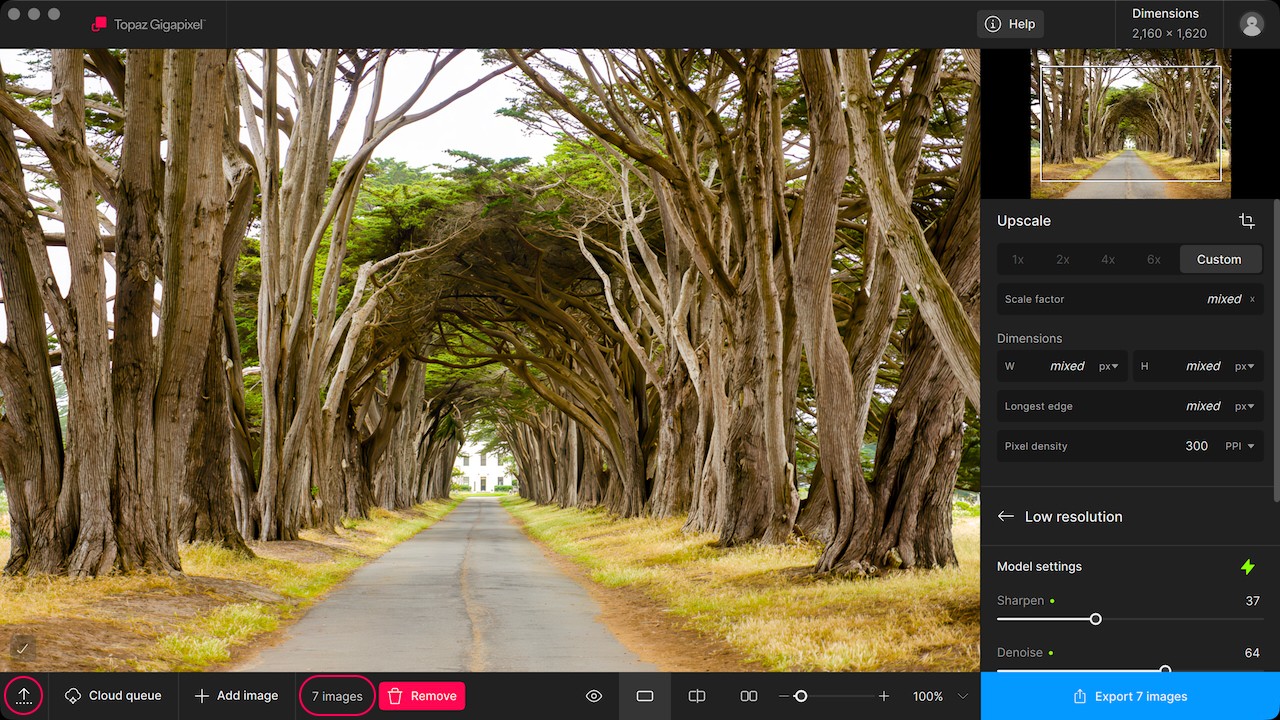
More images can be added to the list using the + Add image button.
Use the checkboxes to select one, or multiple images at a time to set enhancement values.
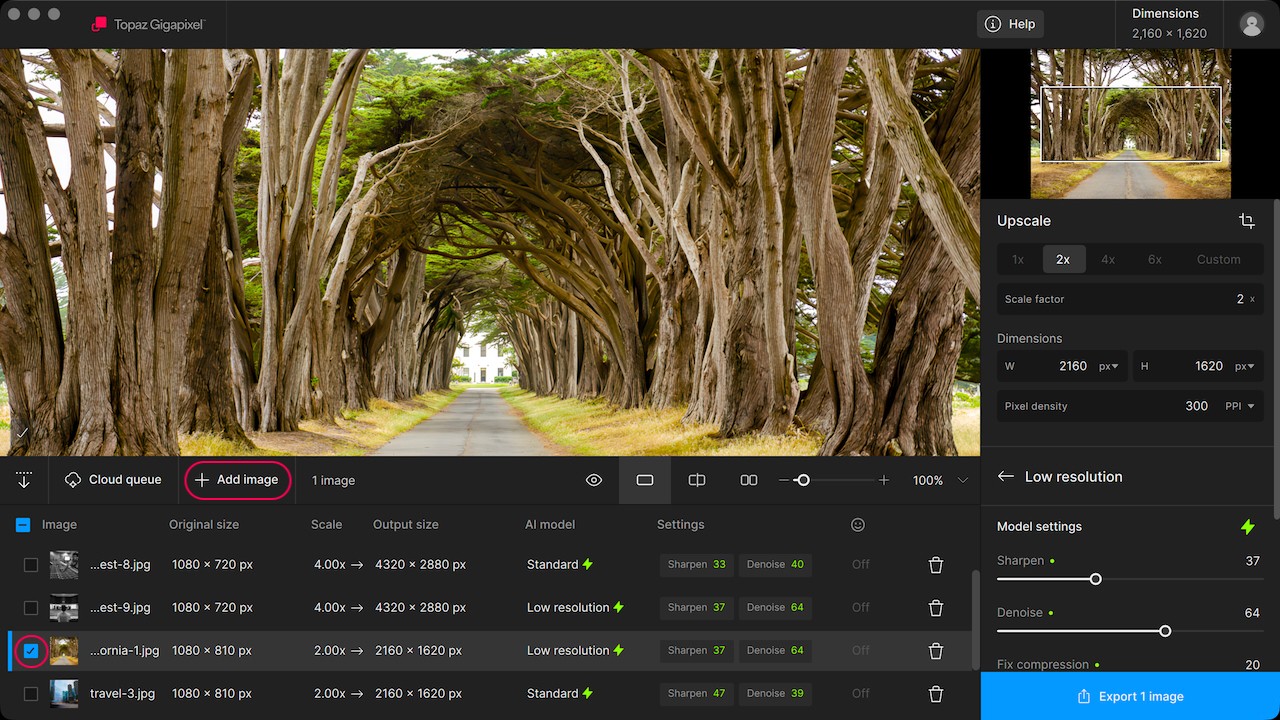
Batches are only limited by your system's hardware. If you encounter issues or errors attempting to batch a lot of images, reduce the number of images at a given time until you no longer have issues processing.