Okta
Configuration Steps
Setup Okta as IdP (Identity Provider)
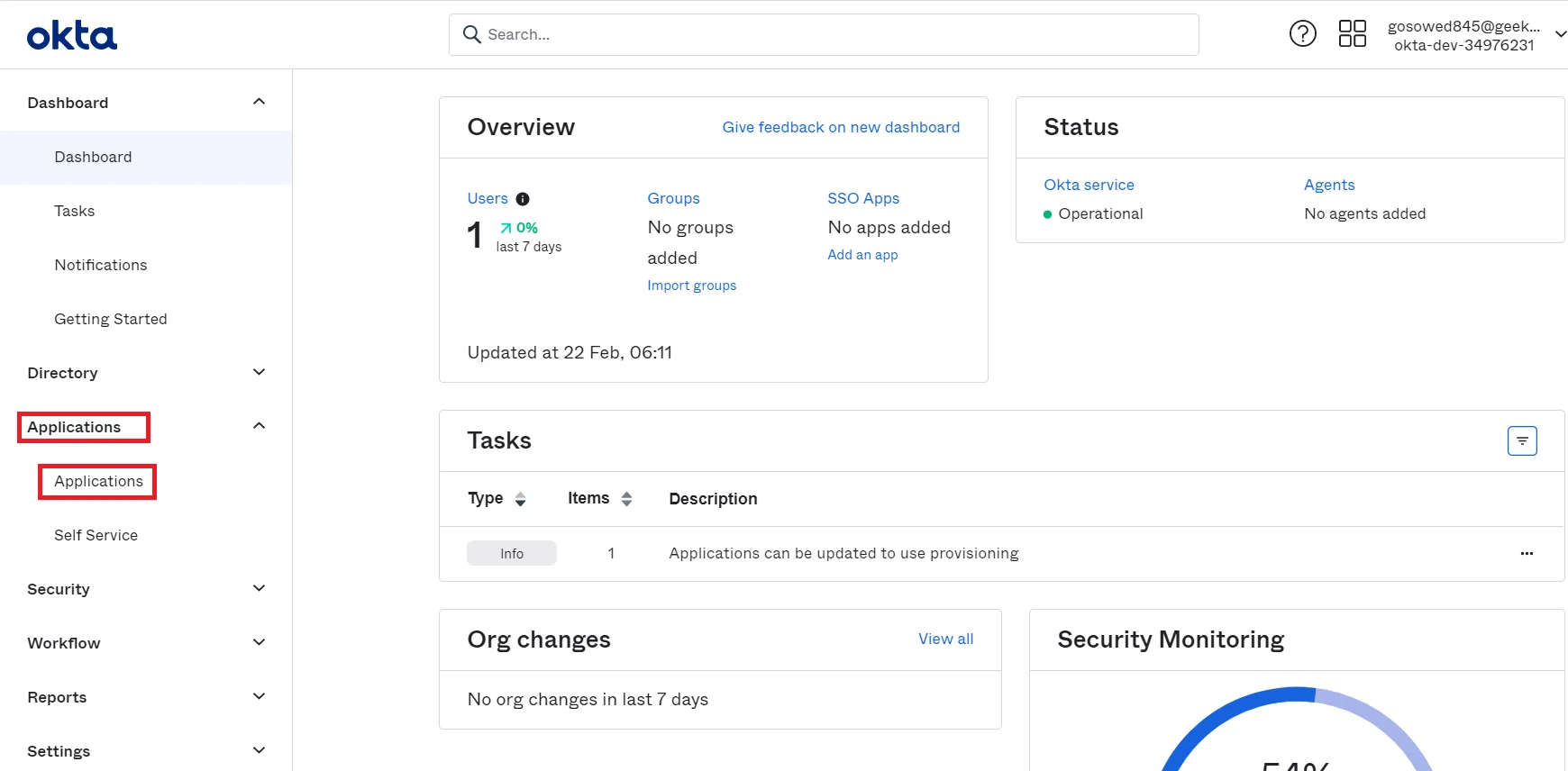
- Login into your Okta Admin dashboard.
- Then navigate to Applications tab and select Applications.
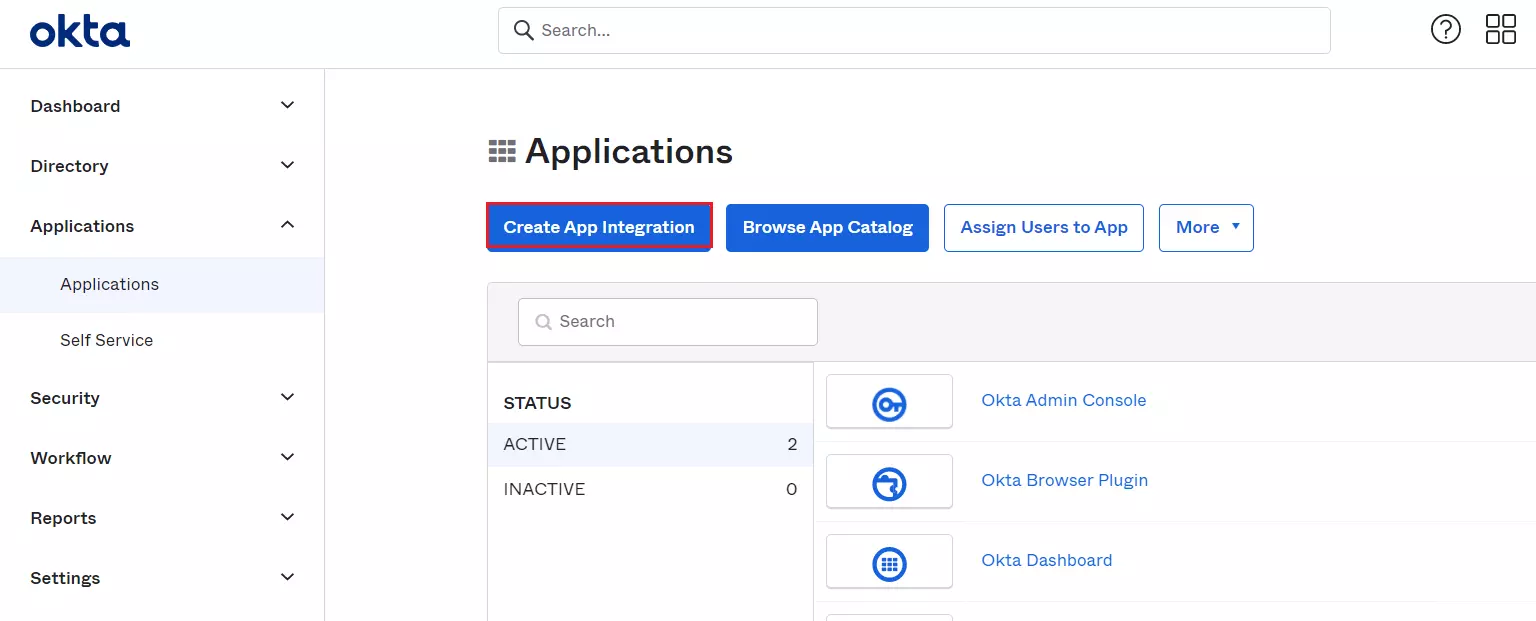
- Click on the Create App Integration button to create new app.
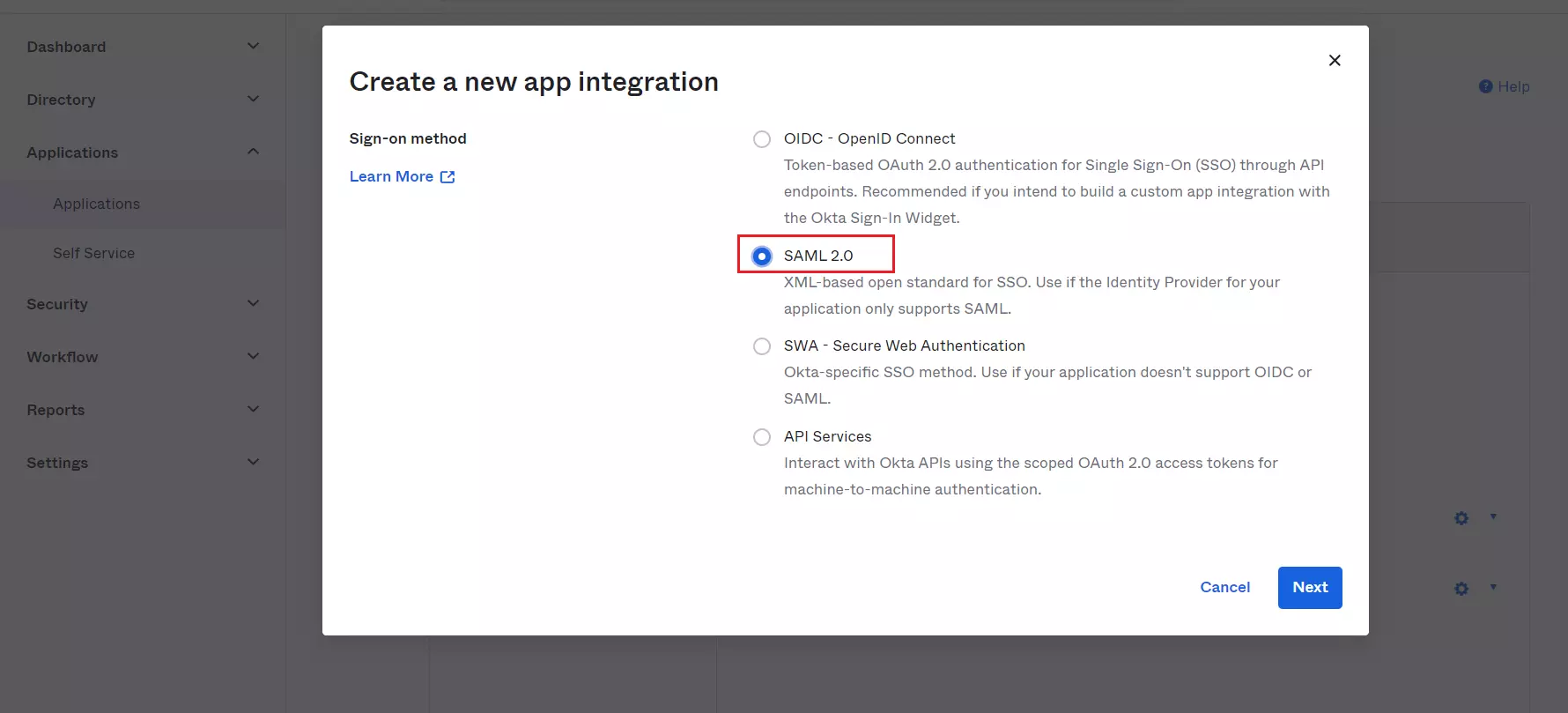
- Select SAML 2.0 as Sign-On method and Click on Next button.
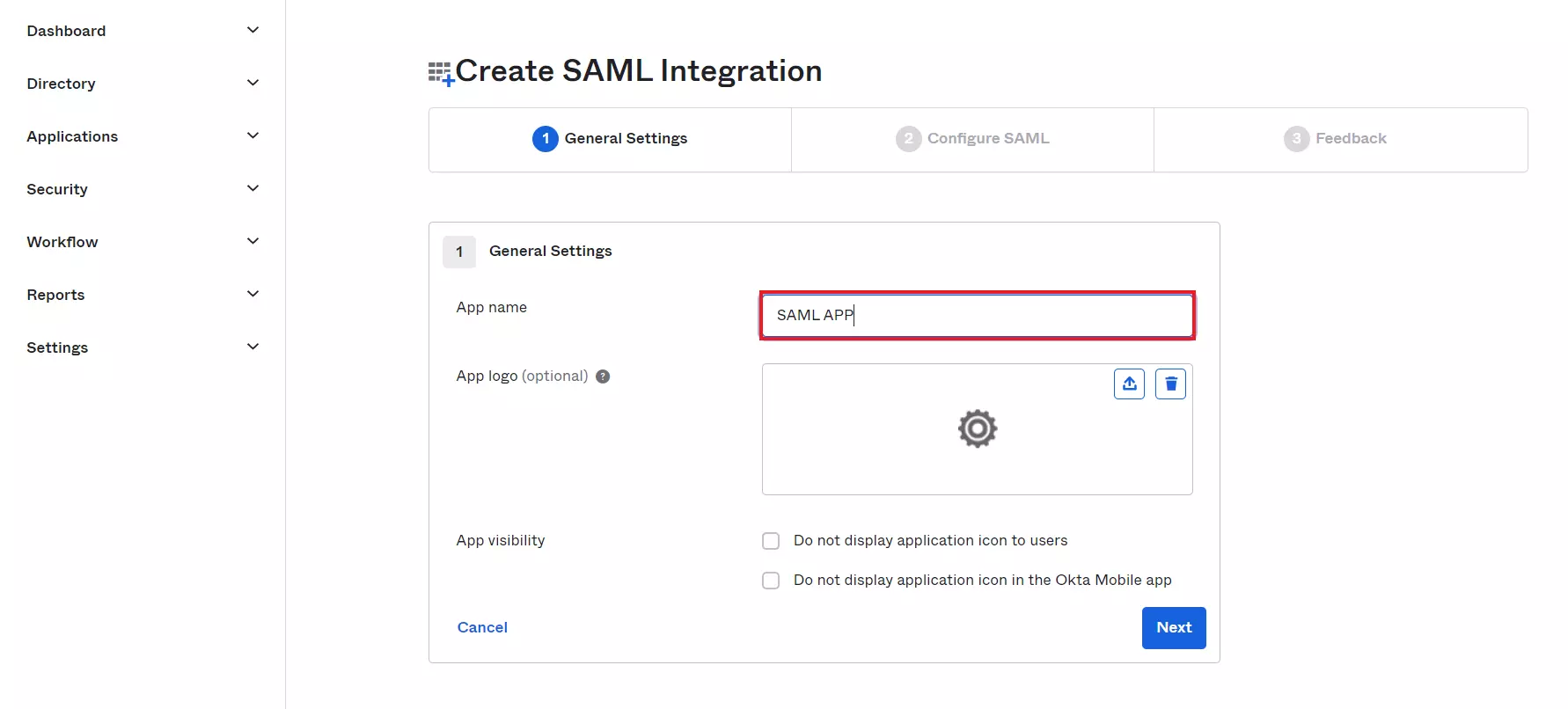
- In General Settings tab, enter App Name and click on Next button.
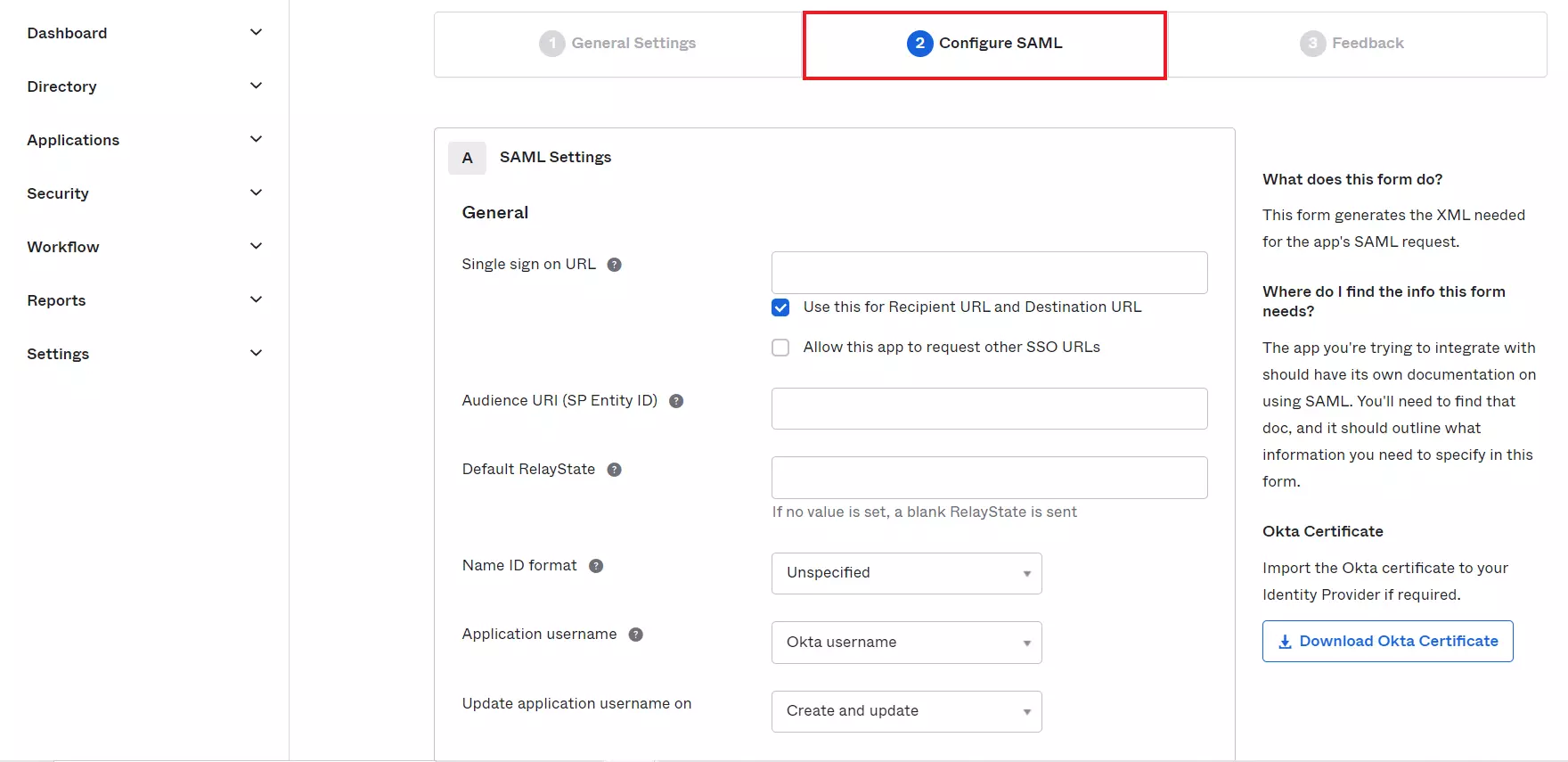
- In Configure SAML tab, enter the required details:
Single Sign On URL
ACS (AssertionConsumerService) provided by your Topaz Labs representative
Audience URL (SP Entity ID)
SP Entity ID / Issuer provided by your Topaz Labs representative
Default Relay State
Relay State provided by your Topaz Labs representative
Name ID Format
Select E-Mail Address as a Name Id from dropdown list
Application Username
Okta username
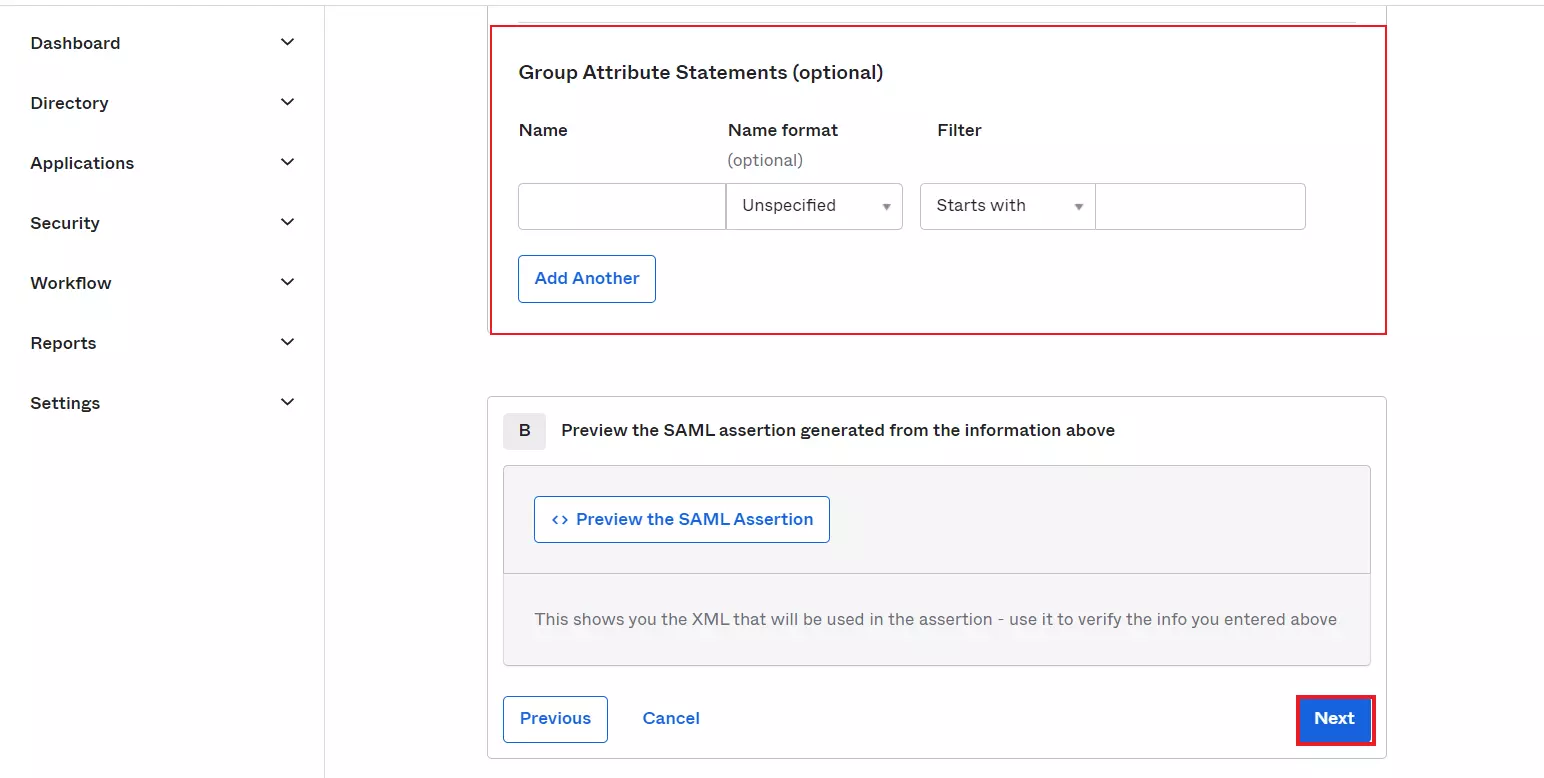
- Configure Group Attribute Statements (Optional) and click on Next button.
- Select type of configured application and click on Finish button.
Assigning Groups/People:
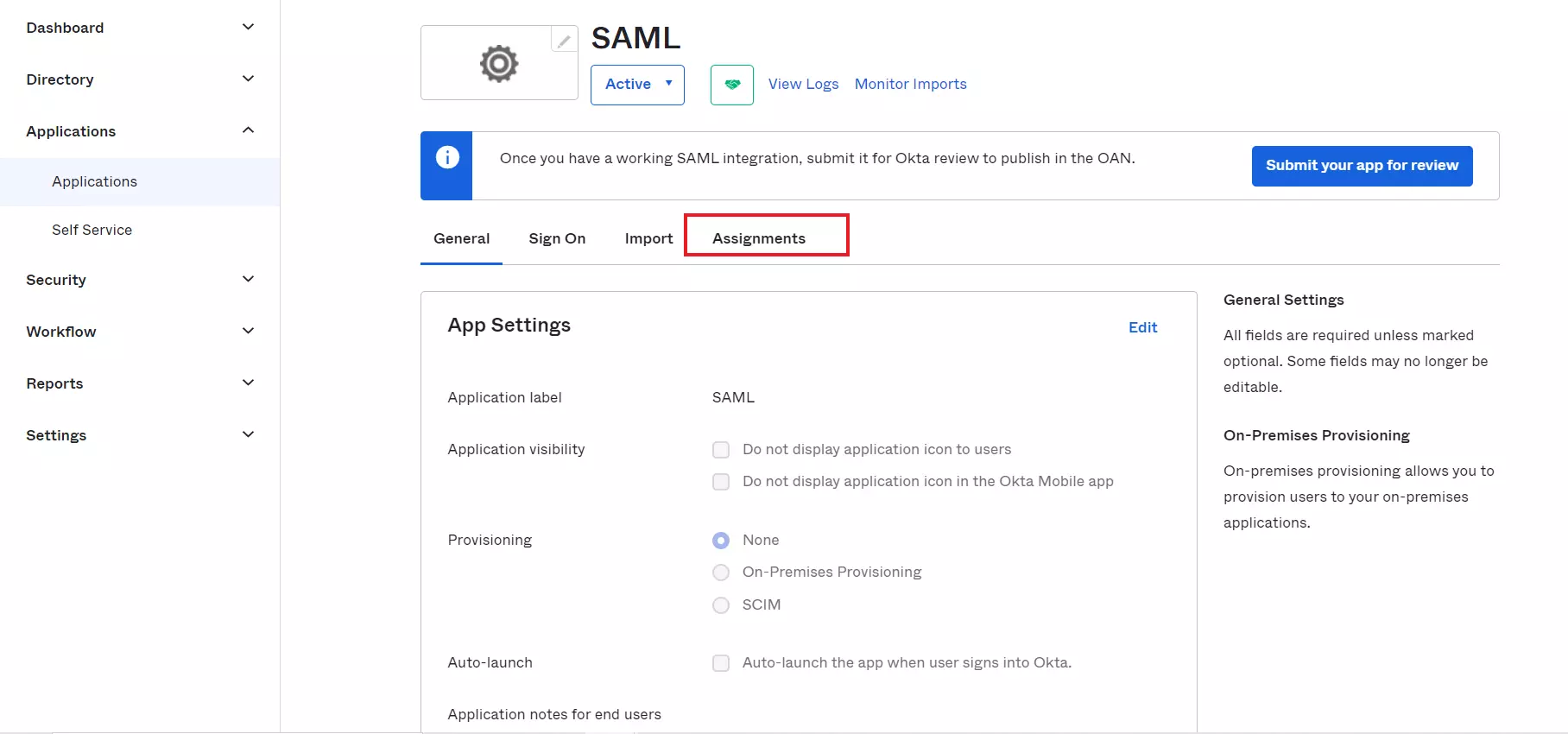
- Navigate to the application you created and click on the Assignments Tab in Okta.
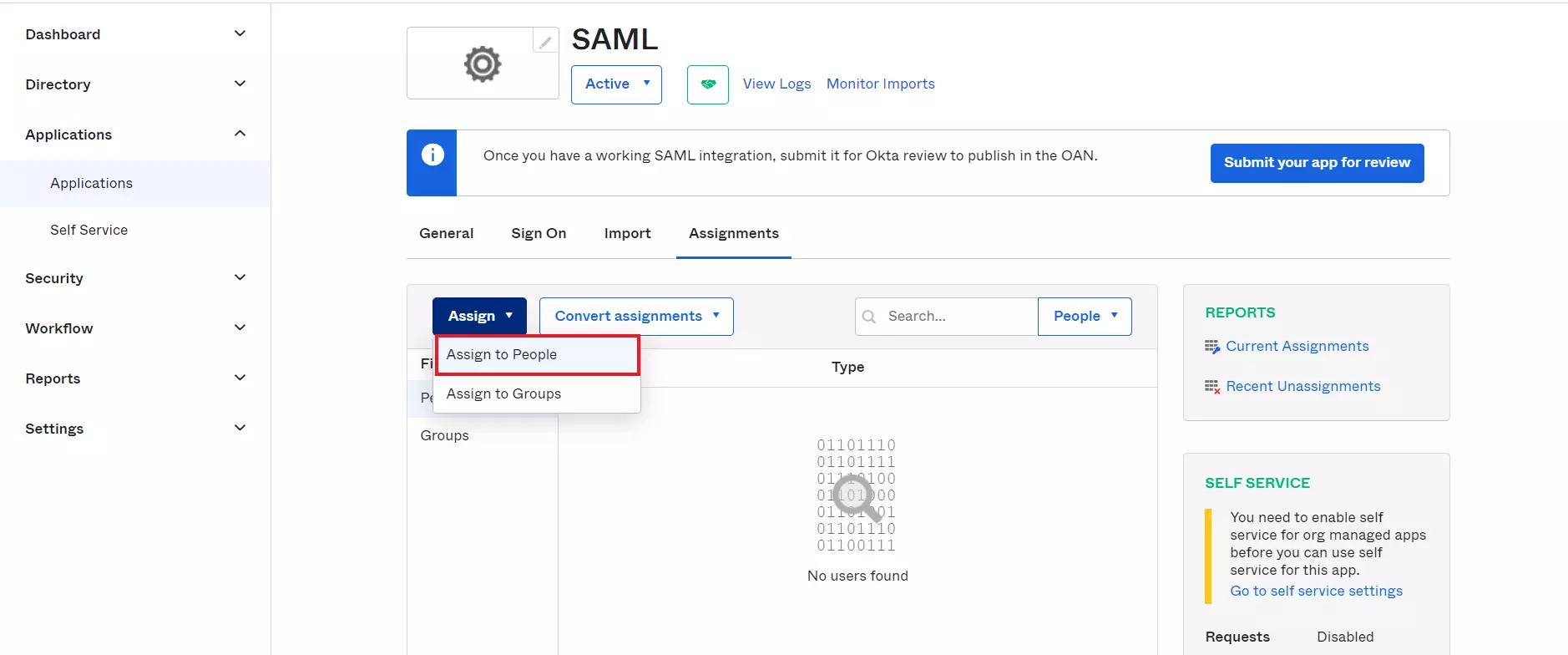
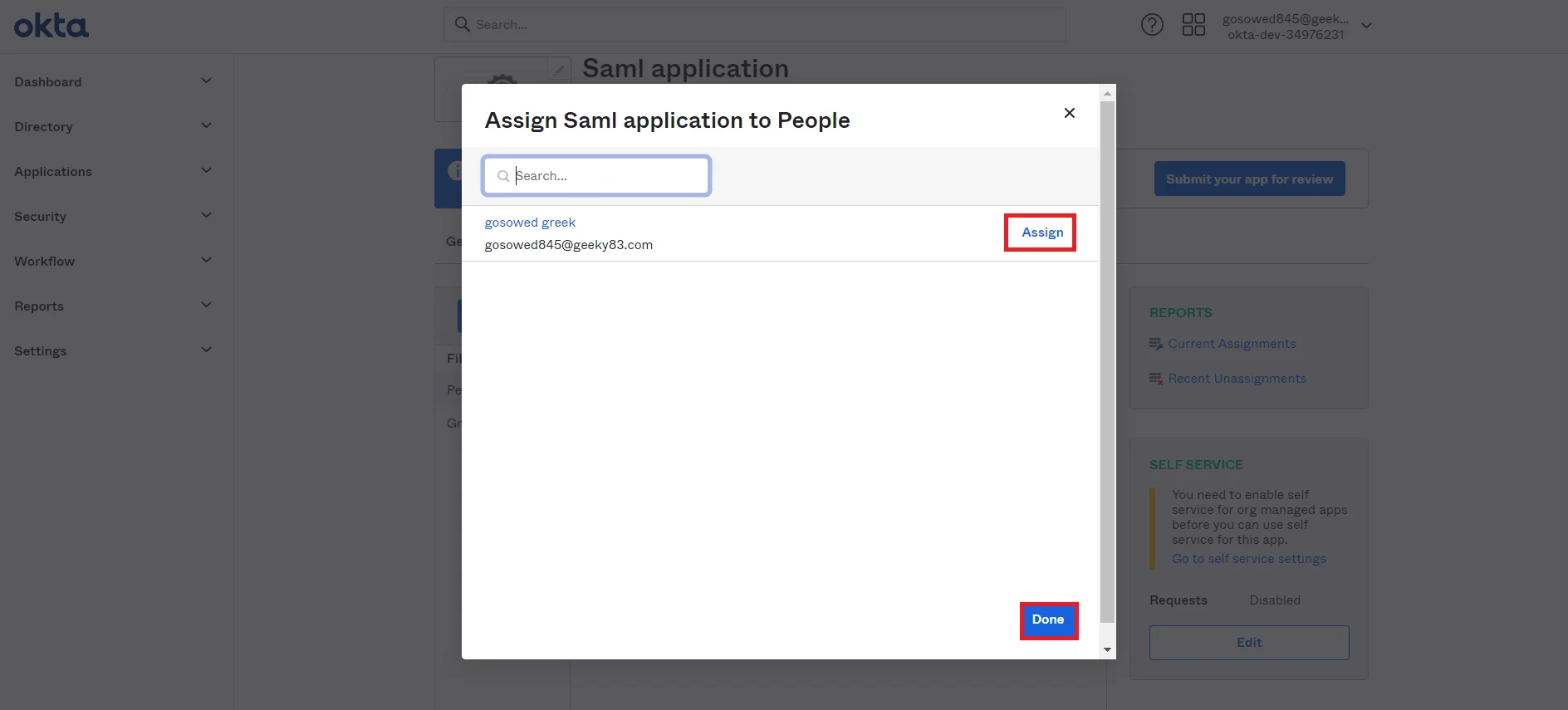
- Click on Assign button to Assign People and Assign Groups.
- Once you Assign the user, click on Done button.
- Click on Sign On tab and scroll down to the SAML Signing Certificates section.
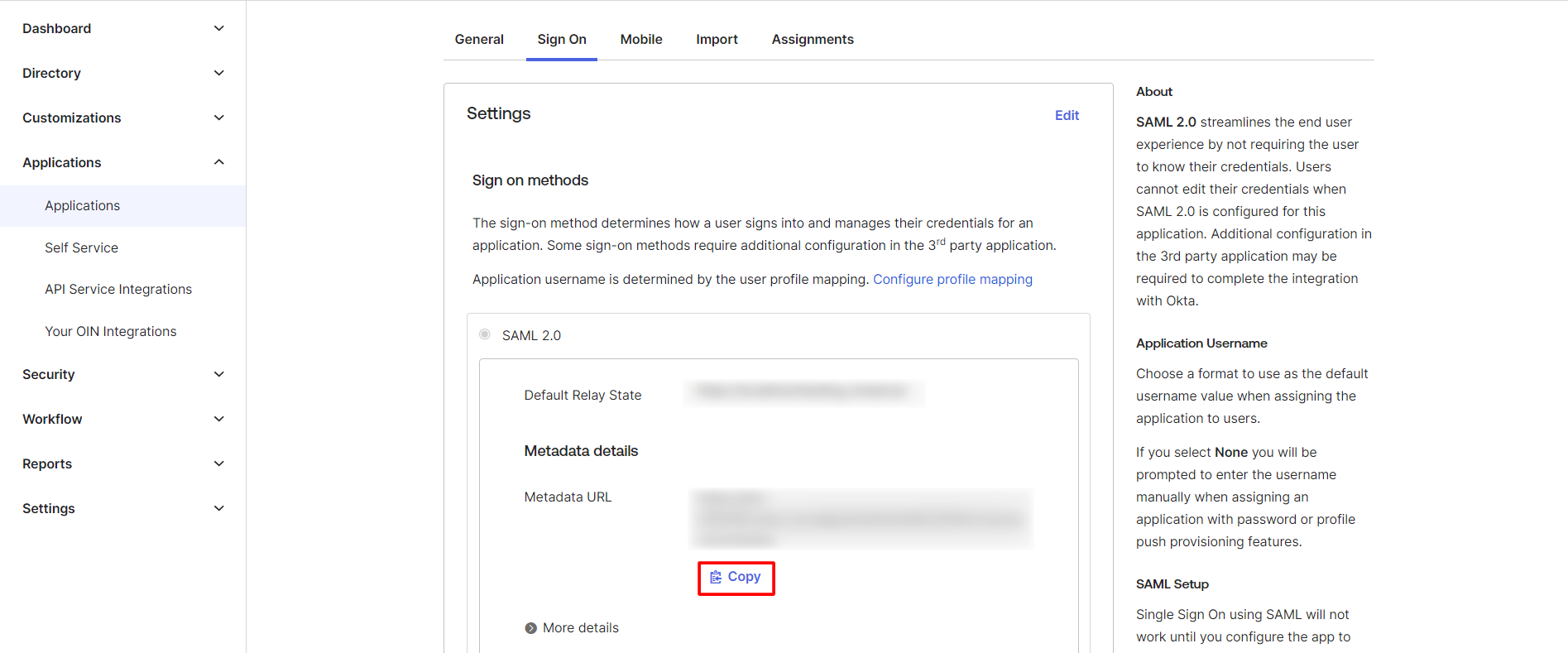
- Under Settings section in the Sign On tab, click on Copy button to copy the Metadata URL. This will need to be sent to Topaz Labs.
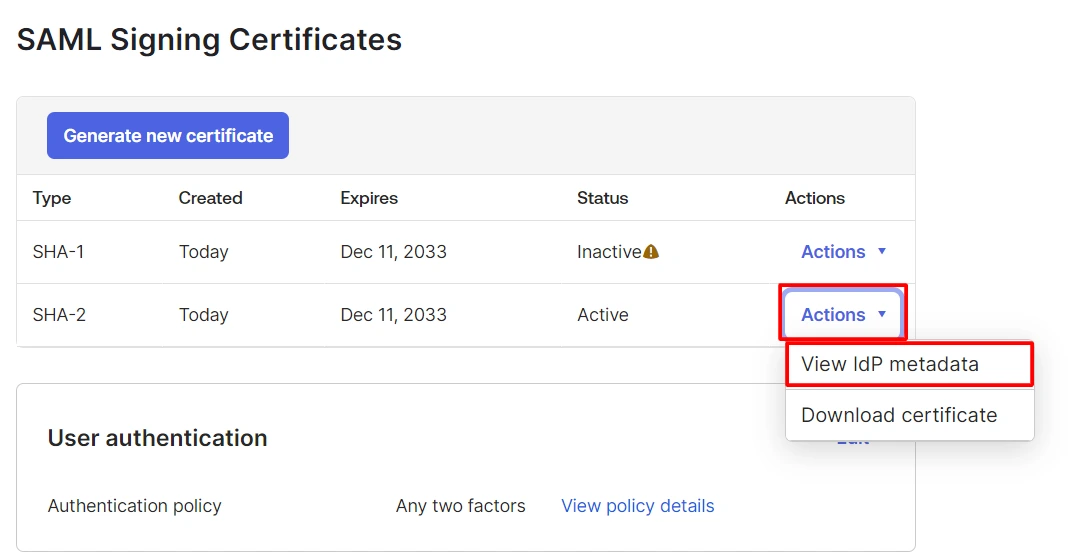
- Or you can also get IDP Metadata URL by following the further steps, click on Action dropdown for the Active certificate and then click on the View IdP Metadata option to get IdP Metadata.
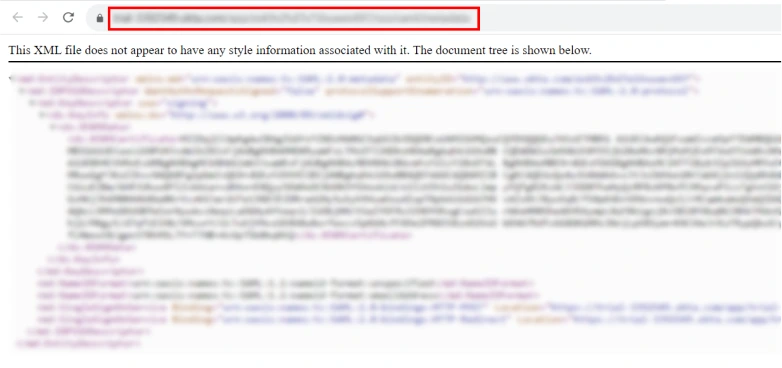
- Copy the Metadata URL.
You have successfully configured Okta as SAML IdP (Identity Provider) for achieving Okta SSO login.