Google Apps
Configuration Steps
Setup Google Apps as IdP (Identity Provider)
Implementing Google Single Sign On (SSO):
- Go to Google Admin and login with your G Suite administrator account.
- Navigate to the Apps tab in the left menu and click on Web and mobile apps.
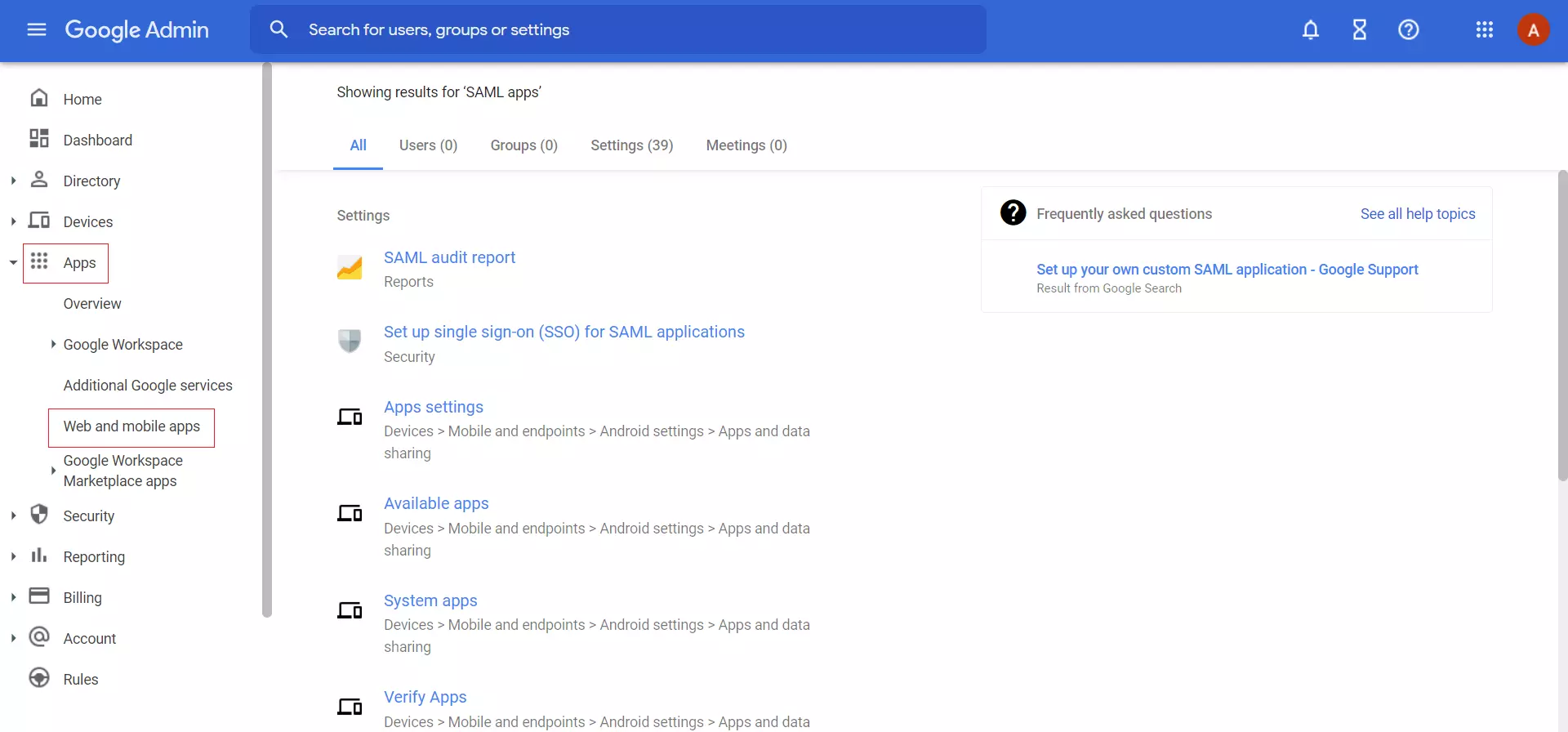
Add a SAML App
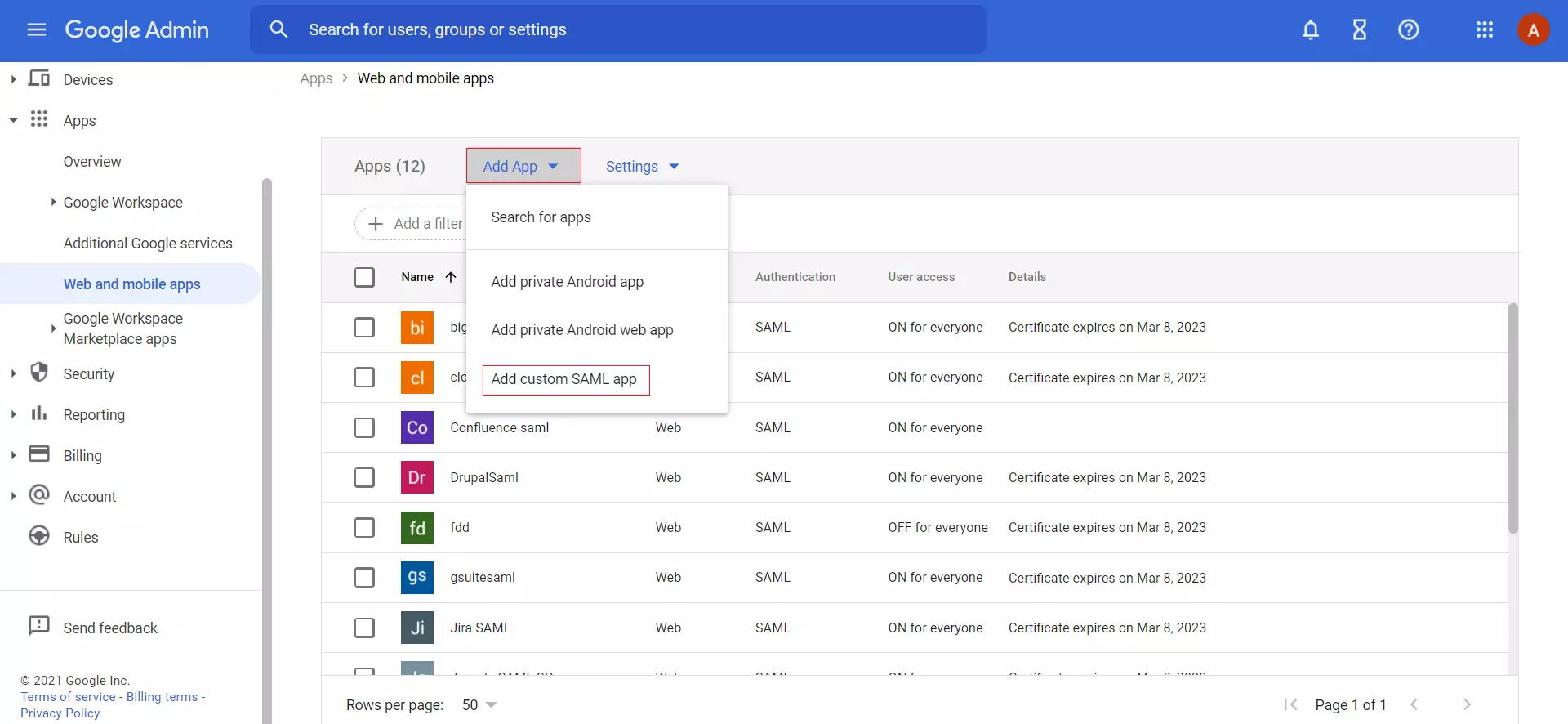
- Click on the Add App button, then in the dropdown select Add Custom SAML app tab to create a new saml app.
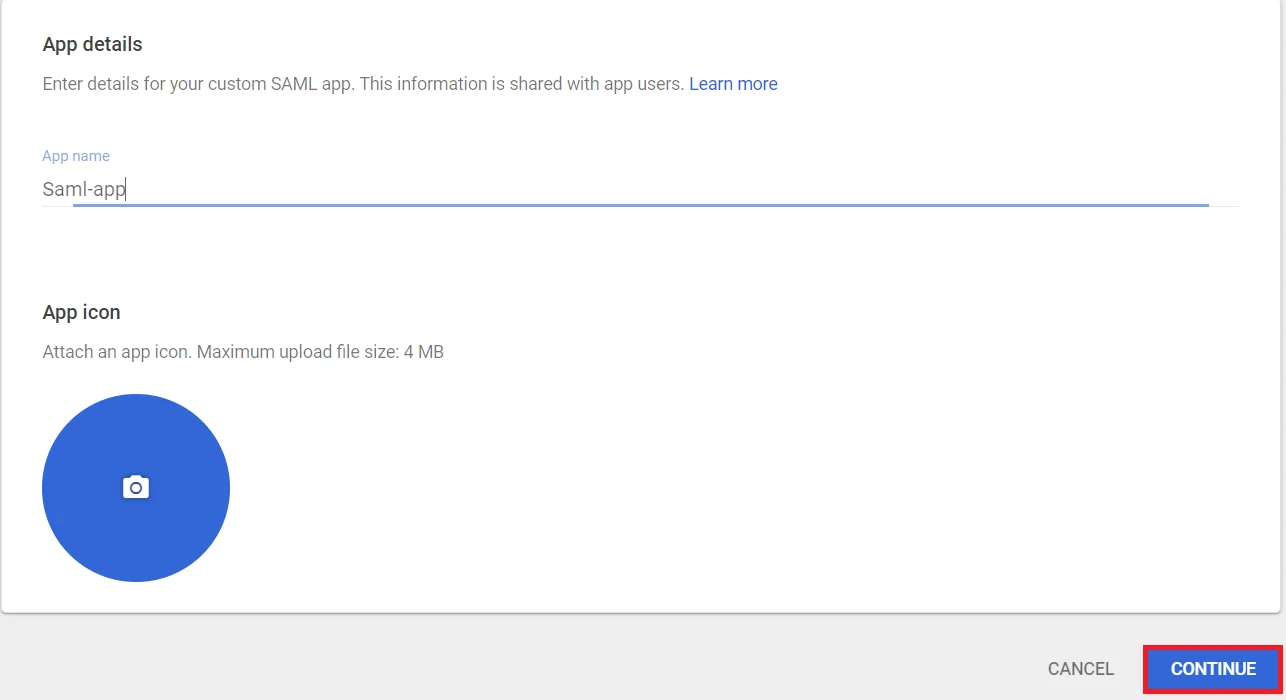
- Enter details for your custom SAML app and click on Continue button.
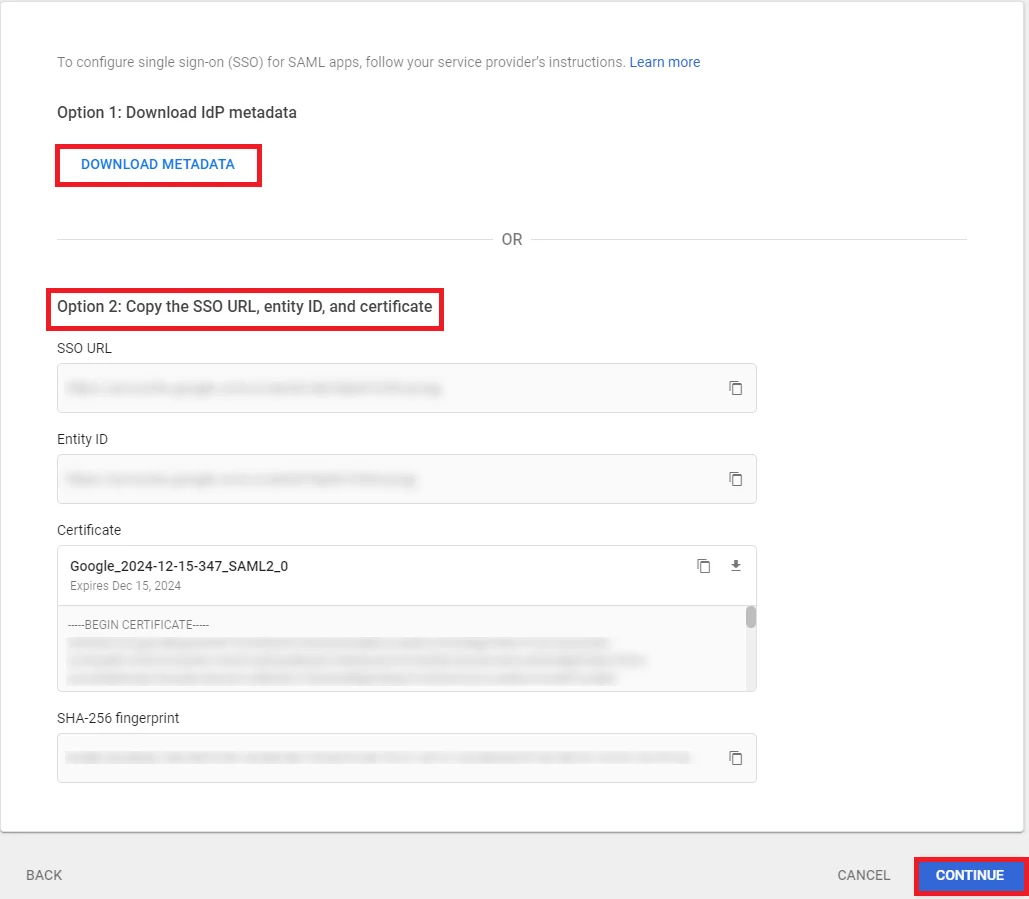
IDP Information
- Click on Download Metadata button. This will need to be sent to Topaz Labs.
- You can also copy G Suite details like SSO URL, entity ID and Certificate to configure the Service Provider manually and then click on Continue button.
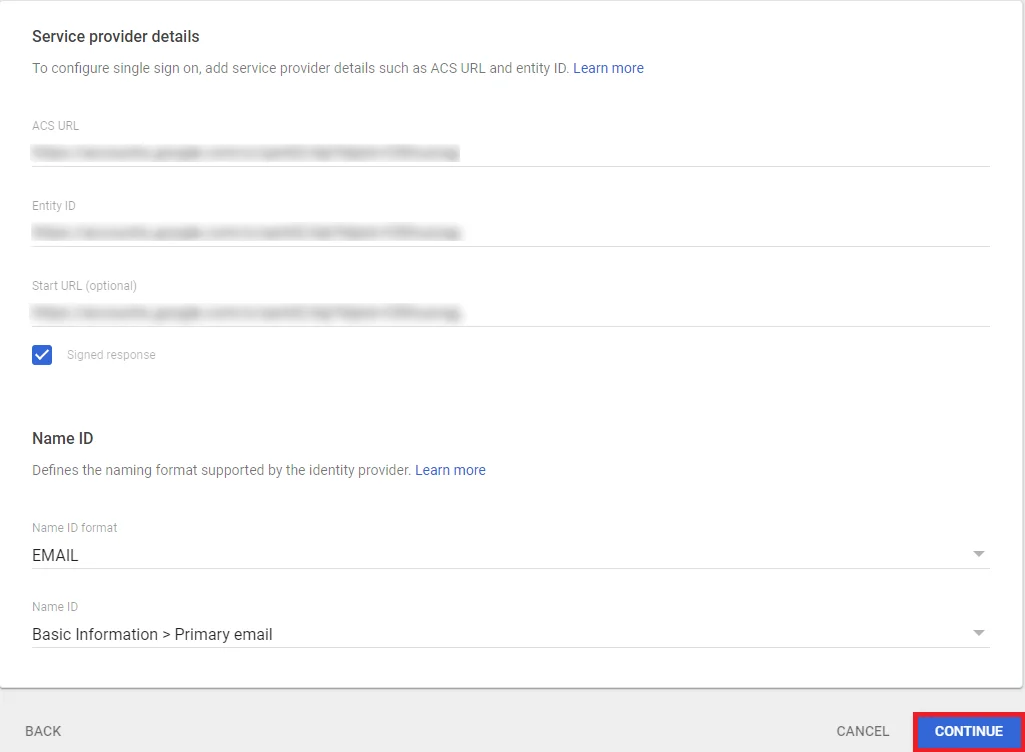
Service Provider Details
- Enter details from the Topaz Labs Metadata.
ACS URL
Copy and paste the ACS URL from Topaz Labs.
Entity ID
Copy and paste the SP Entity ID/ Issuer from Topaz Labs.
Signed Response
Check Signed Response ✓
Name ID Format
EMAIL
- Click on Continue button.
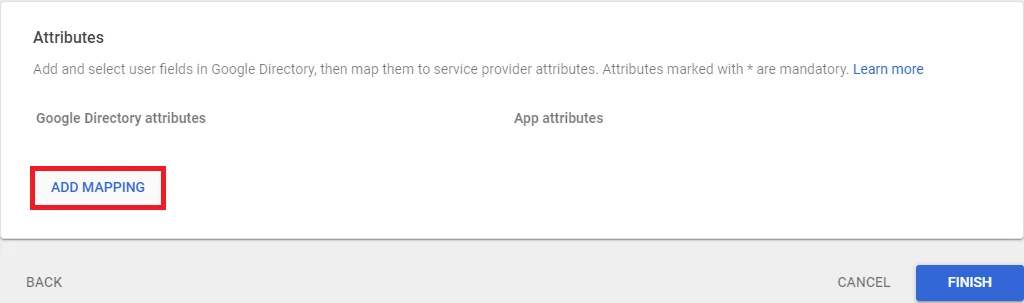
Attribute Mapping
- Click on Add Mapping button.
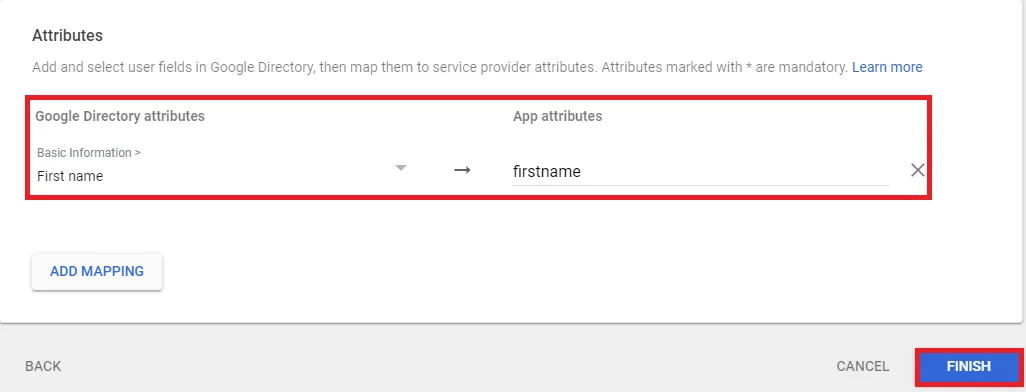
- Add and select user fields in Google Directory, then map them to Service Provider attributes and Click on Finish button.
User Access to Configured App
- Go to SAML Apps again and click on OFF for everyone.
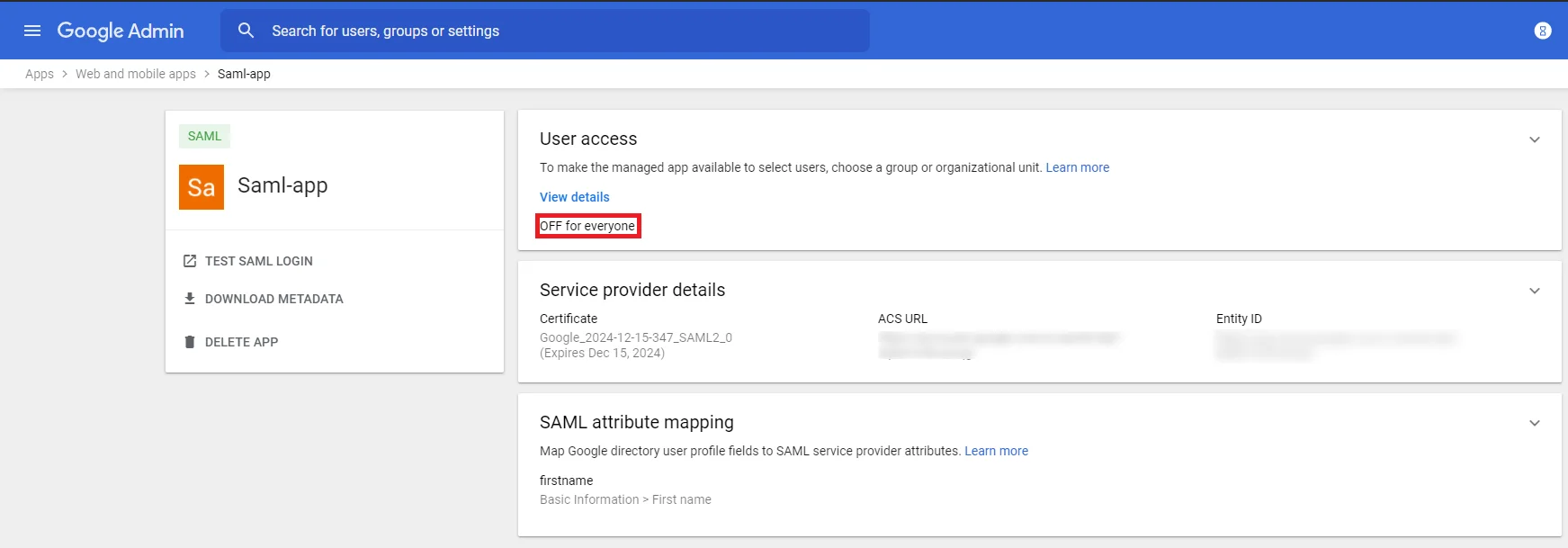
- Then, select ON for everyone to activate SSO.
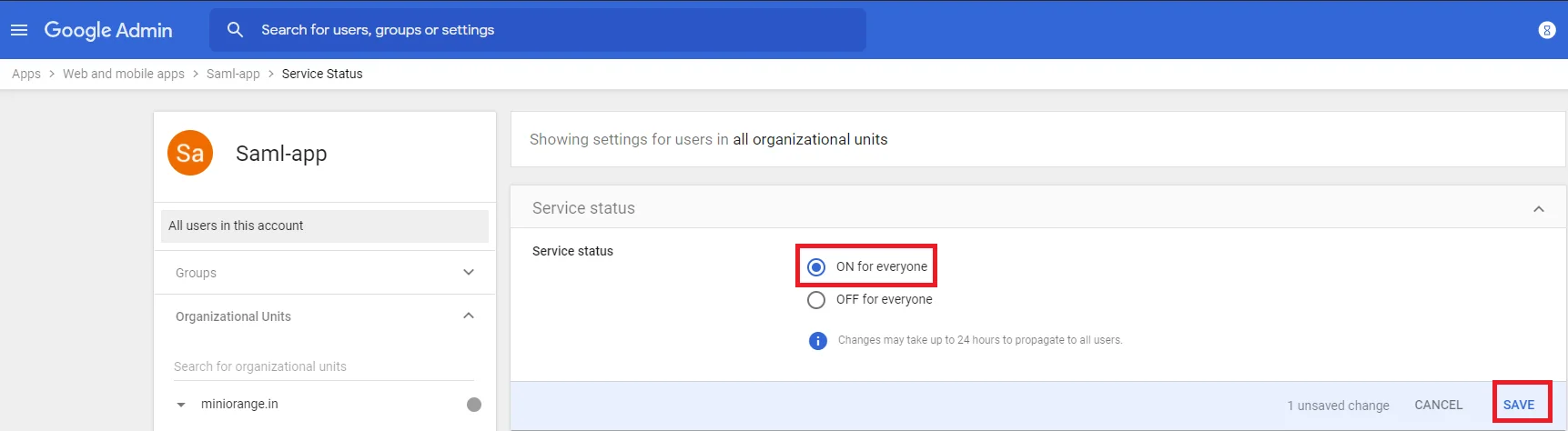
- You have successfully configured G Suite / Google Apps as SAML IDP (Identity Provider).