Entra External ID
Configuration Steps
Setup Microsoft Entra External ID as IdP (Identity Provider)
Entra External ID setup through Enterprise Applications:
- Log in to Entra External ID Portal.
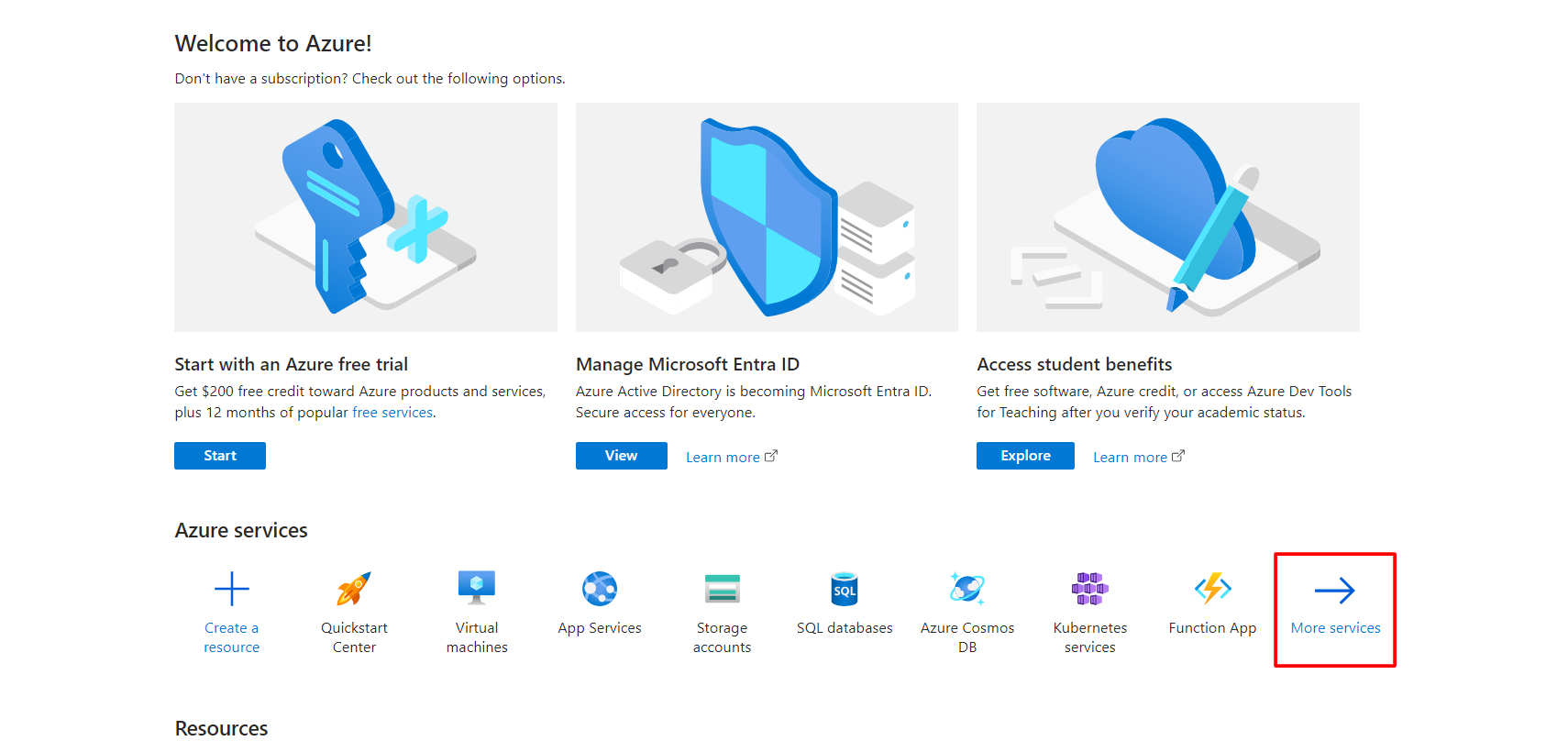
- Click on More services.
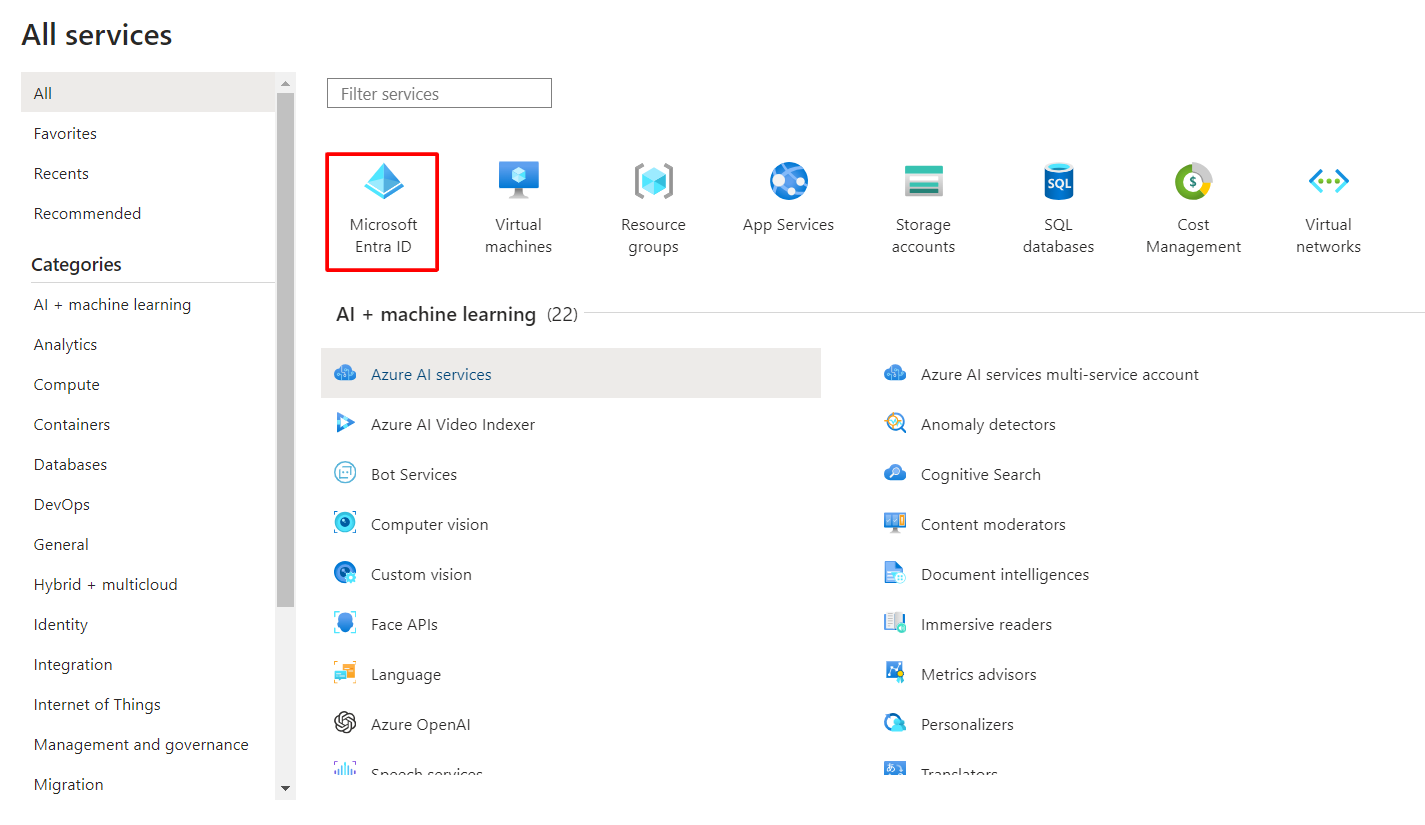
- Search and select Microsoft Entra ID.
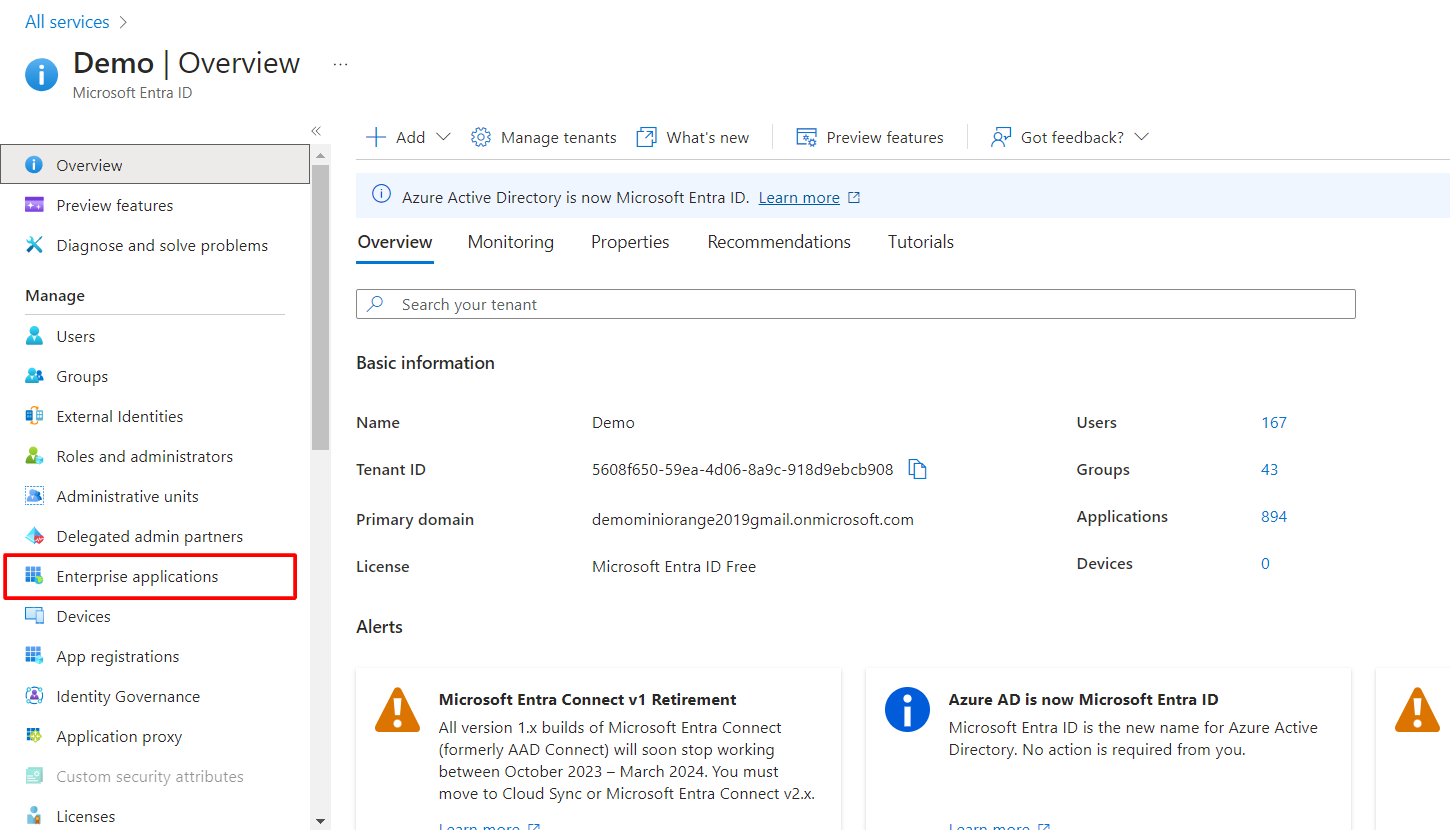
- Select Enterprise Application.
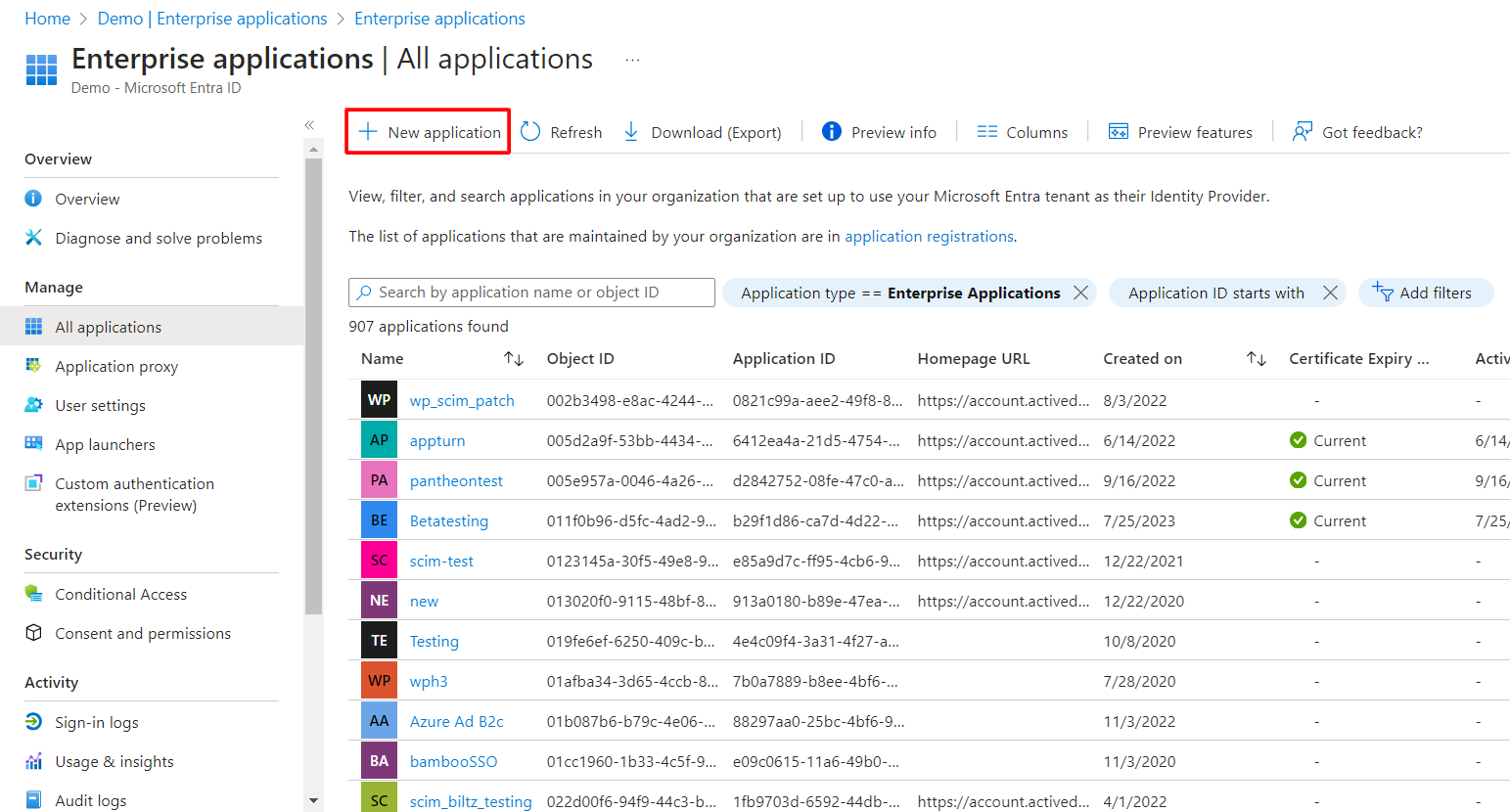
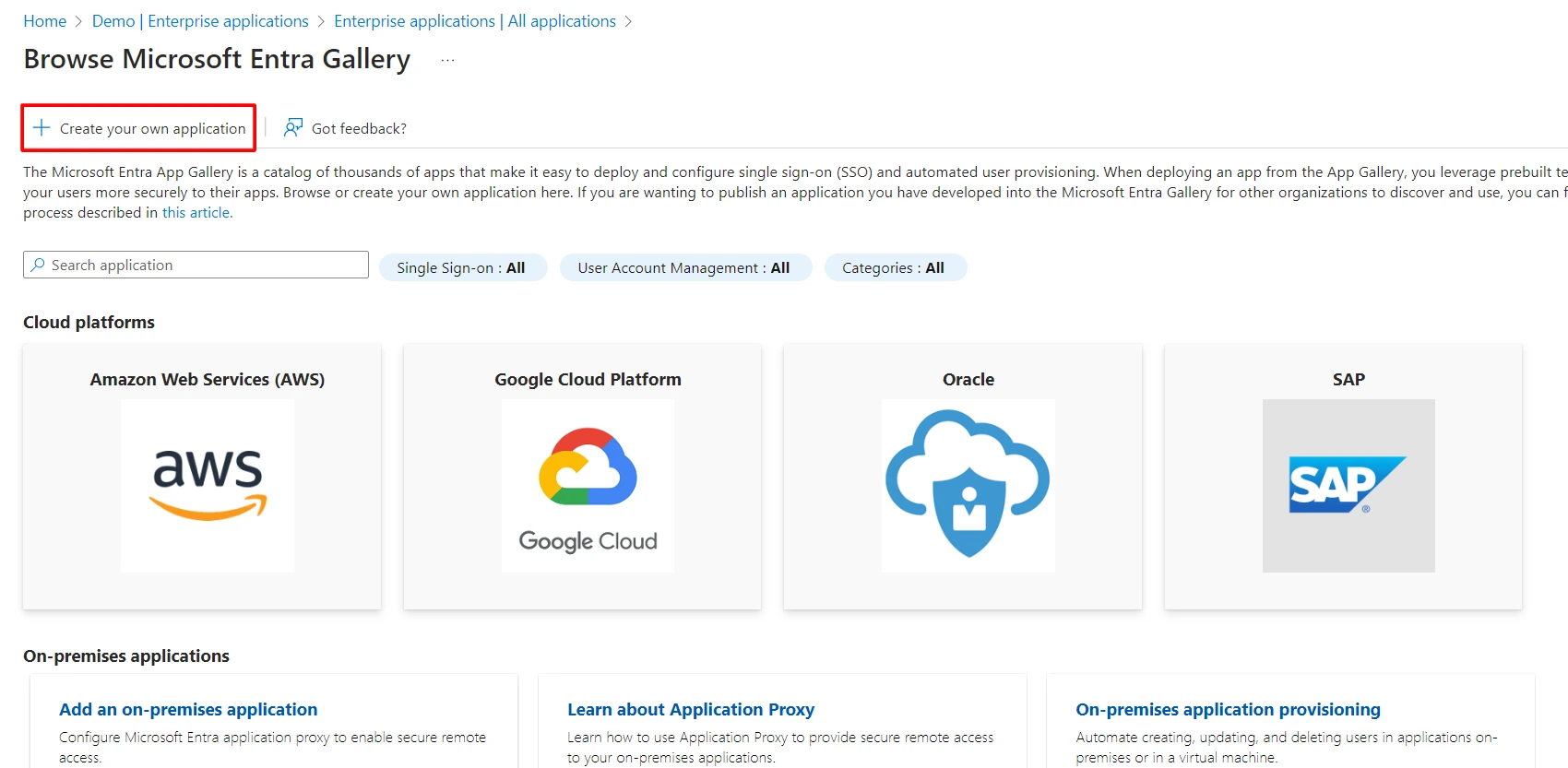
- Click on New Application.
- Click on Create your own Application.
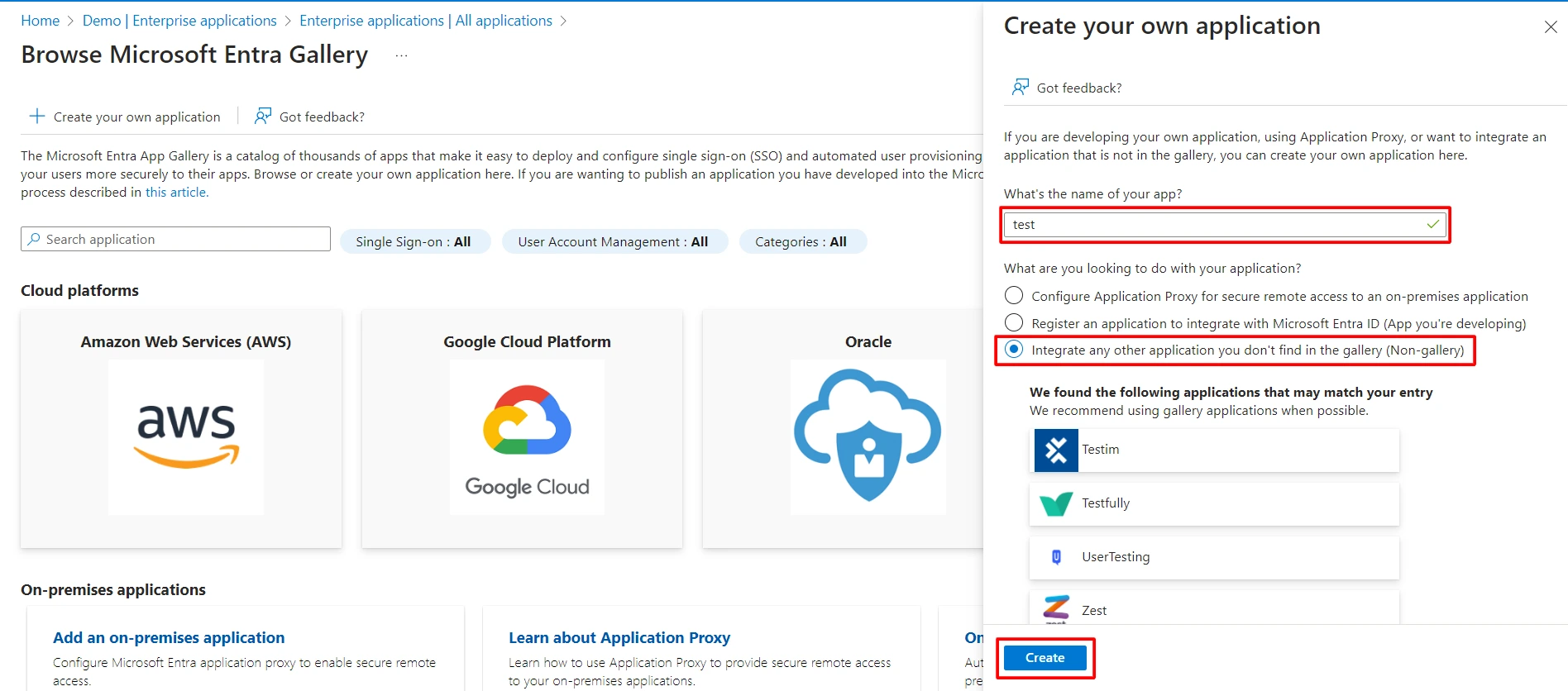
- Enter the name for your app, then select Non-gallery application section and click on Create button.
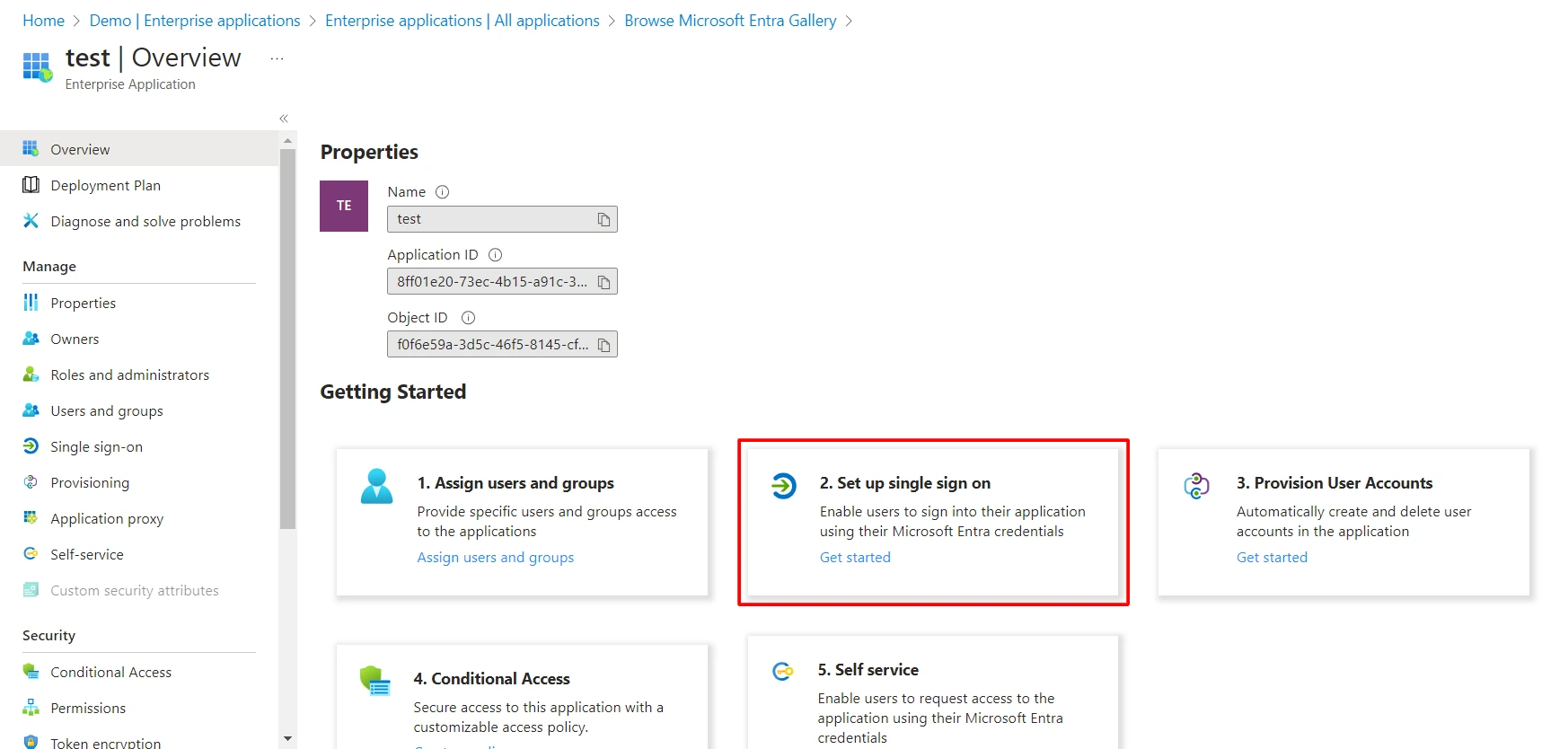
- Click on Set up single sign on.
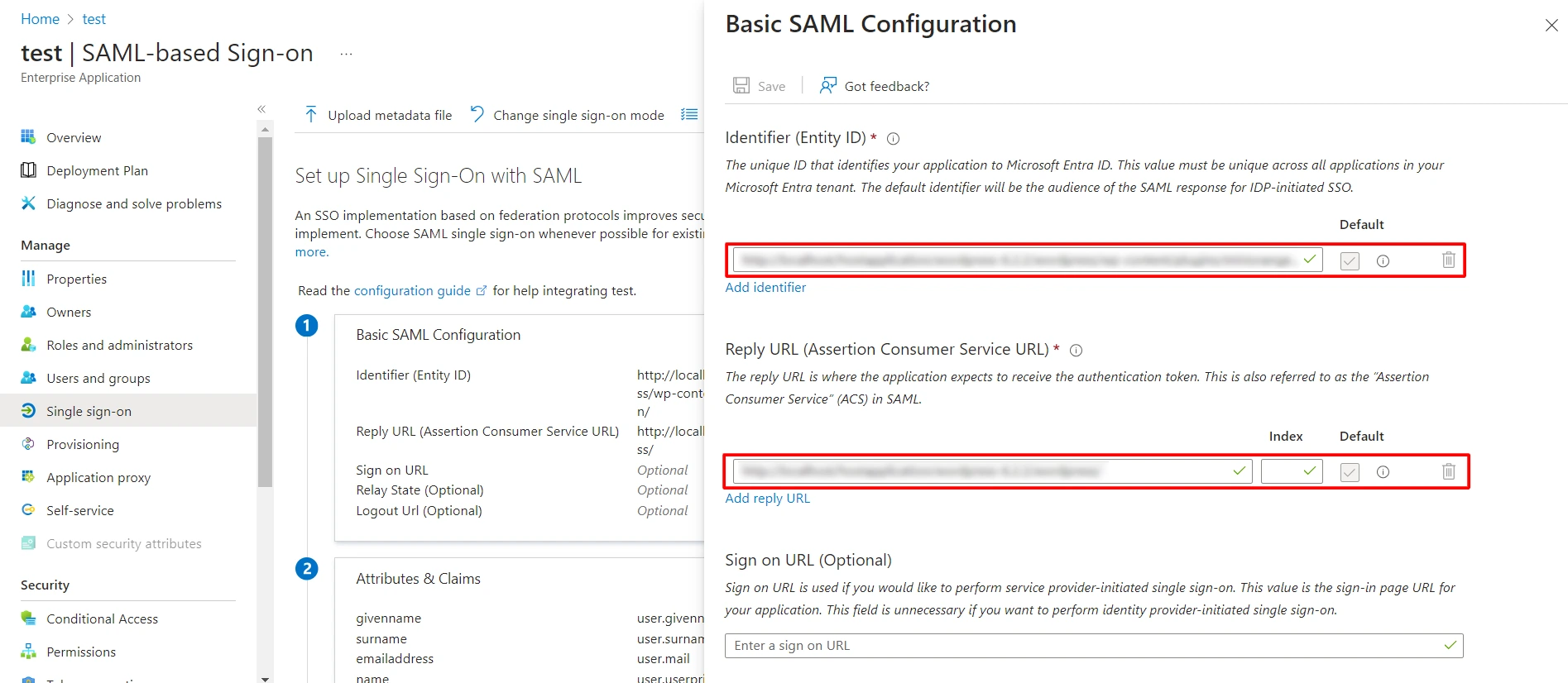
- After clicking on Edit, enter the SP Entity ID for Identifier and the ACS URL for Reply URL from the Topaz Labs metadata.
Note: For IDP-initiated SSO, the Sign On URL should be left blank
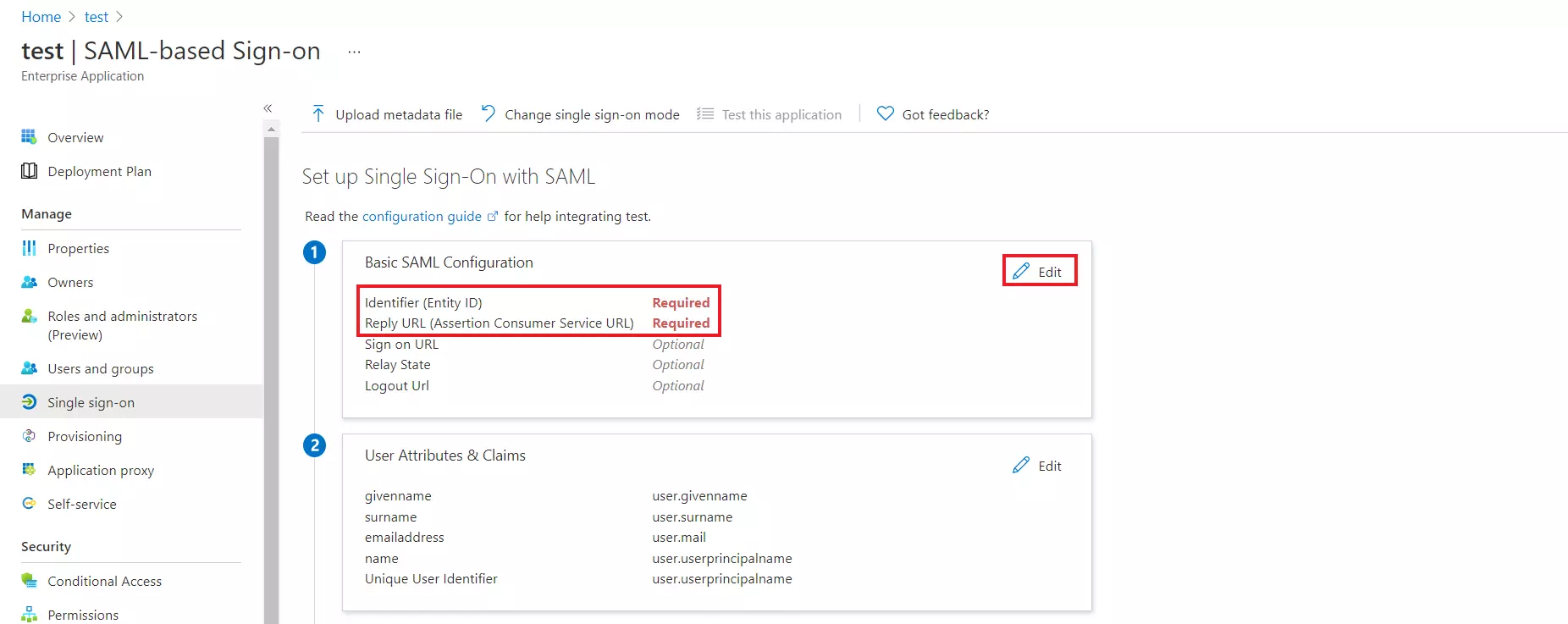
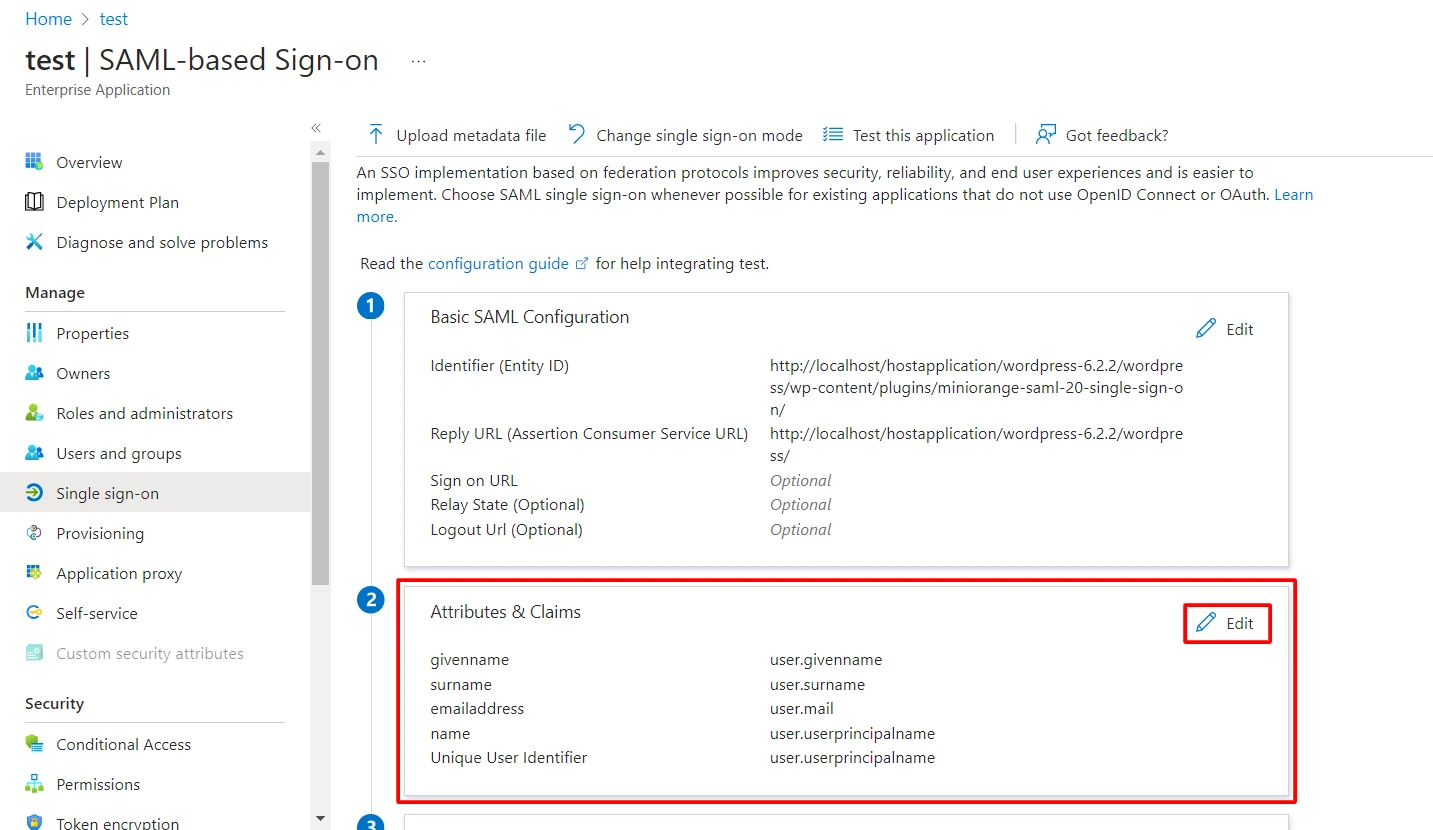
- By default, the following Attributes will be sent in the SAML response. You can view or edit the claims sent in the SAML response to the application under the Attributes tab.
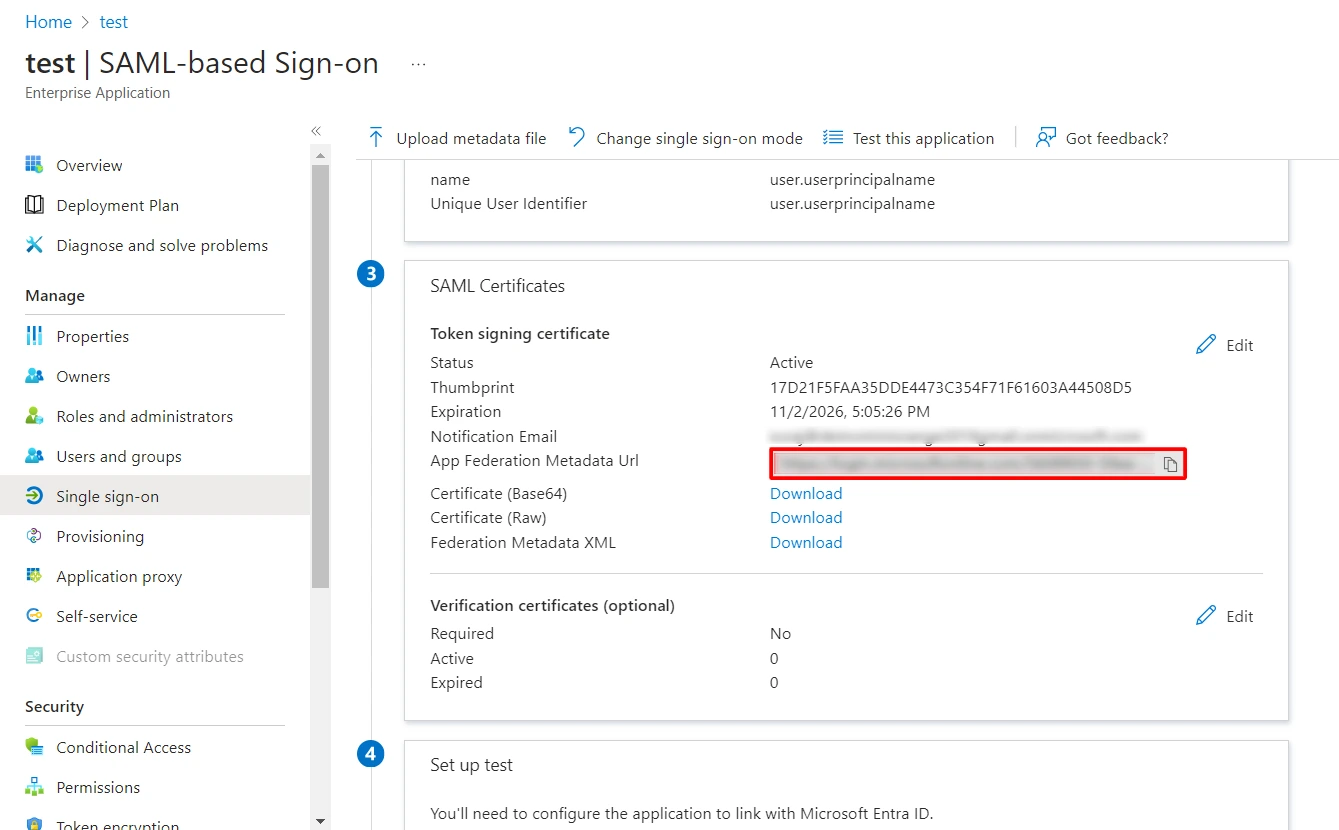
- Copy the App Federation Metadata Url (this is what you need to send to Topaz Labs)
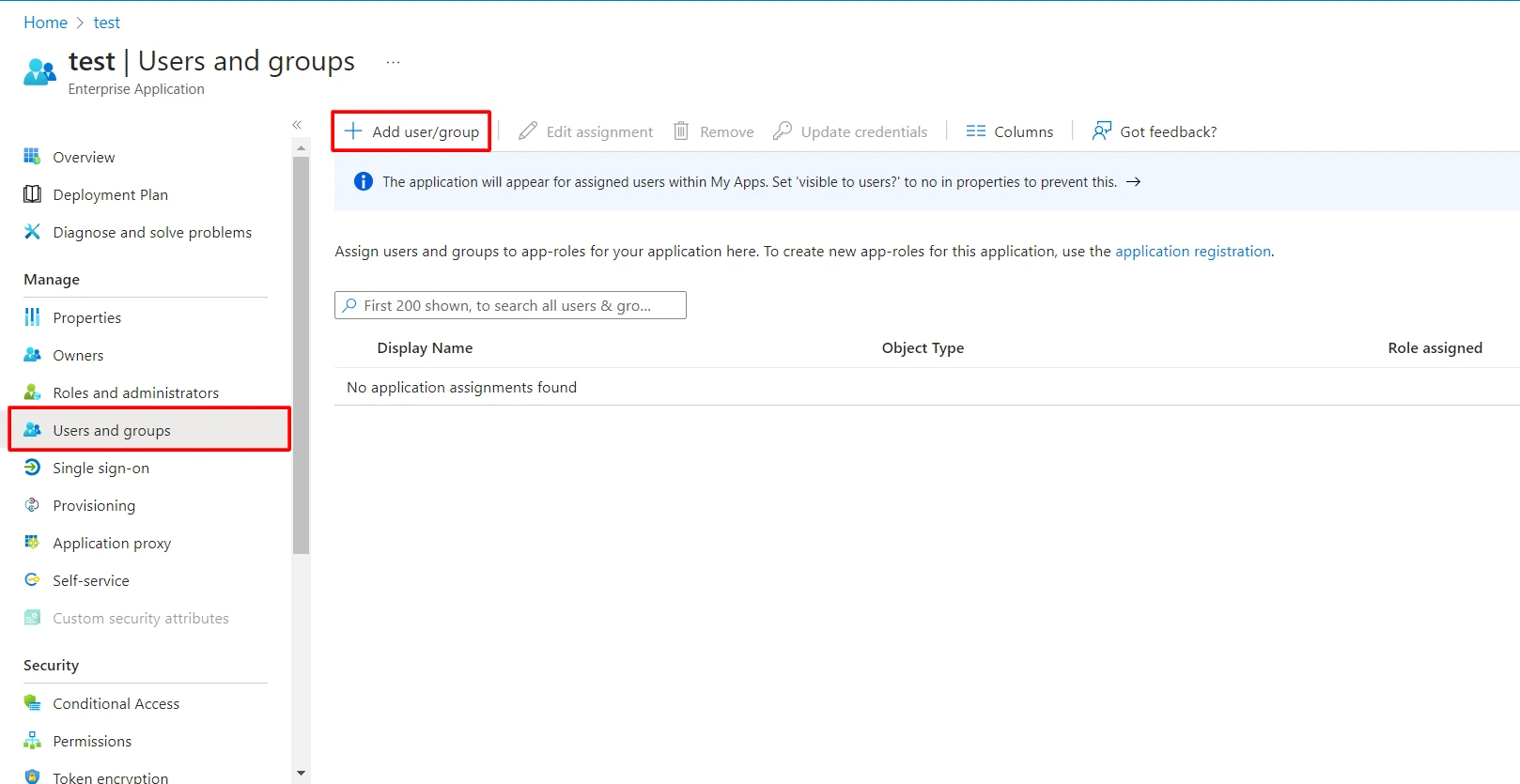
Assign users and groups to your SAML application
- Navigate to Users and groups tab and click on Add user/group.
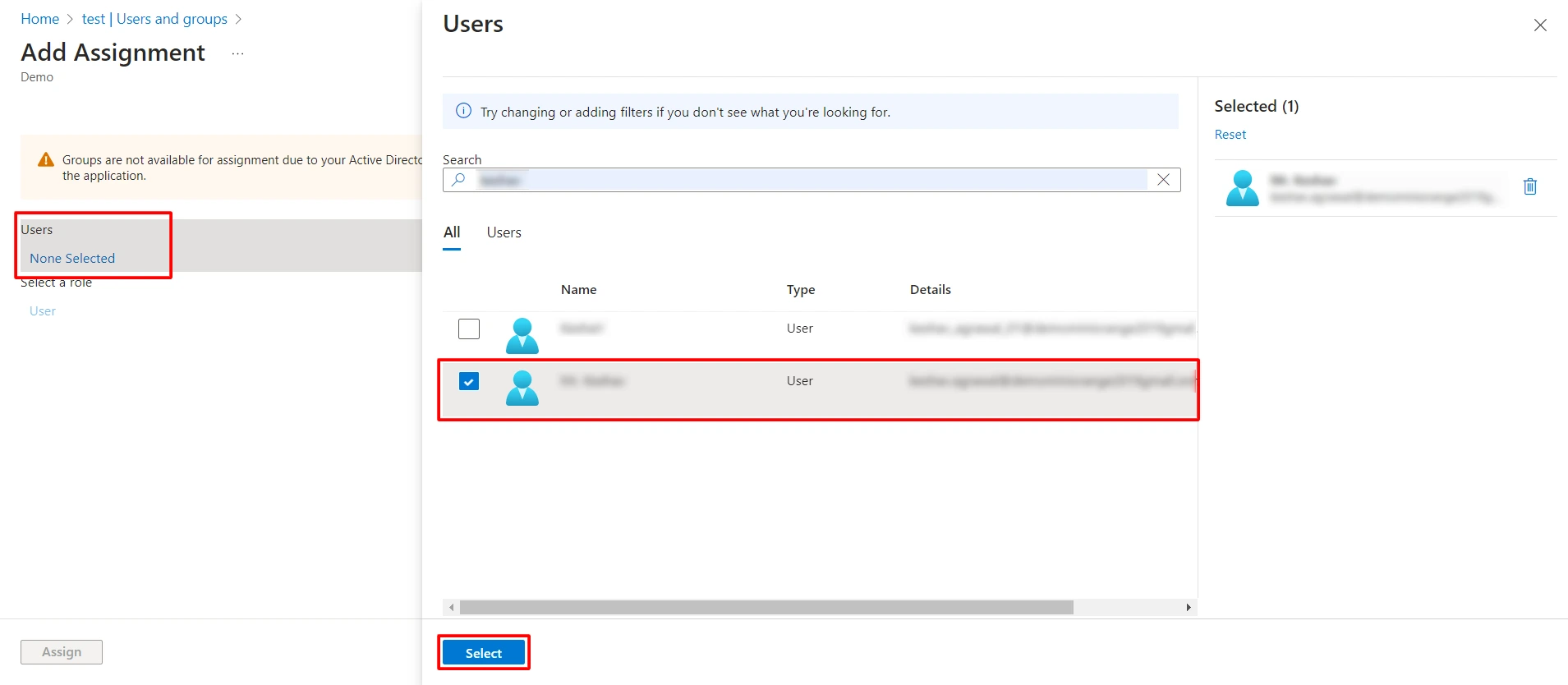
- Click on Users to assign the required user and then click on Select.
- After selecting users click on Assign button.
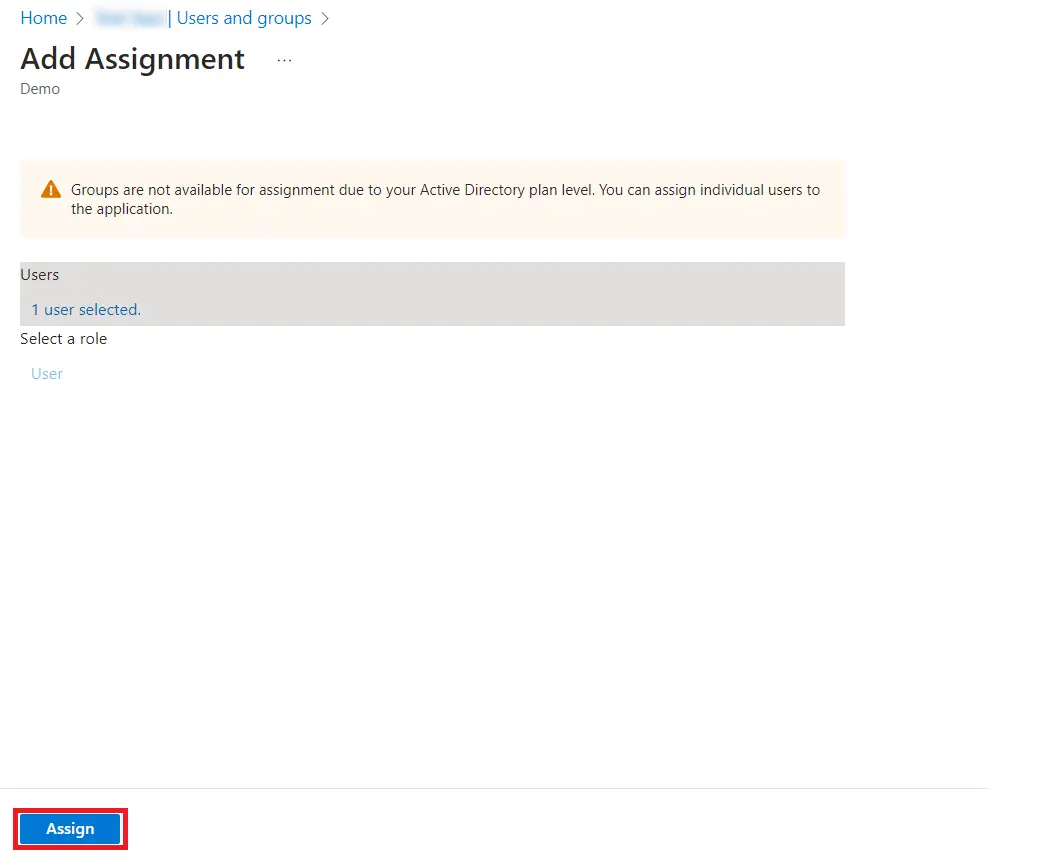
- You can also assign a role to your application under Select Role section.
Adding an Enterprise Application to External Identities User Flow
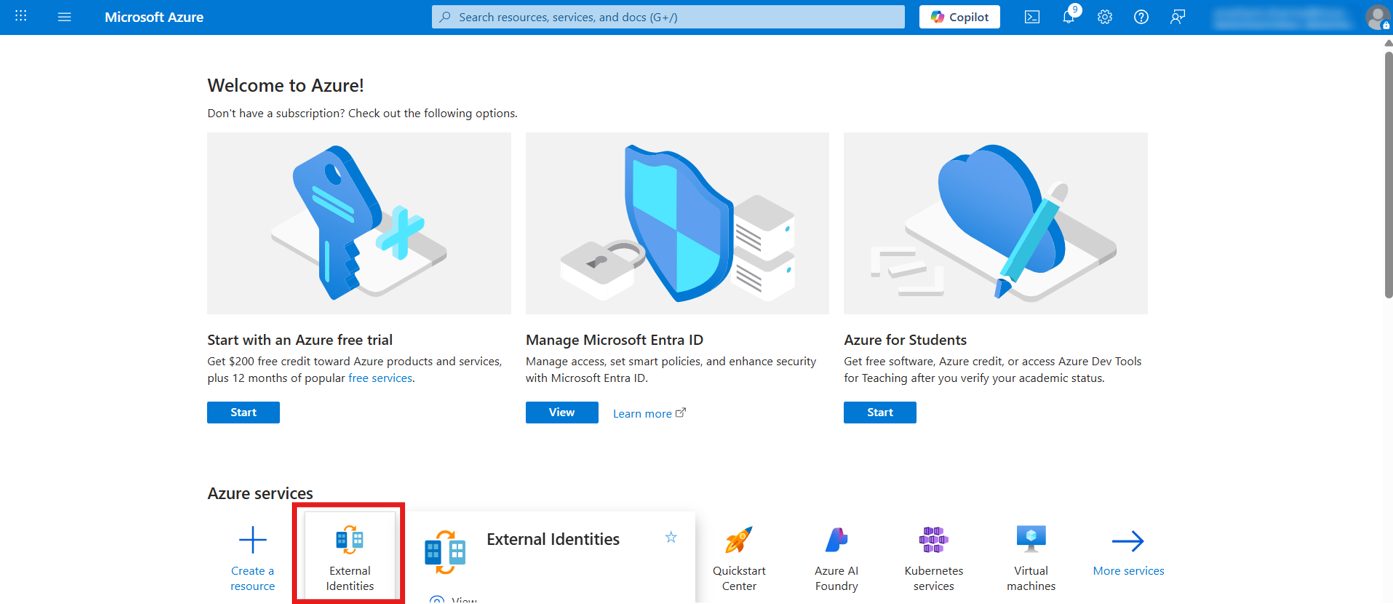
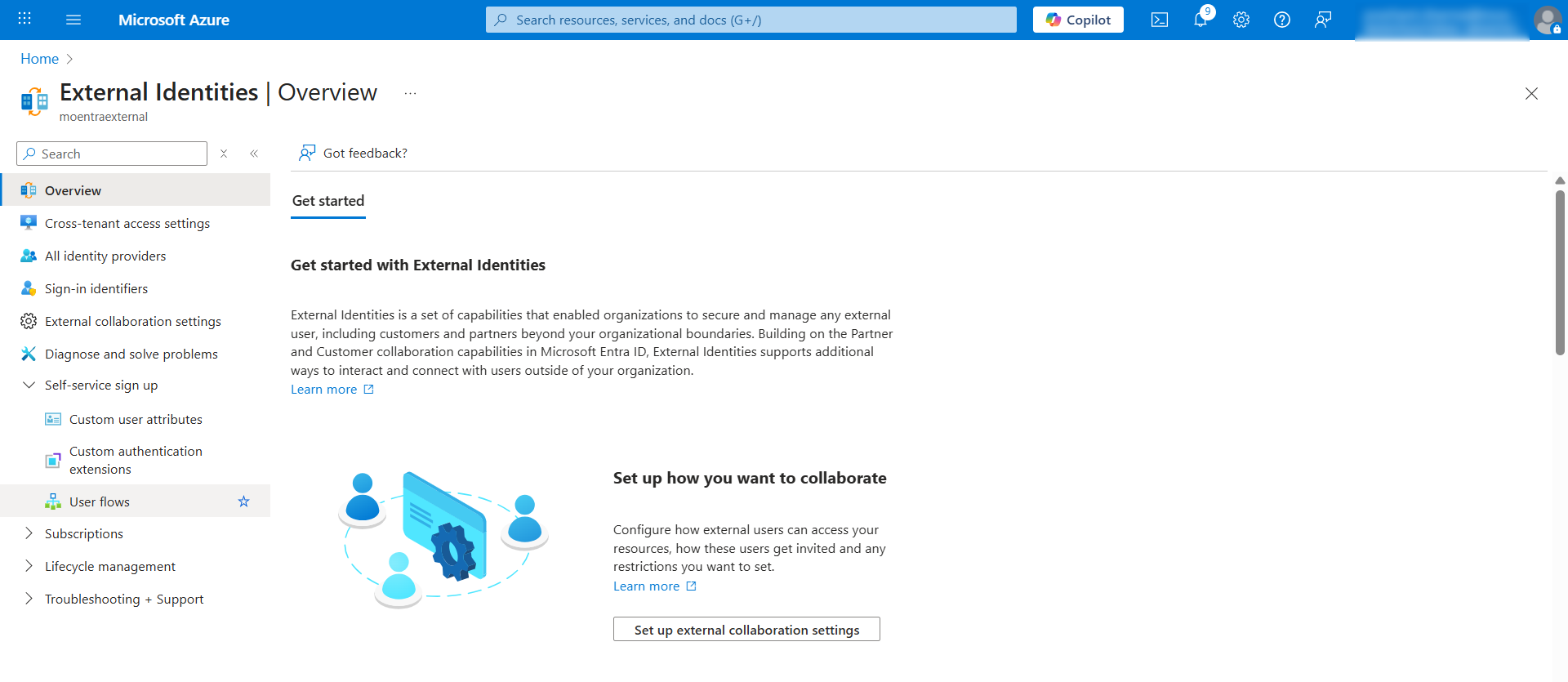
- Under the Azure Portal home page, locate and click on External Identities from the Azure services section.
In the External Identities overview page:
- From the left navigation menu, expand Self-service sign up.
- Click on User flows.
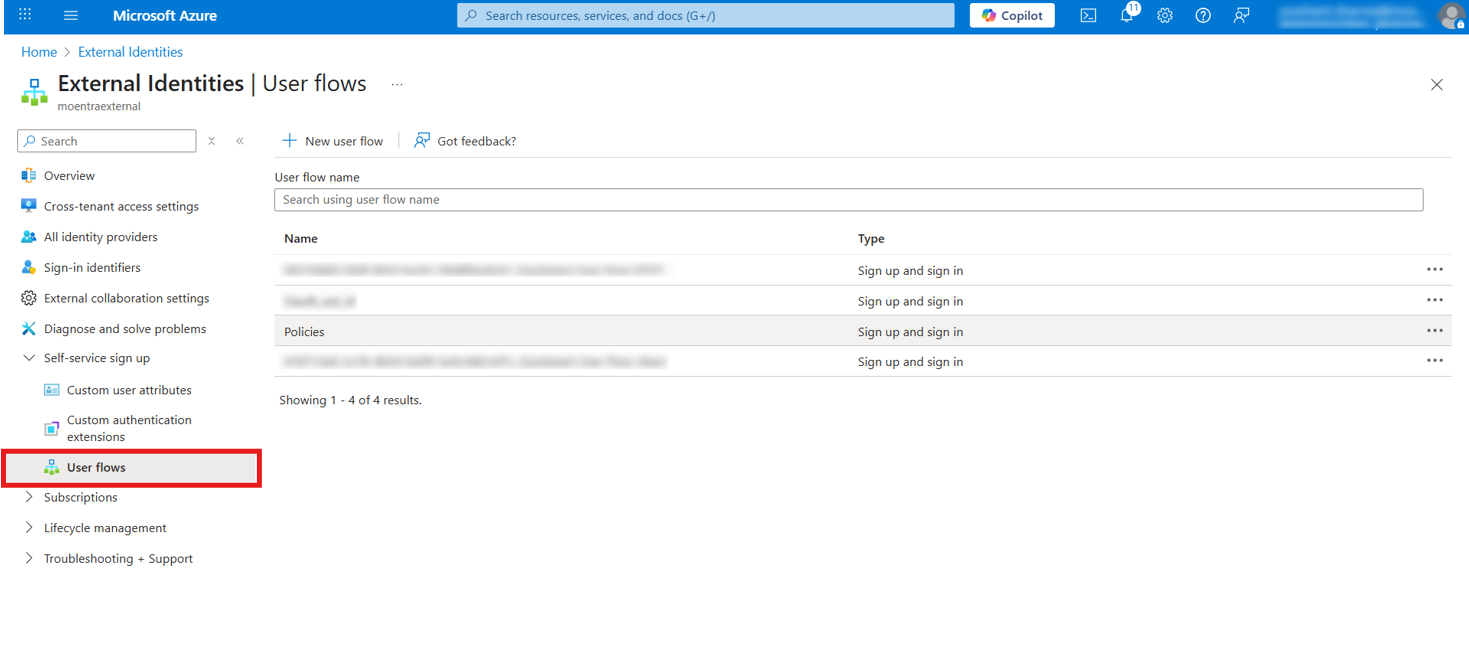
- Click on the user flow policy you want to configure (e.g., Policies).
- This will open the policy configuration page.
- In the left sidebar, expand the Use section.
- Click on Applications.
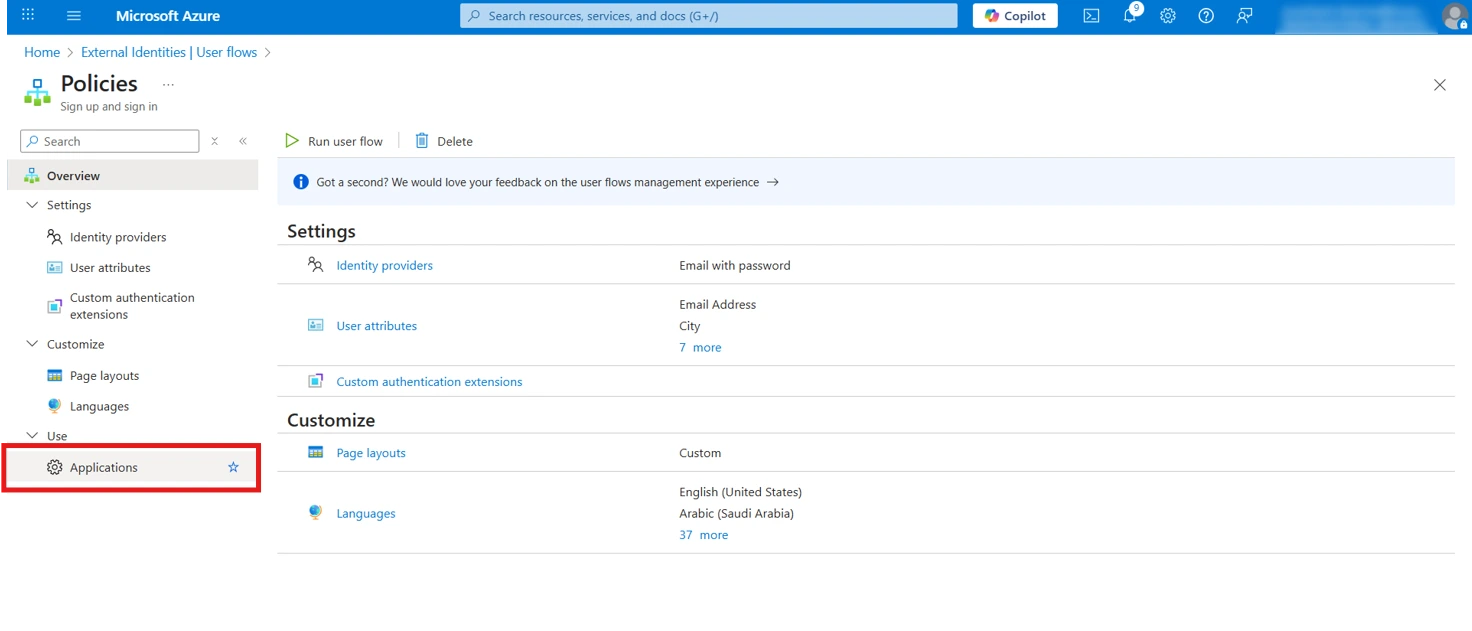
- Click the + Add application button at the top.
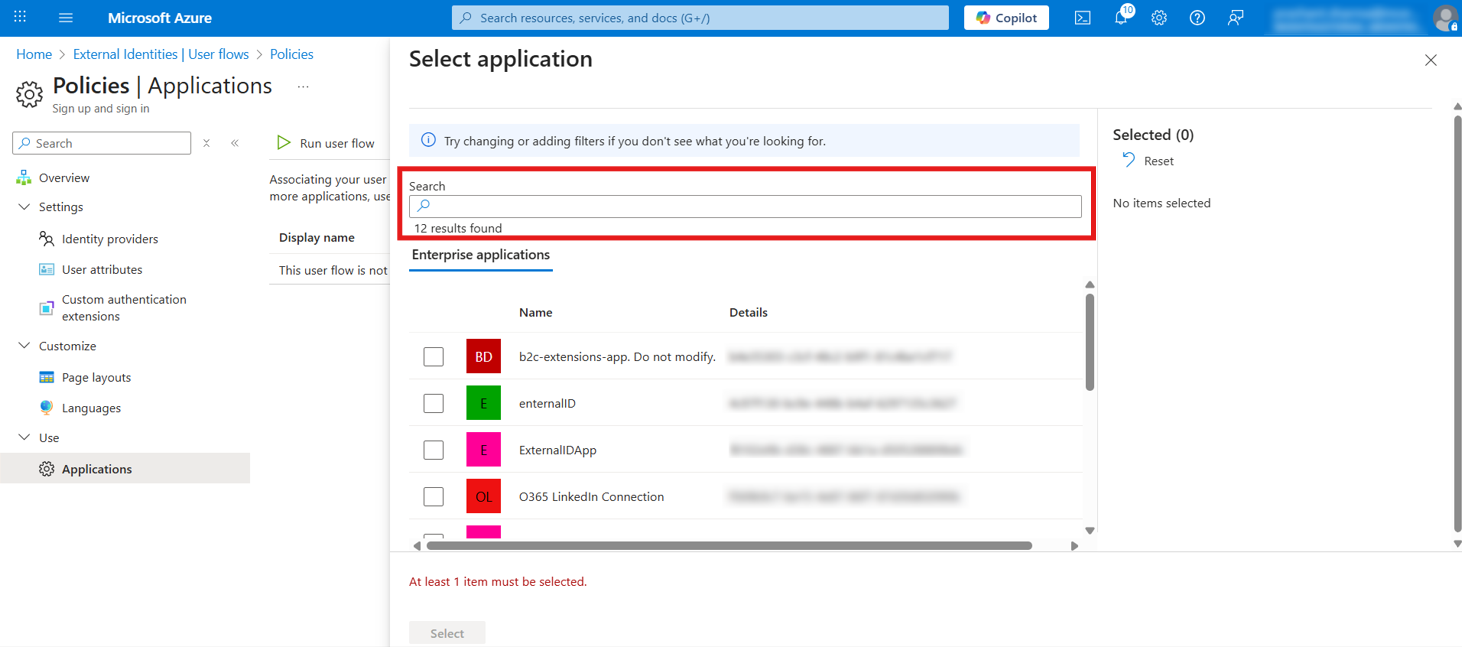
- A Select application panel will appear on the right side.
- In the search box, you can filter applications if needed.
- The panel shows 12 results found under Enterprise applications tab.
- Browse through the list of available enterprise applications.
- Check the checkbox next to your desired application (in this example, enternalID with ID: 4c97f130-bc9e-448b-b4af-6297135c3627).
- The selected application will appear in the Selected (1) section on the right.
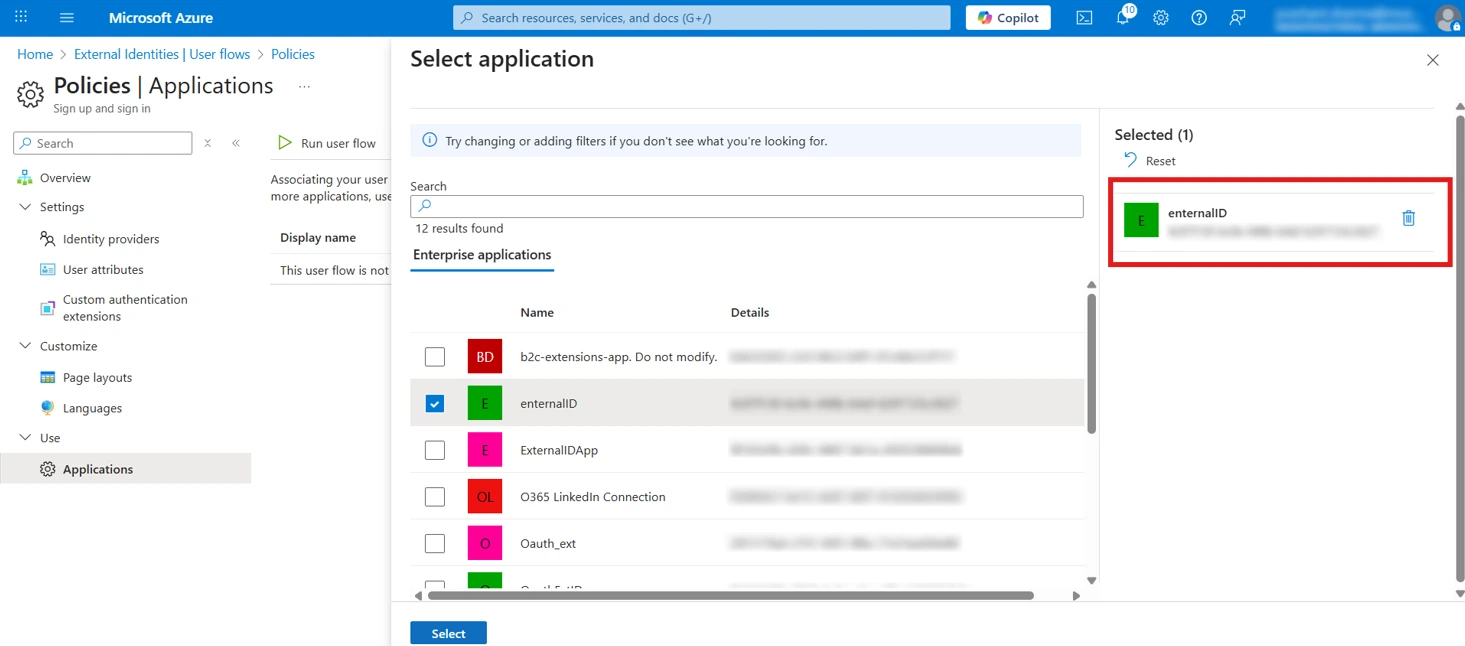
- Click the Select button at the bottom of the panel.
- The application is now associated with your user flow.
- You have successfully configured Microsoft Entra External ID as SAML IDP