RSA SecurID
Configuration Steps
Configure RSA SecurID as IdP (Identity Provider)
- Login to RSA SecurID Access (Cloud Console) as Admin.
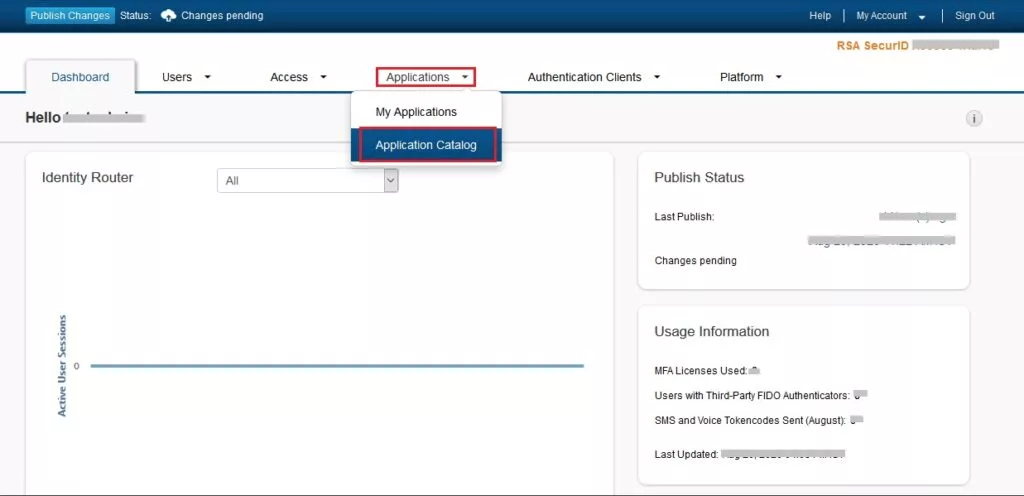
- In the top navigation menu, click on Applications → Application Catalog.
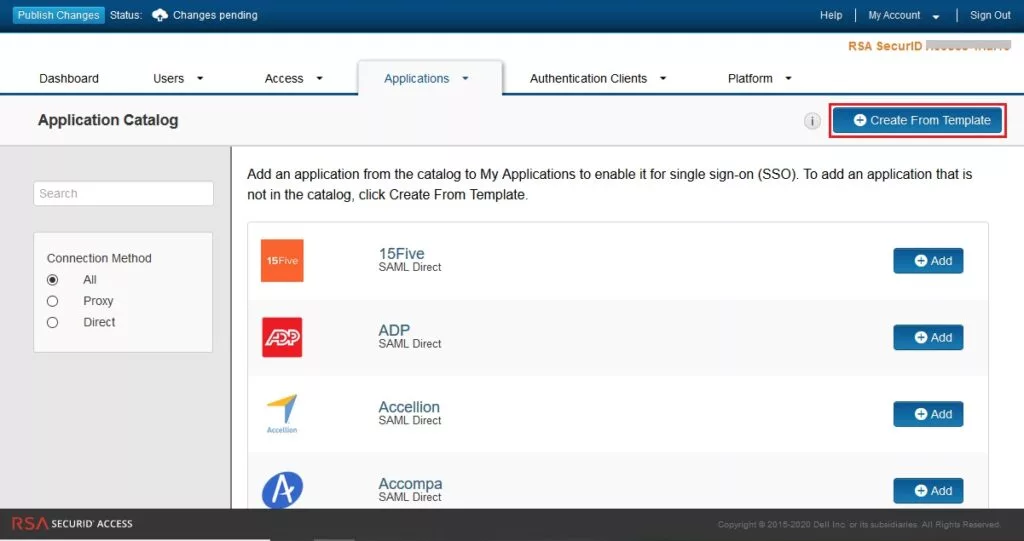
- Click Create From Template button on the top right corner.
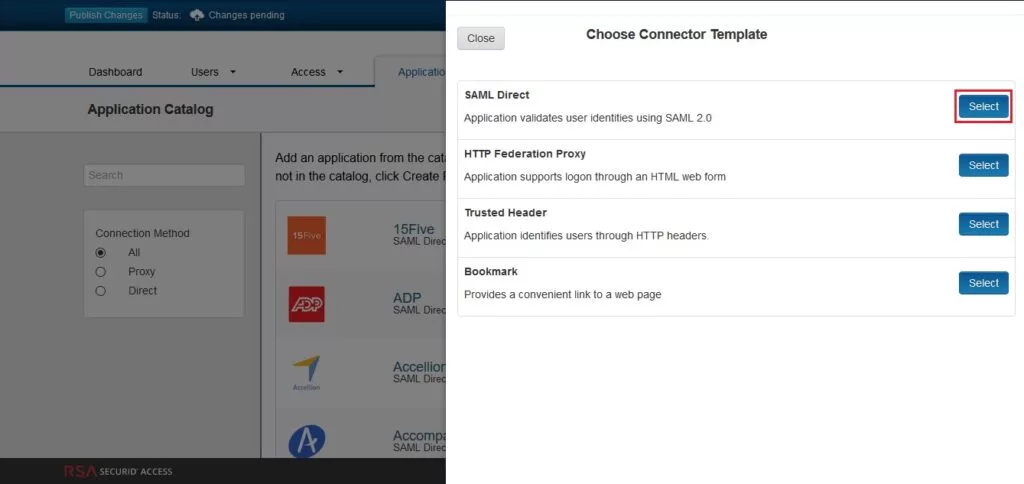
- Click on Select Button next to the SAML Direct, in the Choose Connector Template page.
- Fill the required information in the Basic Information.
- Name: Name of the application for eg. miniOrange Plugin.
- Description (Optional): Description for your application.
- Disabled [a checkbox] (optional): Select this only if you want to make this application unavailable to users. When disabled, the application appears in My Application but does not appear in the RSA application portal.
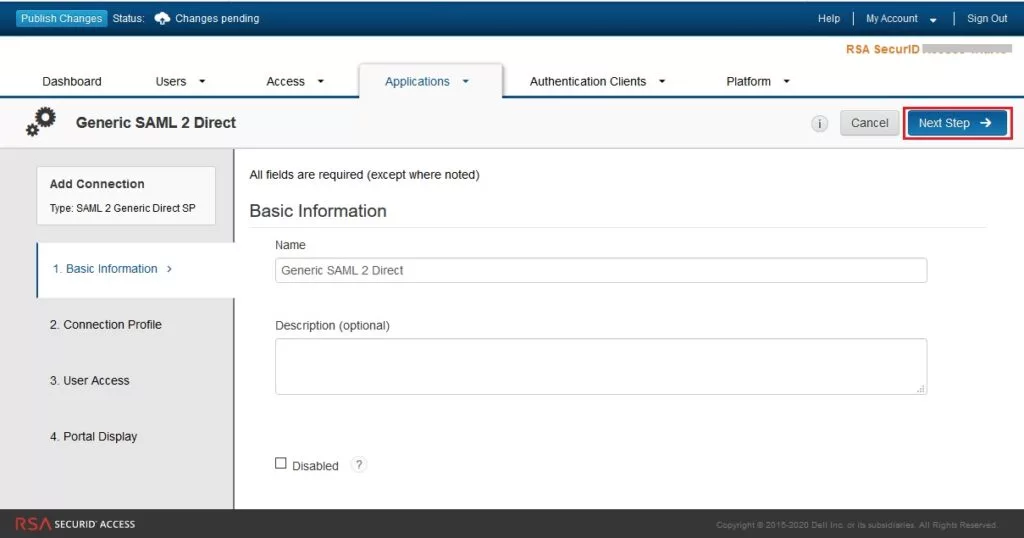
- Now click on the Next Step button.
Connection Profile
- Click on Import Metadata button.
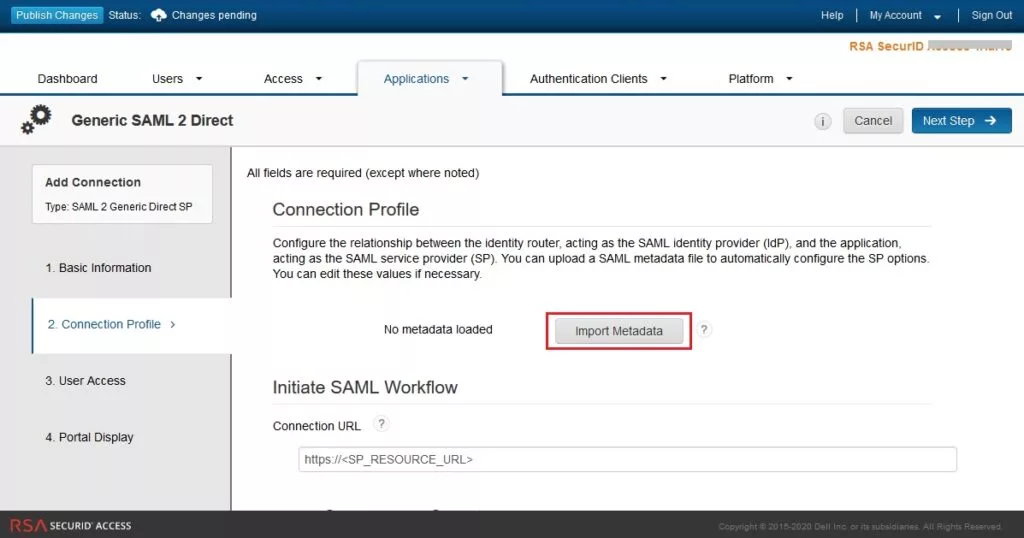
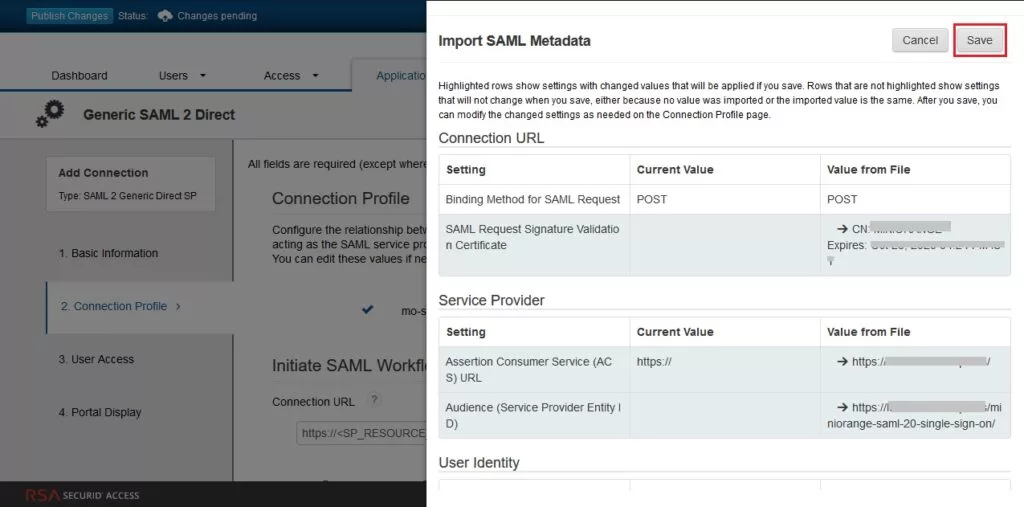
- Upload the Topaz Labs metadata file.
- Verify the configured URLs and clicks on the Save button on the top right corner of Import SAML Metadata window page.
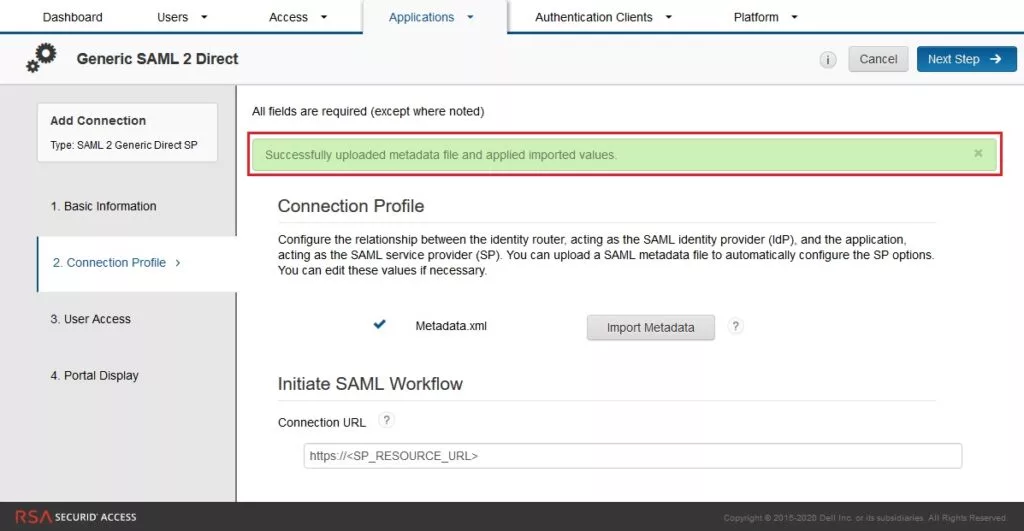
- Check if the metadata is imported successfully.
Initiate SAML Workflow
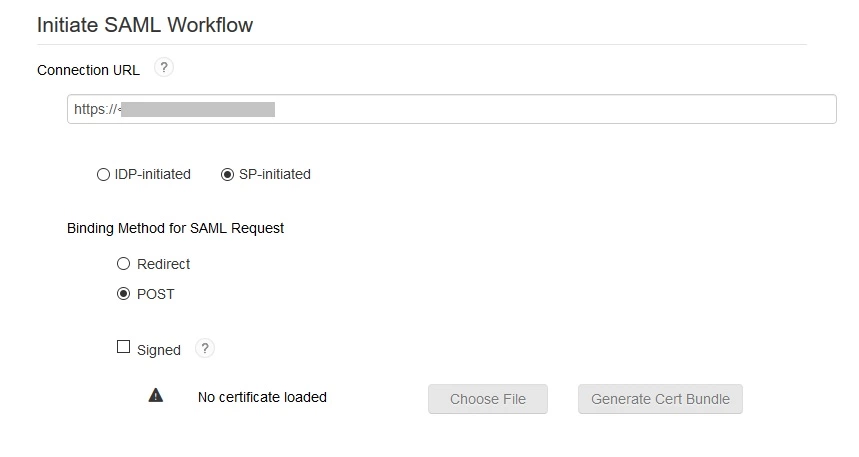
- Select SP-Initiated, if you want the SSO should be invoked from application or select IDP-initiated, if you want the user should log in into RSA first and then access application from his RSA Dashboard.
- Configure base URL of your application as Connection URL or you can leave it blank if IDP-initiated is selected.
- Binding Method for SAML Request: POST
(Note: The free version of WP SAML SSO Plugin supports only POST binding for SAML Requests.) - Signed [a checkbox]: Uncheck
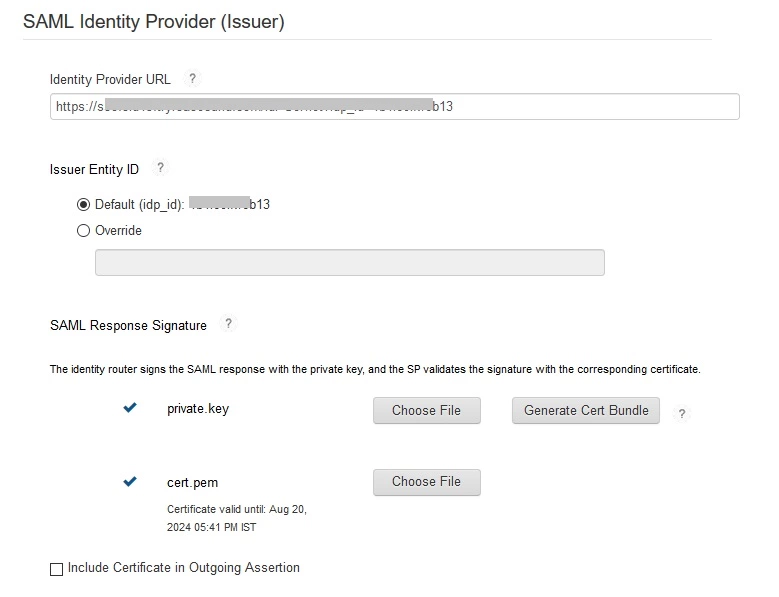
SAML Identity Provider (Issuer)
- Identity Provider URL: Note this value, it will need to be sent to Topaz Labs
- Issuer Entity ID: Default
(Note: This is the IdP Entity ID or Issuer used to configure in the plugin) - SAML Response Signature: Upload the private key and the certificate which will be used to sign the SAML Response or you can generate new key pair by clicking on the Generate Cert Bundle button.
- Include Certificate in Outgoing Assertion: Enable (Optional)
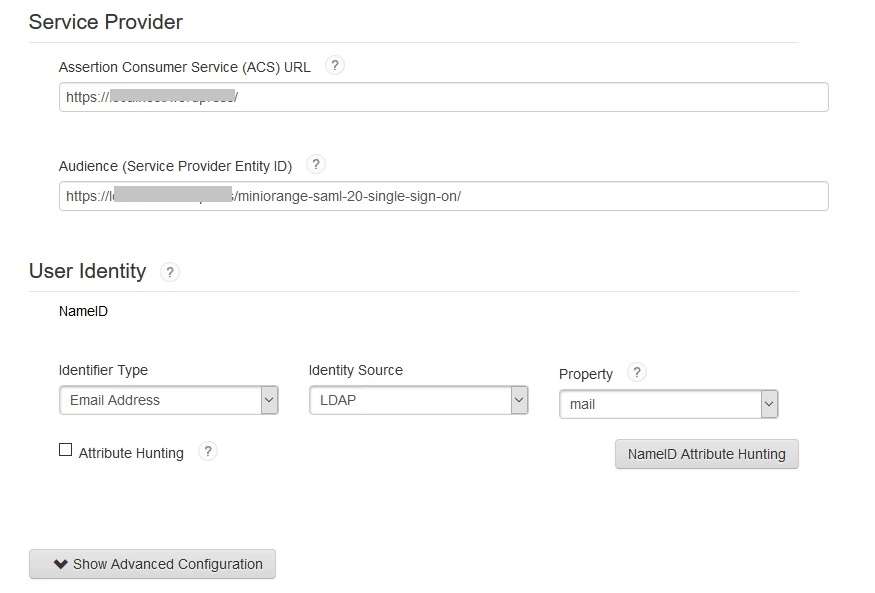
Service Provider
- Assertion Consumer Service URL and Audience URL should be preconfigured if you have uploaded Topaz Labs metadata in the Connection Profile section.
User Identity
- Configure NameID information that identifies the user who is generating the SAML Assertion.
Advanced Configuration: Attribute Extension (Optional)
- Configure additional user information to be sent to the Application in the SAML Response. For example, username, email, display name, groups etc.
- Now click on Next Step button.
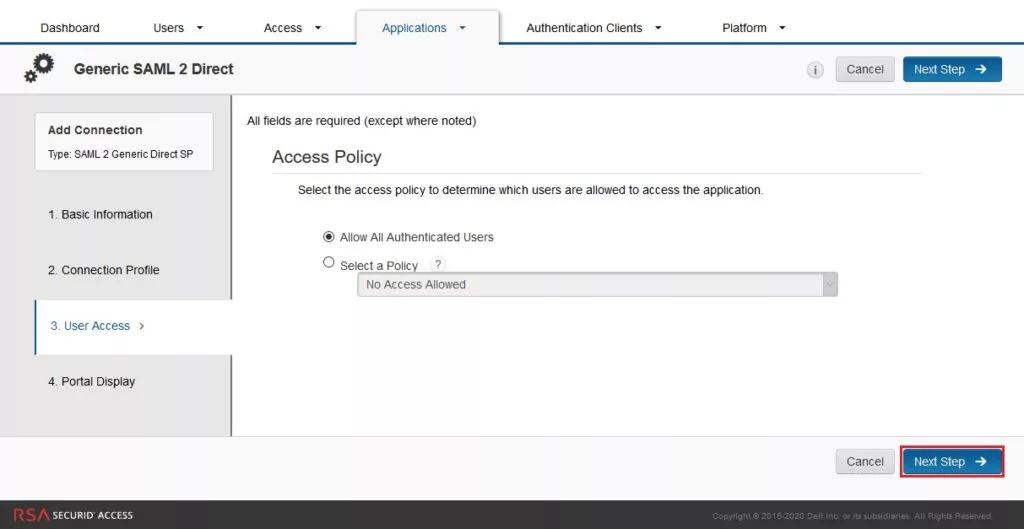
User Access
- Select the access policy as Allow all Authenticated Users and click on Next Step button.
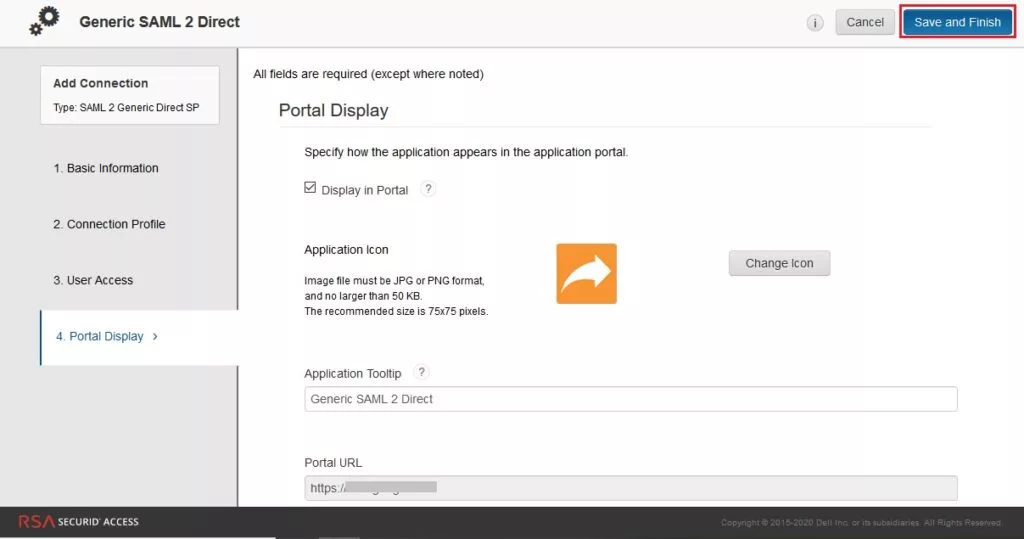
Portal Display
- Configure application display settings for RSA end users like app icon etc.
- Now click on Save and Finish button to save the settings.
- Now, from the top navigation bar, click Applications -> My Applications.
- Find the app that you have configured. Click on down arrow besides the app's name and click on Export Metadata.
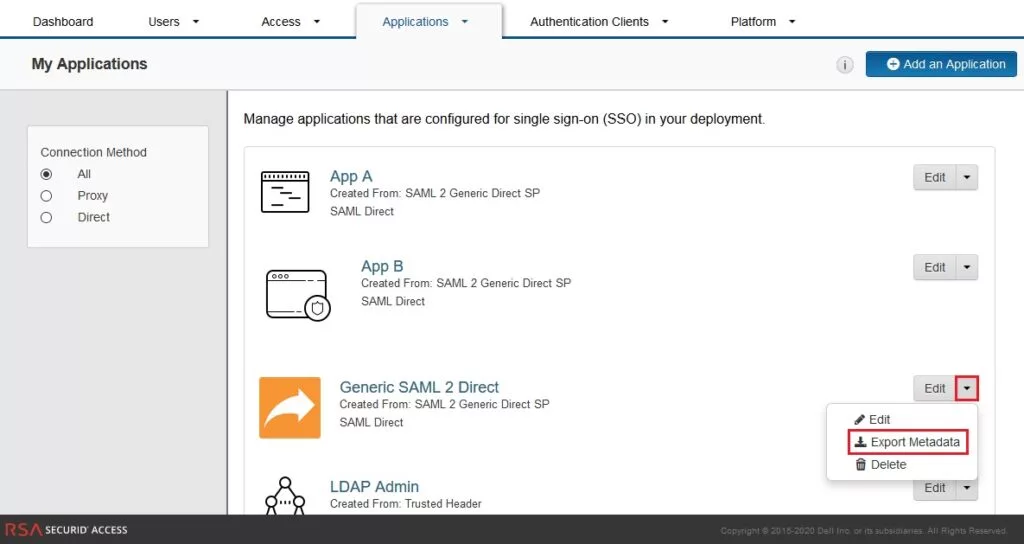
- Keep the metadata handy, it will need to be sent to Topaz Labs.
- Finally, click on Publish Changes button in the top left corner of the RSA Admin Console to publish this app configuration.
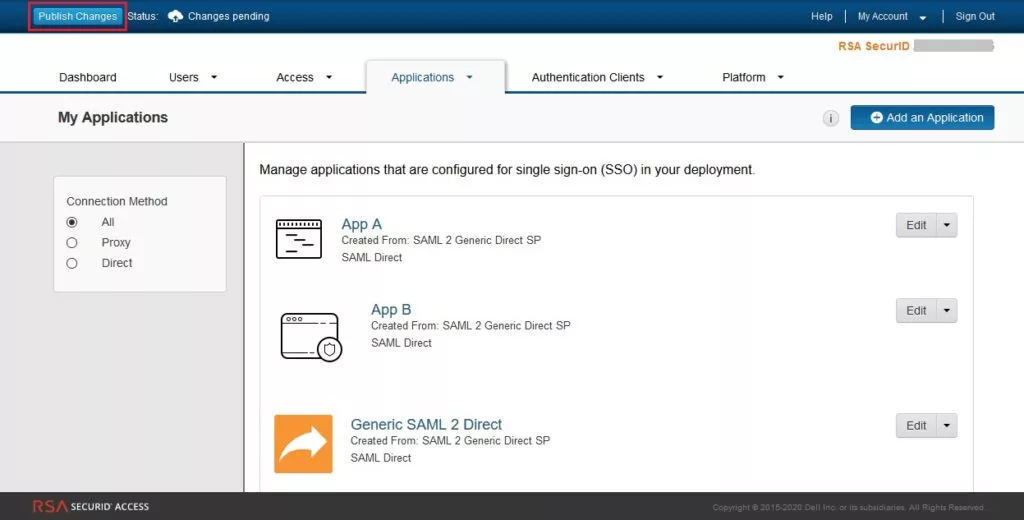
You have successfully configured RSA SecurID as SAML IDP (Identity Provider) for achieving RSA SecurID SSO login.