Image Workflows
Autopilot
The ultimate set-it-and-forget-it workflow. Autopilot automatically analyzes your image and determines the best combination of enhancement, noise reduction, sharpening, and upscaling to apply — all in a single run. No model selection or manual adjustments needed. Simply upload your image and let Autopilot handle the rest.
Key Controls
- Face Recovery — Toggle on to preserve and enhance facial detail in the final result.
Unblur
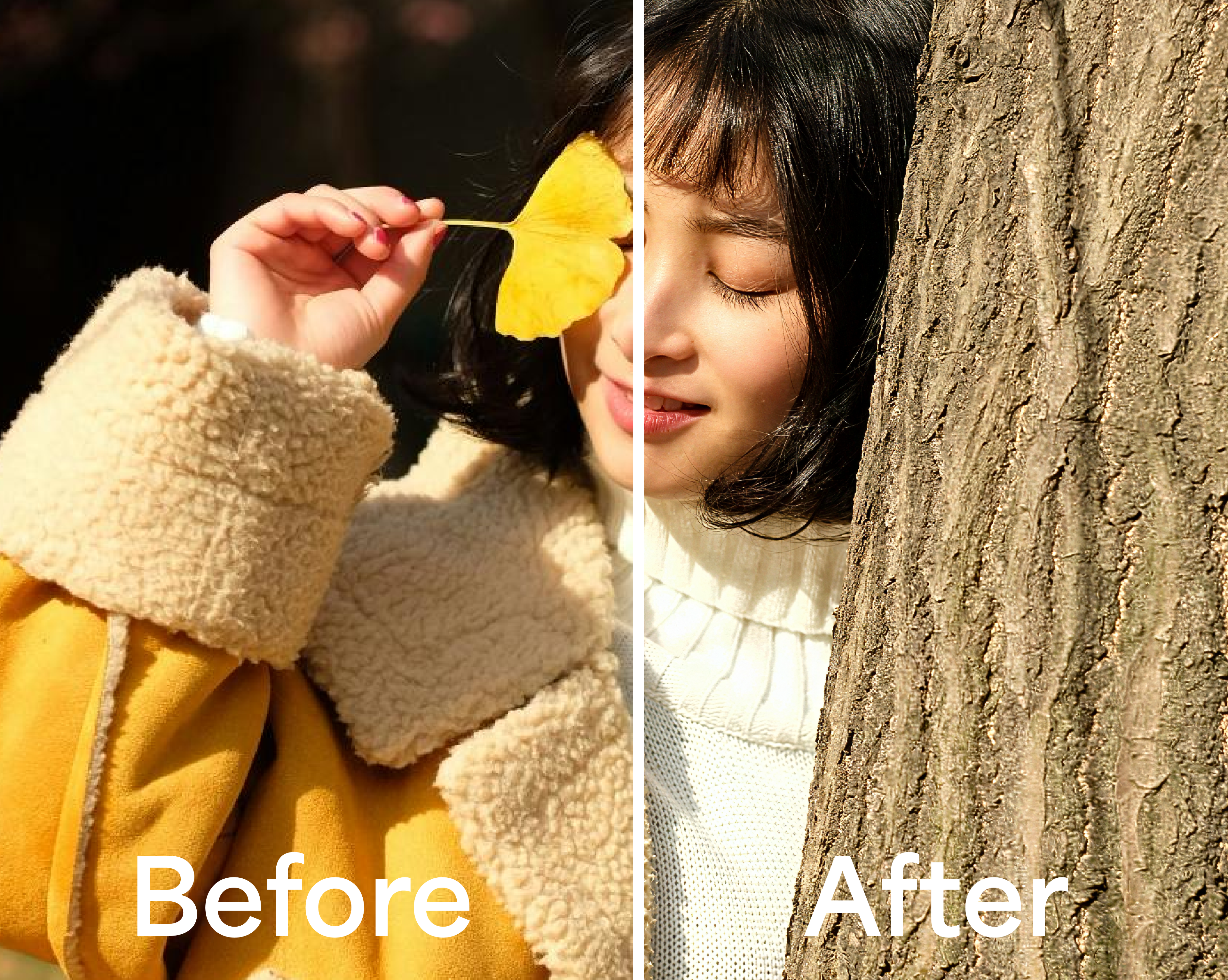
Use Unblur when your image lacks sharpness due to focus issues or camera movement. Select the blur type that best matches your image and choose whether to apply correction to the subject only or the entire image.
Key Controls
- Model — Soft Focus, Out of Focus, or Motion Blur
- Selection — Subject or Everything
- Face Recovery — Toggle on to preserve and enhance facial detail in the final result.
Sharpen
Use Sharpen when your image looks soft, out of focus, or lacks detail. Select the sharpening model that best fits your image and choose whether to apply sharpening to the subject only or the entire image.
Key Controls
- Model — Standard, Strong, Lens Blur, Wildlife, or Portrait
- Selection — Subject or Everything
- Face Recovery — Toggle on to preserve and enhance facial detail
Denoise Standard
Use Denoise Standard when your image has visible noise or grain from low light conditions or high ISO captures. Select the strength level that best matches the amount of noise in your image.
Key Controls
- Strength — Light, Normal, Strong, or Max
- Face Recovery — Toggle on to preserve and enhance facial detail in the final result.
Relight image
Use Relight when your image has lighting or exposure issues. Select the option that best describes the lighting problem in your image and Express will apply the appropriate correction.
Key Controls
- Lighting Type — Overexposed, Underexposed, Low Contrast, or Balanced
Standard Upscale
Use Standard Upscale when you want to increase the resolution of your image while keeping it true to the original. Unlike Creative Upscale, Standard Upscale preserves the existing detail and structure of your image without generating new or additional elements. Best for photos, graphics, and print work where accuracy and fidelity to the source matter most.
Key Controls
- Model — Standard, High Fidelity, CGI, Natural Enhance, or Low Resolution
- Scale — 1x, 2x, 4x, 6x, or 8x
Photo Restoration
Use Photo Restoration to bring old, damaged, or faded photos back to life. Each step in the restoration process can be toggled on or off depending on what your photo needs — from removing dust and scratches to correcting lighting, recovering facial detail, and adding color to black and white images.
Key Controls
- Dust & Scratch — Toggle on to automatically remove dust, scratches, and surface blemishes
- Adjust Lighting — Toggle on to correct exposure and lighting balance
- Face Recovery — Toggle on to preserve and enhance facial detail
- Colorizer — Toggle on to automatically colorize black and white images
Face Enhancer
Use Face Enhancer to restore and enhance facial detail in your images. Face recovery is powered by the Natural model, which focuses on realistic, true-to-source facial enhancement. Toggle Adjust Lighting on to also correct the exposure and lighting balance alongside the face recovery.
Key Controls
- Face Recovery (Natural) — Toggle on to restore and enhance facial detail with natural, realistic results
- Adjust Lighting — Toggle on to correct exposure and lighting balance
Creative Upscale
Use Creative Upscale to enlarge and transform AI-generated images, artwork, and illustrations. Unlike Standard Upscale which preserves the original, Creative Upscale uses generative models to add new detail, texture, and visual complexity to your image. Choose the model that best fits how much transformation you want — from natural realism to bold creative output. Face detail is enhanced using the Detailer model for sharper, more lifelike results.
Key Controls
- Model — Bloom Realism, Bloom Precision, Bloom Creative, or Bloom Redefine
- Scale — 1x, 2x, 4x, or 6x
- Face Recovery (Detailer) — Toggle on to enhance facial detail and realism
Denoise Auto
Use Denoise Auto when you want a hands-off approach to noise reduction. The workflow automatically analyzes the noise levels in your image — including subject noise, background noise, and overall noise — and applies the appropriate level of correction to each area separately. No manual strength adjustment needed.
Key Controls
- Face Recovery — Toggle on to preserve and enhance facial detail in the final result.
Background Remover
Use Background Remover to cleanly isolate your subject from its background. Simply upload your image and Express will automatically detect and remove the background, leaving you with a clean cutout ready for compositing, design, or further editing.
Colorizer
Use Colorizer to automatically add natural, realistic color to black and white or faded images. Adjust the strength to control how bold or subtle the colorization appears.
Key Controls
- Strength — 1 (subtle) to 5 (bold)