Quick Start
Getting Started with Astra
You can launch Astra using either method listed below:
- From your Web App homepage after logging in:→ Click Astra under your Studio apps.
- Or go straight to the Astra URL: you can bookmark this for direct access.
Log in to Astra
- Open the Astra Cloud App in your browser.
- Click on Log In.
- Sign in using your Topaz Labs account credentials.
- Once logged in, you will be taken to the Astra Cloud interface dashboard.
Upload Your Video
- On the main interface, locate the “Upload a Video” button in the center of the screen.
- Click Upload a Video.
- Select your video file from your computer.
Important requirements:
- The video must be in MP4 format.
- The video must use the H.264 or H.265 codec.
Select the AI Model
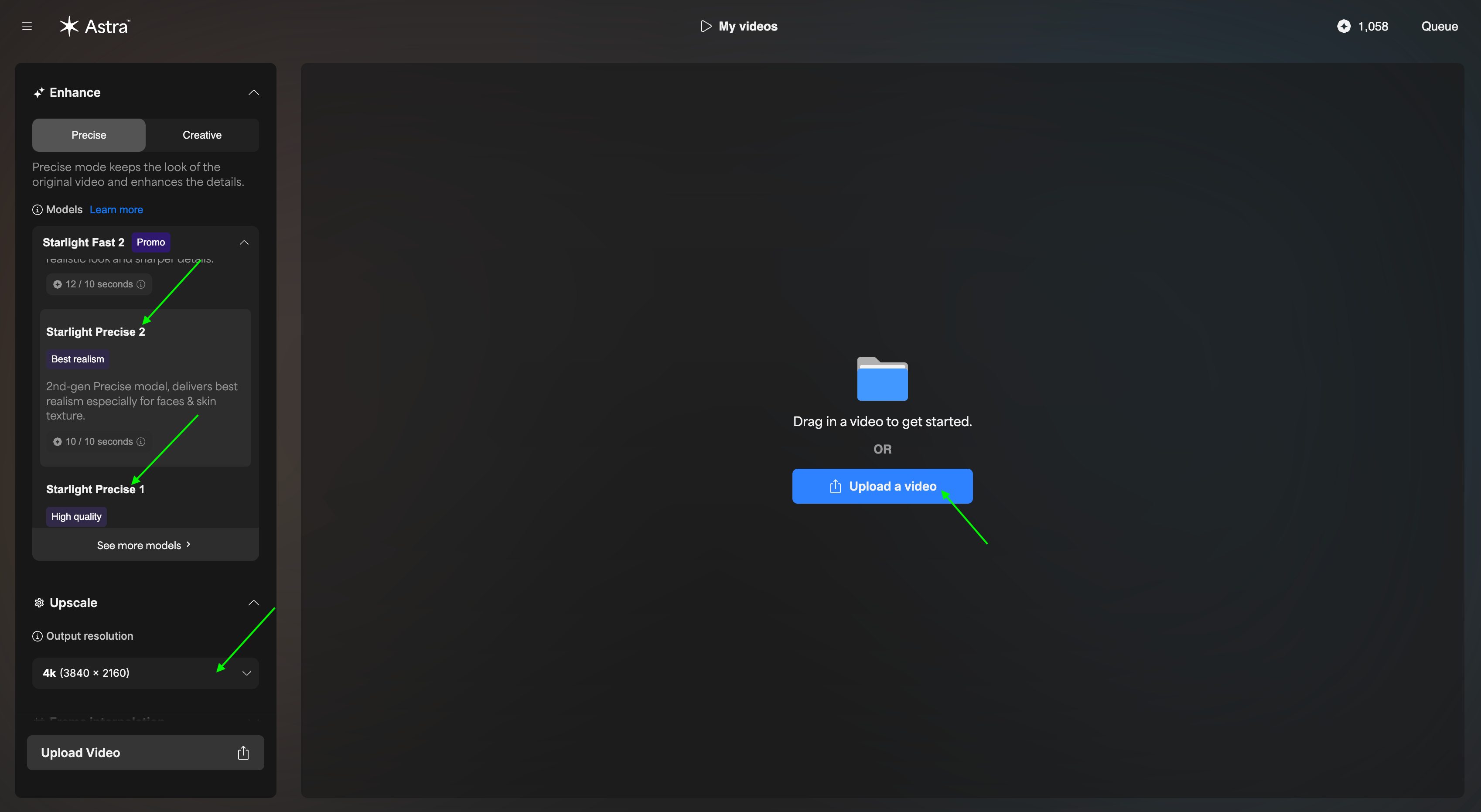
- After the upload is complete, you will see the model selection options.
- Choose the model based on your needs. Available options include:
- Proteus model
- Starlight models (Starlight Precise 1, Starlight Precise 2, Starlight Fast 2 Beta)
Each model offers different speed, quality, and frame length capabilities.
Select the Output Parameters
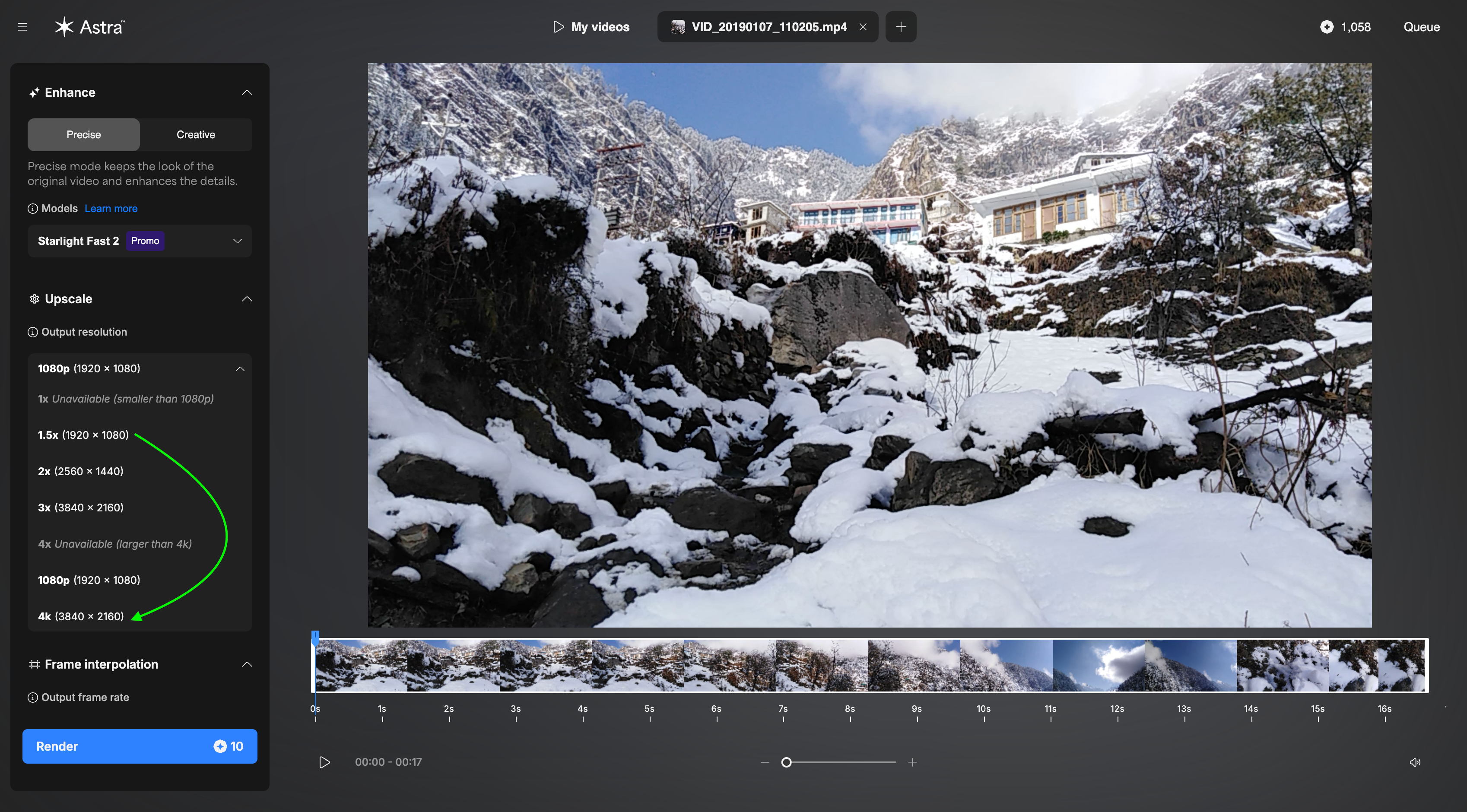
Choose your desired output resolution.
Astra supports output up to 4K resolution.
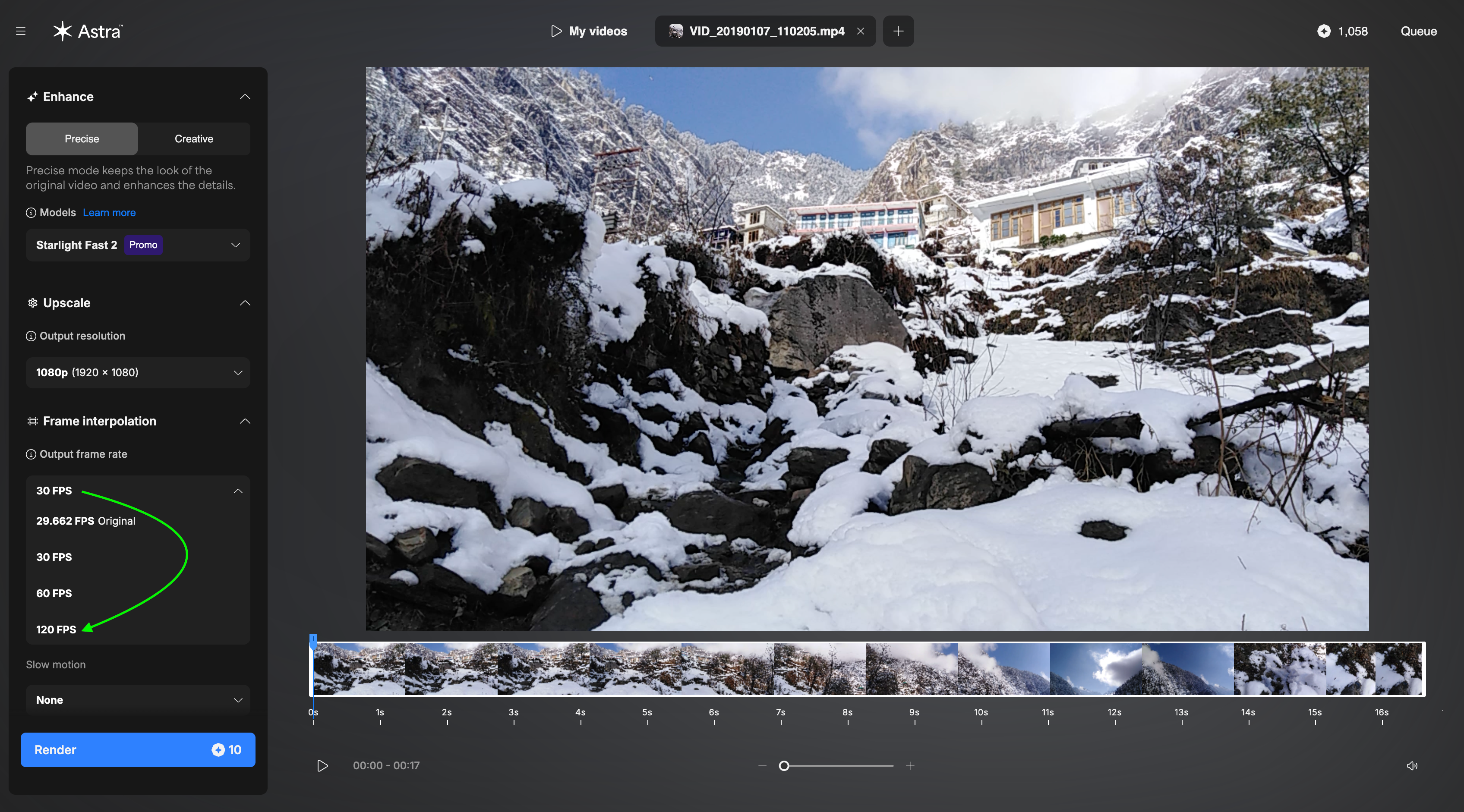
Select the frame interpolation (FPS) option.
You can increase the frame rate from 24 FPS up to 120 FPS, depending on your requirements.
These settings allow you to control the final video quality and smoothness.
Set the Render Length
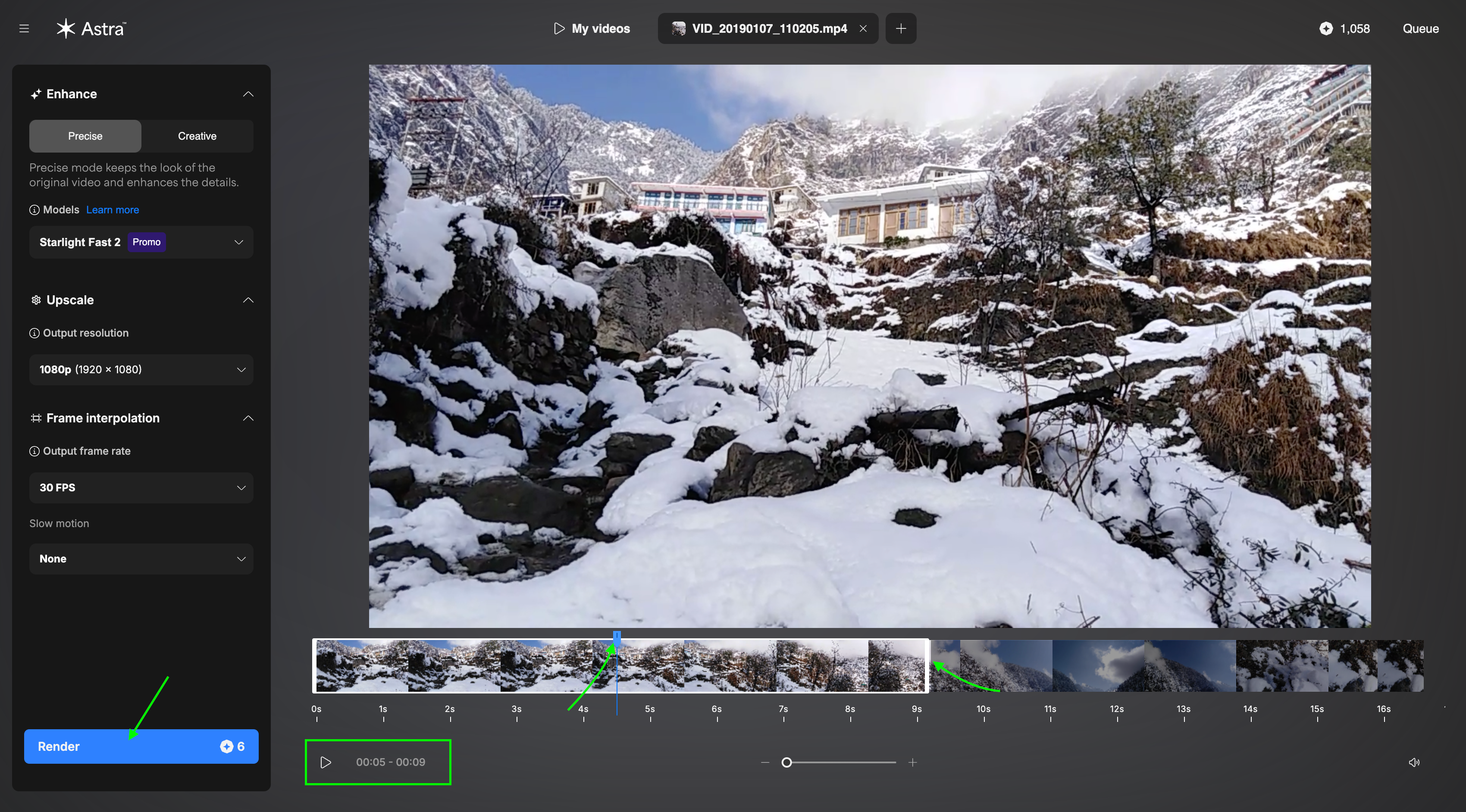
Use the timeline controls to define the portion of the video you want to render:
- Drag the blue expander to set the start point.
- Drag the white expander to set the end point.
If you want to render the entire video, expand the selection to cover the full timeline.
Start the Render
Once you have:
- Uploaded the video,
- Selected the model,
- Chosen the output parameters, and
- Set the render range,
Click the Render button to begin processing.
You can monitor the progress and download the final output once rendering is complete.
Note:
- Starlight Precise 1 supports rendering up to 9000 frames at 30 FPS per video.
- Starlight Precise 2 supports 450 frames at 30 FPS per video
- Starlight Fast 2 is now officially released, offering fast, high-quality enhancement and supporting videos up to 5 minutes in length for quicker, efficient results.
Supported File Types
Astra currently offers limited file compatibility, with more to be added in the near future.
Currently Supported
Input:
- H.264 encoded MP4
Output:
- H.264 encoded MP4
At this time, Astra supports only H.264 MP4 video for both input and export.
In Development:
- Expanded MOV support (including ProRes)
- Improved unsupported file error messaging
Recommendation: Convert VFR files to Constant Frame Rate (CFR) before uploading.
Improved VFR detection and messaging are in development.
File Size and Frame Limits
Below, you will find information on Astra's file upload limitations.
Are there file size limits?
There is no strict upload file size limit enforced on the backend.
However:
- Files larger than 2GB may encounter processing instability.
- For best performance and reliability, we recommend keeping uploads under 2GB.
Are there frame limits?
Frame limits are enforced per single video render and vary by model.
Starlight Models (Single Render Limit)
9,000 frame limit per render:
- Starlight Quality / Precision (SL-1)
- Starlight Fast (SLF-1)
- Starlight Mini
- SLF 2
- Rhea
- Nyx
- Iris
- Proteus
450 frame limit per render:
- Starlight Creative (SLC-1)
- Starlight Precision 2 (SLP-2)
These limits apply to a single video render.
How can I process longer videos?
If your video exceeds the model’s frame limit:
- Split the video into multiple segments
- Use Astra’s Scene Detection to automatically divide your video into renderable scenes
This allows longer videos to be processed in parts while staying within model limits.
Browser Compatibility
Fully Supported Browsers:
- Google Chrome
- Mozilla Firefox
- Microsoft Edge
- Safari
Recommendations:
- Use the latest browser version
- Enable hardware acceleration
- Maintain a stable internet connection
Performance on unsupported browsers may vary.
Video Storage
Rendered videos are stored for active subscribers for 7 days. After 7 days, the download link will no longer be accessible.
Users are advised to download completed renders promptly.