Hyperion
Hyperion
The Hyperion model is Topaz Lab's first SDR to HDR model. This is a very unique model that converts standard range content to a much higher one by generating “Inverse Tone Mapping” (ITM).
This process is also known as “Up Mapping”. This process uses the luminance values within the limited/clamped SDR imagery to “add” values or push more range to create a larger scope of color data.
This also does a conversion of BT.1886/rec709 standard SDR content (which is how the color image is consistently seen between monitors and other digital displays) to BT.2100/PQ (Perceptual Quantizer) standard HDR, making the result viewable on an HDR screen.
Navigating Hyperion with Topaz Video
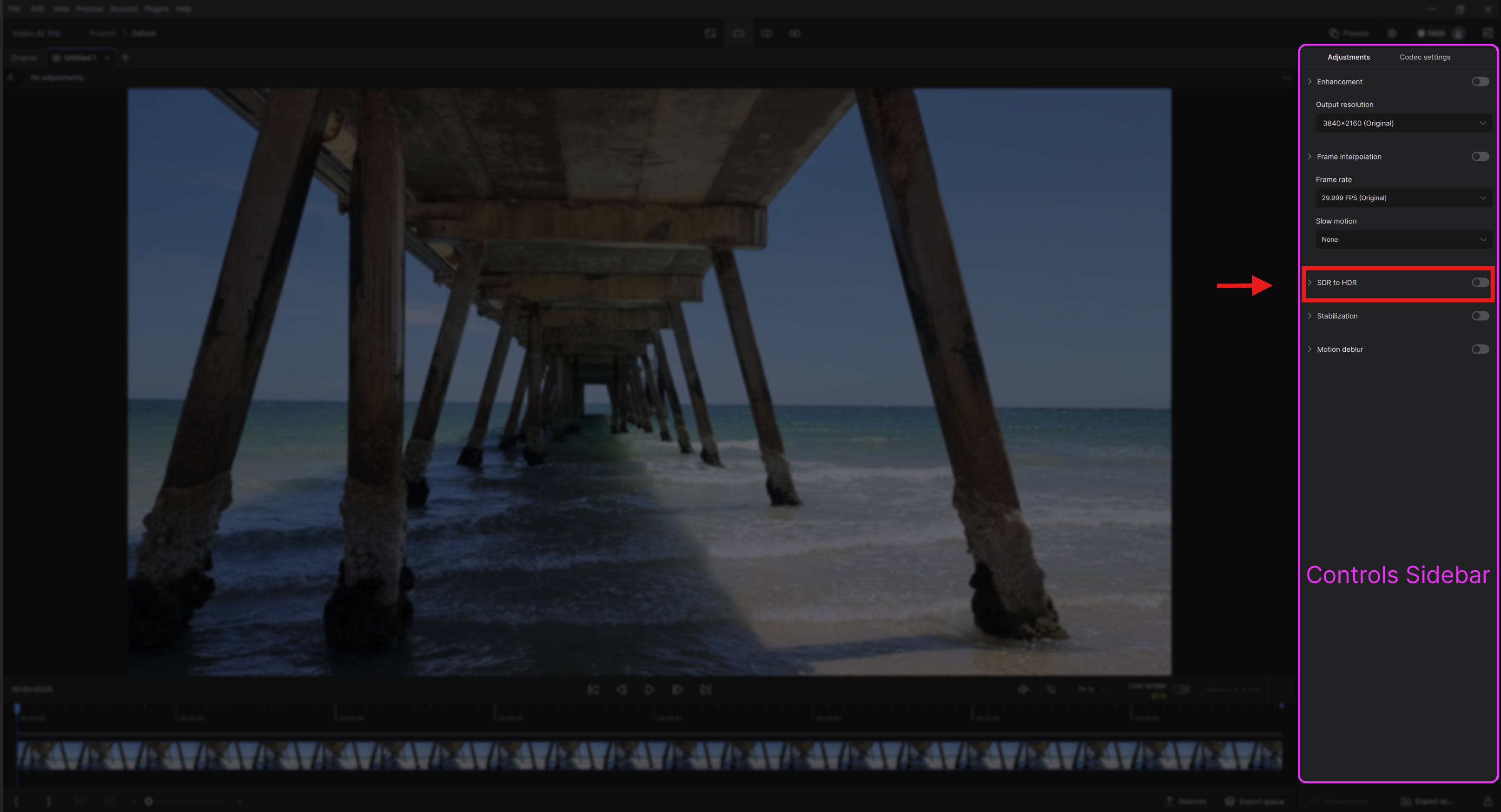
You can find the SDR-to-HDR mode in the upper screen right side of the application within the “Control Sidebar”. This is between "Frame Interpolation" and “Stabilization”. Click in the sider button for the SDR to HDR to enable and reveal a drop down menu.
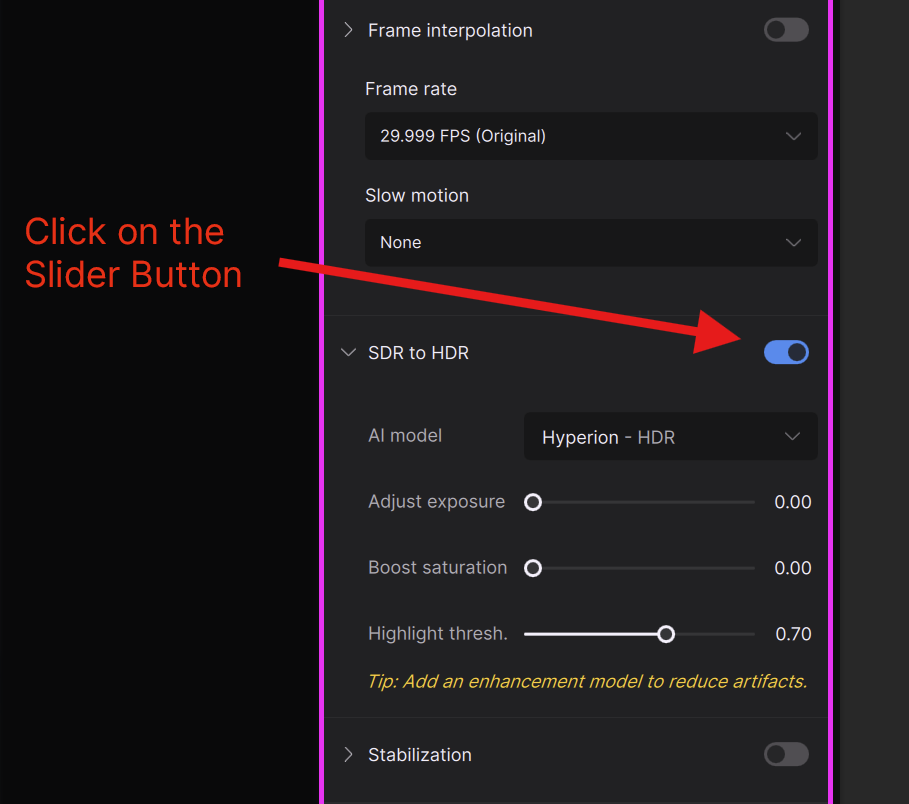
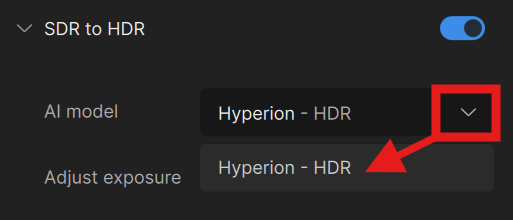
For the AI Model, clicking the carrot reveals a single AI Model. The “Hyperion - HDR (ALPHA)” is our model that does the inverse tone-mapping that increases color-depth, contrast and increased peak brightness.
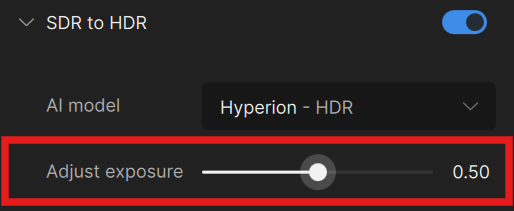
Adjust Exposure allows the user to modify the exposure from the origin starting point, which defaults to “0”, up to double the max amount value of “1”. Note that the AI Model will intelligently choose the areas to brighten based on the video content.
Boost Saturation allows for an increase of color intensity from the original amount at “0” up to the maximum at “1”.
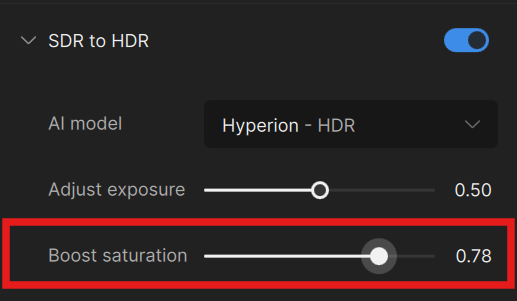
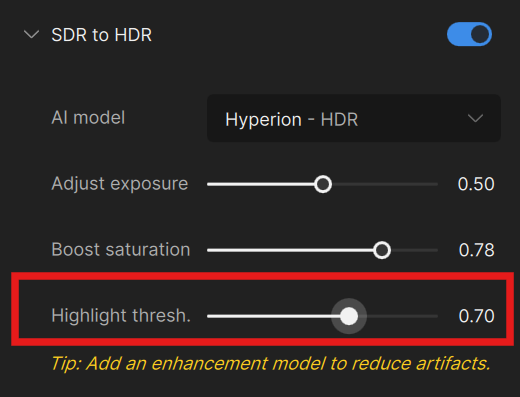
The Highlight Threshold slider sets the lowest intensity level in linear color that has been determined to be a highlight by the Hyperion AI Model.
Lowering this value could cause color shifts & large contrast changes, especially in skin tones. It is recommended to test from the default setting of 0.70. If there are any slight color shifts, raise the value, otherwise you can experiment with lower ones. The Highlight Threshold is between 0.45 to 0.85.
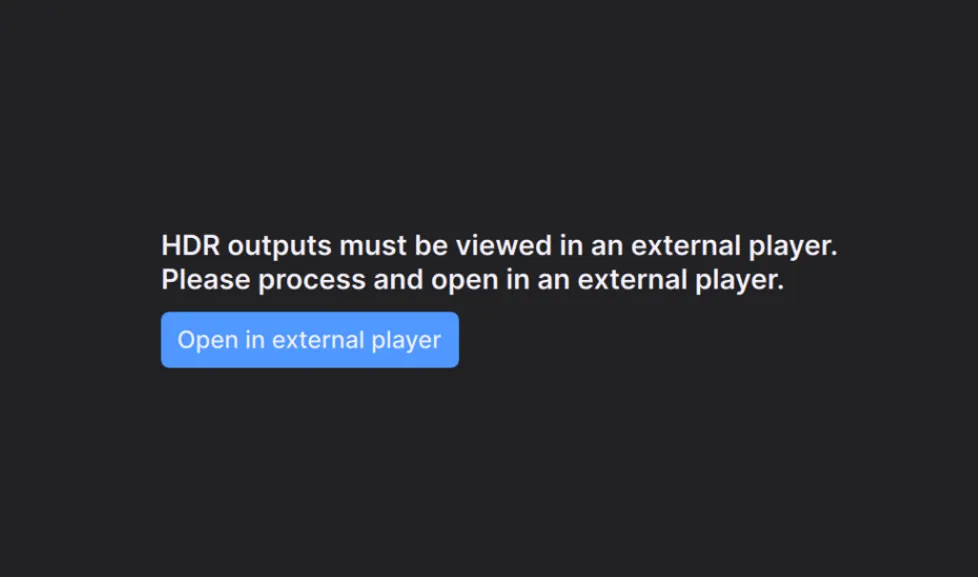
In order to view any of the parameter changes, you will need to render a preview. With the updated player in Topaz AI 5.4, you will be able to view the HDR version of your video.
The Codecs
Compatible Codecs
- ProRes 422 Proxy
- ProRes 422 LT
- ProRes 422 Standard
- ProRes 422 HQ
- ProRes 4444 XQ
- H264 High
- H265 High
- H265 Main
- H265 Main10
- AV1 10-bit
- PNG 16-bit
- QuickTime V210 Uncompressed YUV 10-bit 4:2:2
- QuickTime R210 Uncompressed RGB 10-bit
Codecs with known issues
- Tiff is rendering flat colors.
- JPEG 8bit is rendering flat colors.
- EXR is rendering flat colors.
- DPX is rendering flat colors.
- FFV1 does not play with QuickTime player. Not viewable in Premiere
- VP9 does not pay with QuickTime player. Not viewable in Premiere
- QuickTime Animation does not play with QuickTime player. Not viewable in Premiere
Things to Consider
SDR to HDR is a very adaptive tool and works on most types of footage. However you need to keep in mind that at the end of the day this is creating a faux HDR out of an SDR video, so there are a few things to consider.
- SDR to HDR does not operate well with interlaced footage. If you do have interlaced footage, it’s recommended that you deinterlace first before applying this tool.
- Using enhancements with the Hyperion AI Model is always going to be a good combo as fewer compression and artifacts will generally give better results.
- Though you technically can apply the SDR to HDR tool to small-low quality footage that you are upscaling, subtle approaches with the Hyperion AI Model may be the best for these types of sources. The more image data and resolution, the better starting point you have when applying this tool.
- Moving shots with inconsistent lighting may not be as ideal, since the tool is adapting to each frame. There may be visual surging and blooming due to this. Quick shots are actually less of an issue as this is somewhat expected.
- Video with very muddy and dark imagery may not work so well. There could be too little of a range to build upon.
- Video that is too bright and blown out, may also have a similar issue, as there could be too little range to build upon.