Manual Installation Steps for Topaz Studio 2 (Mac)
Manual Installation Steps for Topaz Studio 2 (Mac)
Topaz Studio 2 must be installed manually in Adobe Photoshop
As a note, some of our apps will be in their own folder or a sub-folder called 'Topaz Labs,' instead of Topaz Labs LLC.
Step 1:
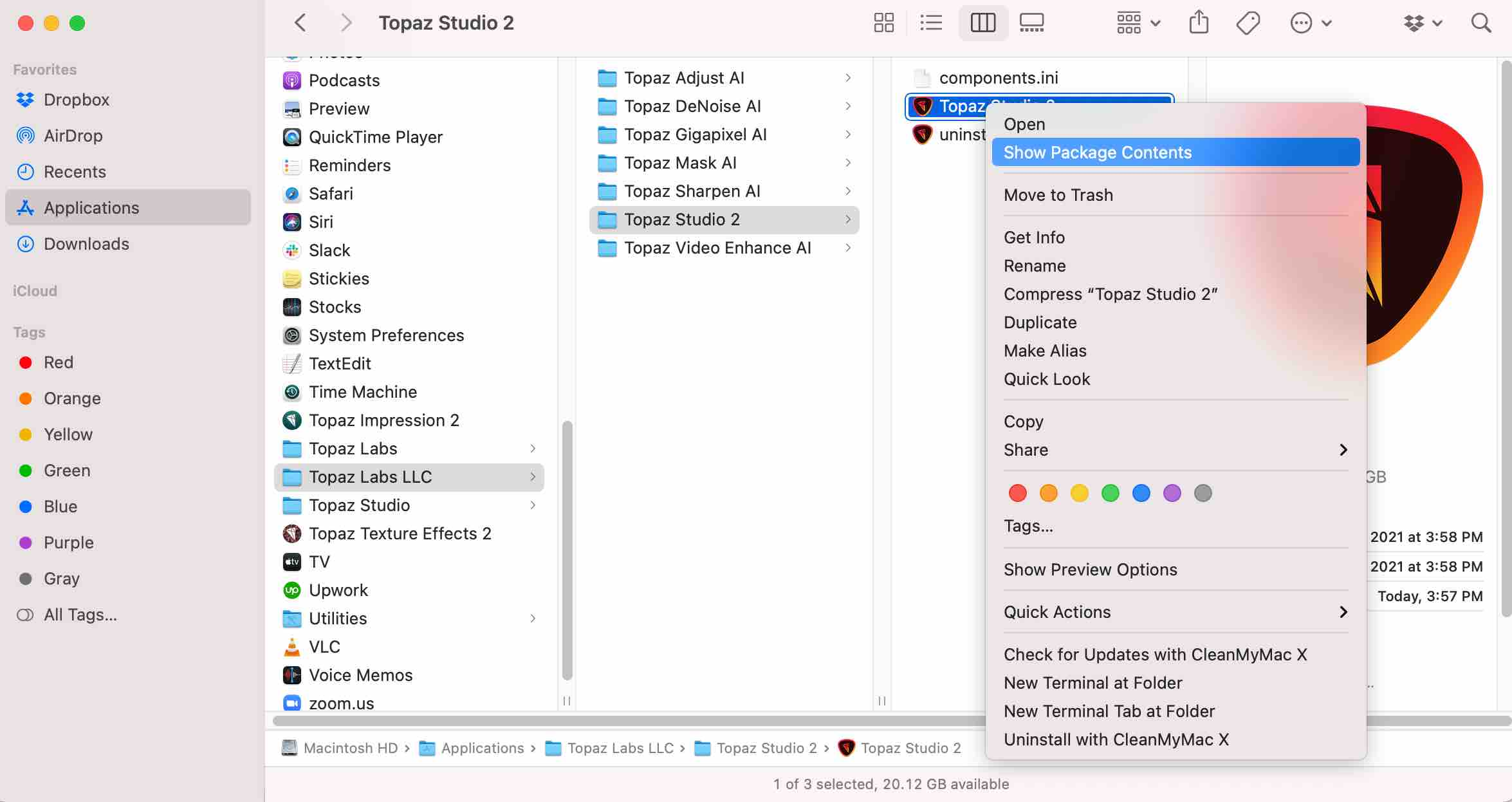
- Close Photoshop and go to Applications > Topaz Labs LLC > Topaz Studio 2.
- Right click the Topaz Studio 2 application icon and select:
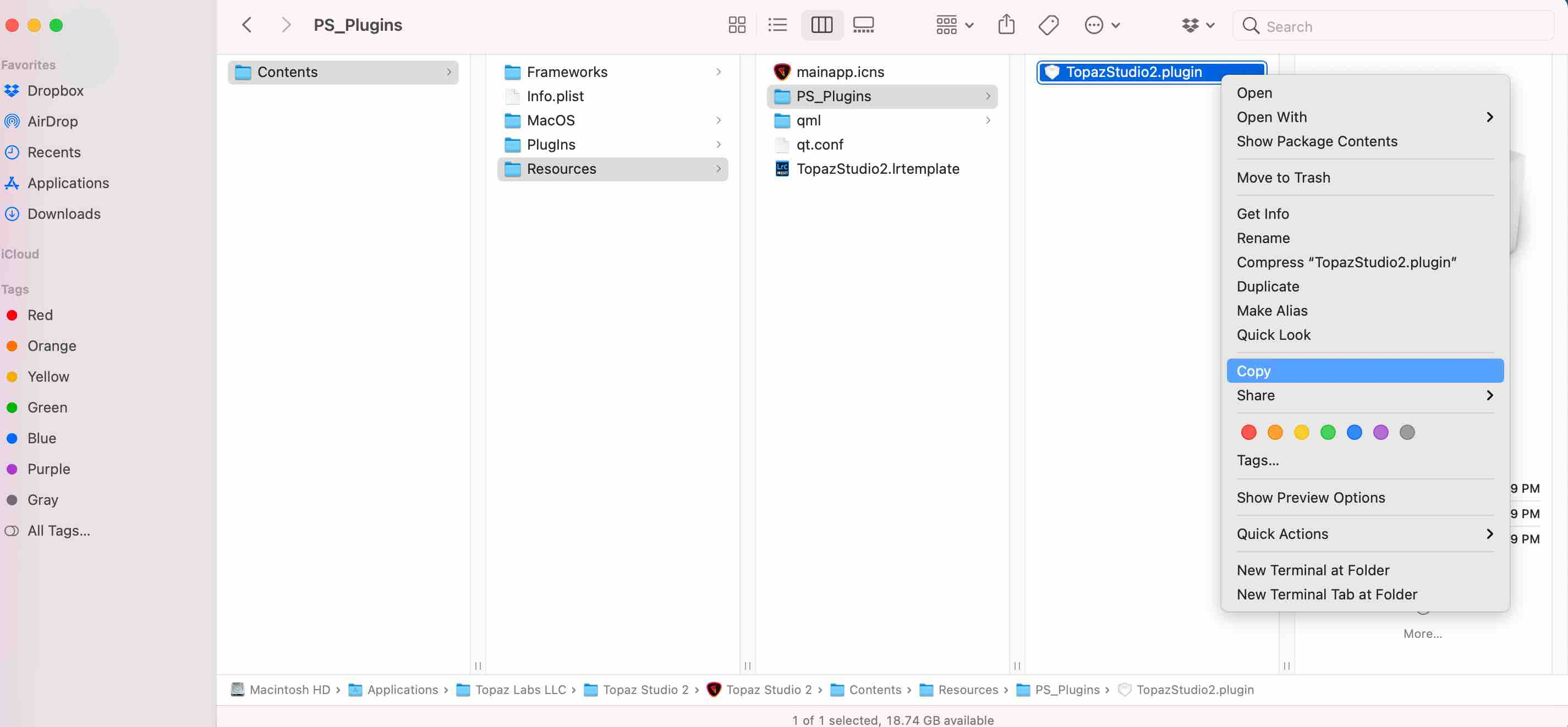
- Show Package Contents >> Contents >> Resources >> PS_Plugins.
- Next, copy the file named TopazStudio2.plugin.
Step 2:
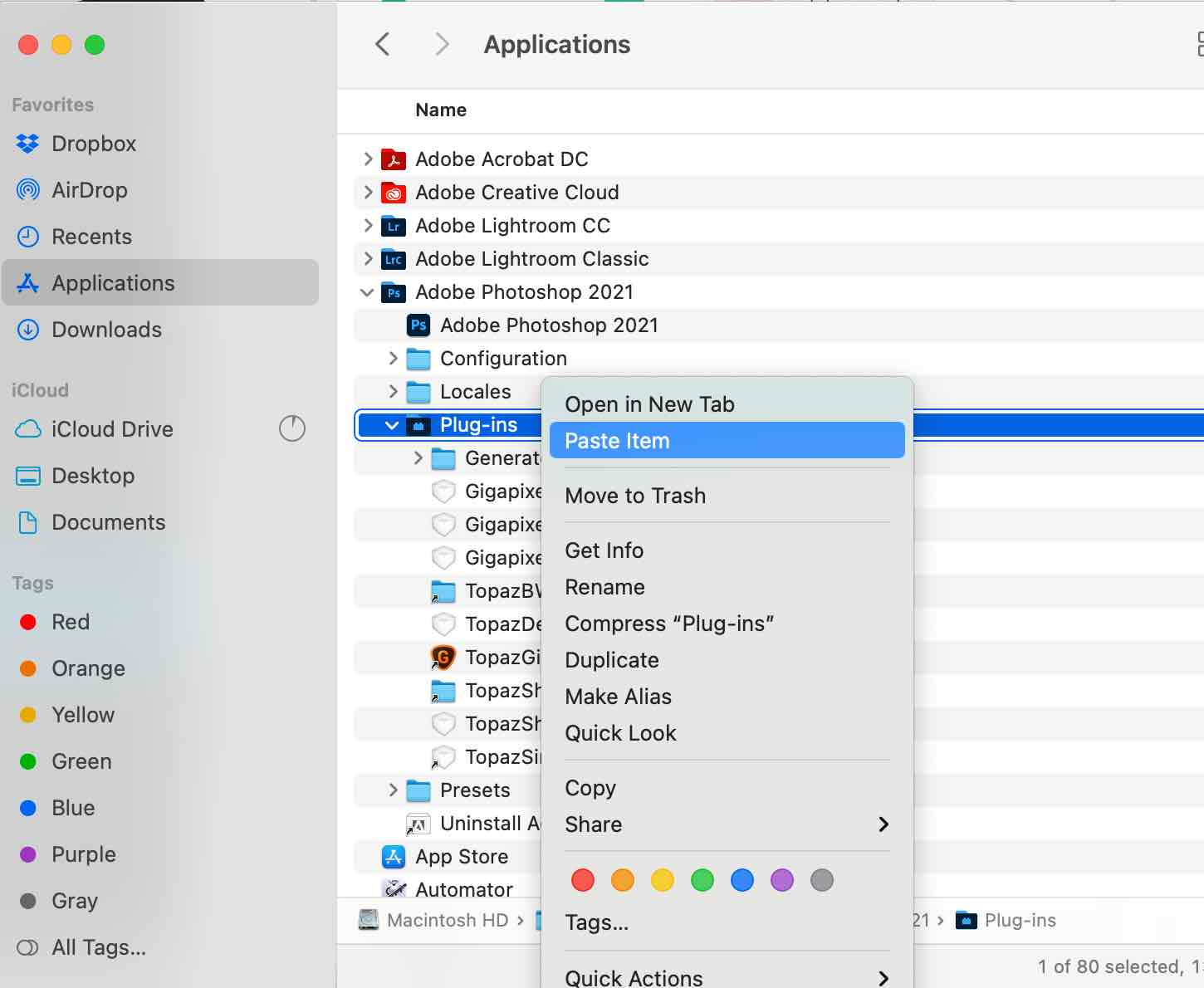
- Go to Applications>Adobe Photoshop> Plug-ins and paste the plugin file (TopazStudio2.plugin)
If you are on an M-Series, you will need to run Photoshop through Rosetta to see the Topaz Studio 2 plugin.
To run Photoshop through Rosetta, right-click on the Photoshop app (not the folder), select Get Info, and select "Open using Rosetta."
- Video instructions for running Photo AI through Rosetta
You should now be able to open Photoshop and locate Topaz Studio 2 under the Filters menu.