Modes and Models
This guide will help you choose the right mode and model in Astra to achieve the best results for your videos.
Choose the Right Mode
Astra offers two primary modes, each designed for a different goal:
Creative Mode
Use Creative Mode to change the look and feel of your video.
Best for:
- Stylized or cinematic results
- Artistic transformations
- Enhancing mood, lighting, or visual style
Astra 1 (1st-gen) and Astra 2 (2nd-gen) Controls
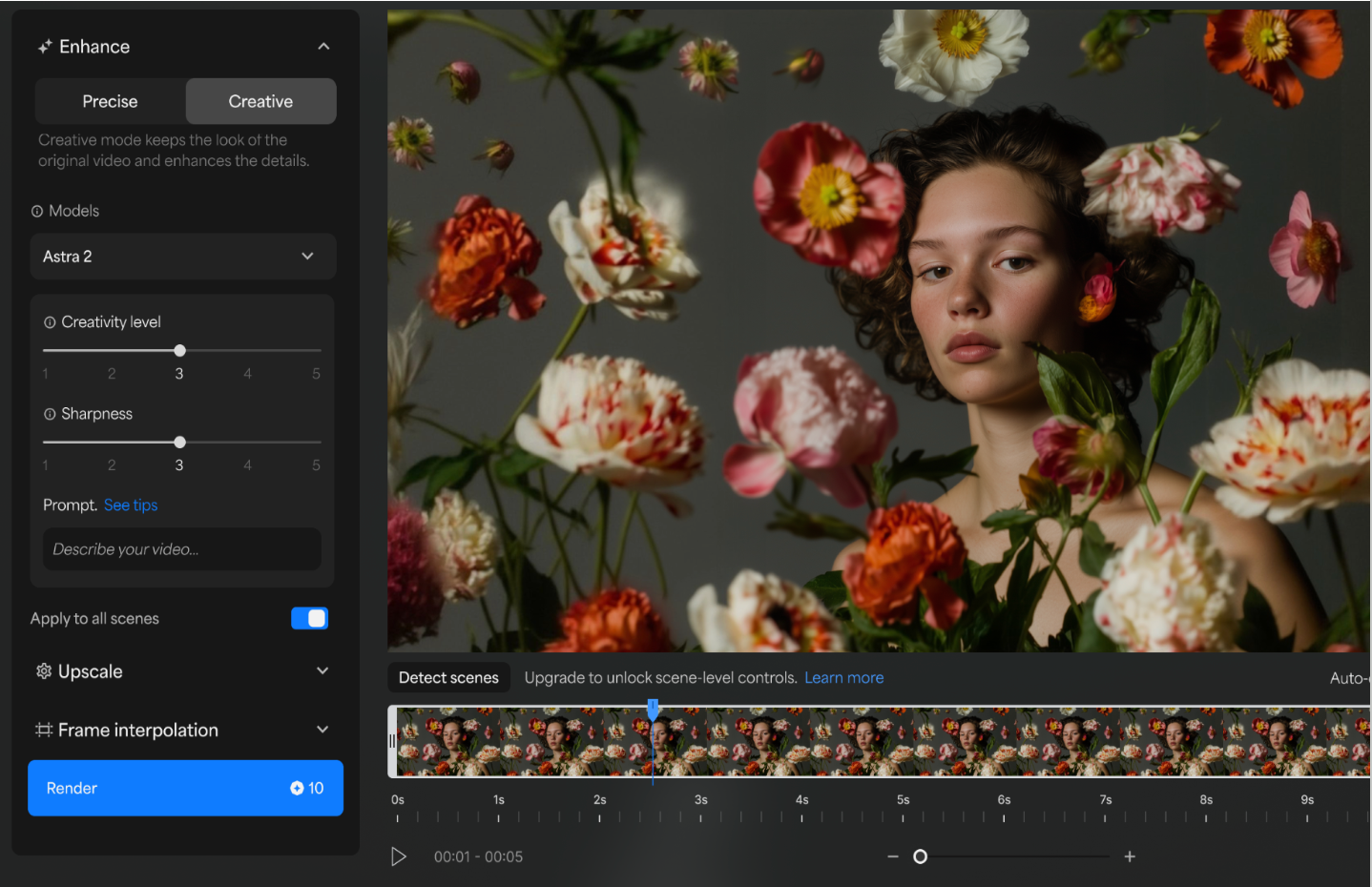
When using Astra 2, you can adjust:
- Creativity (1–5)
Controls the strength of the artistic effect - Sharpness (1–5)
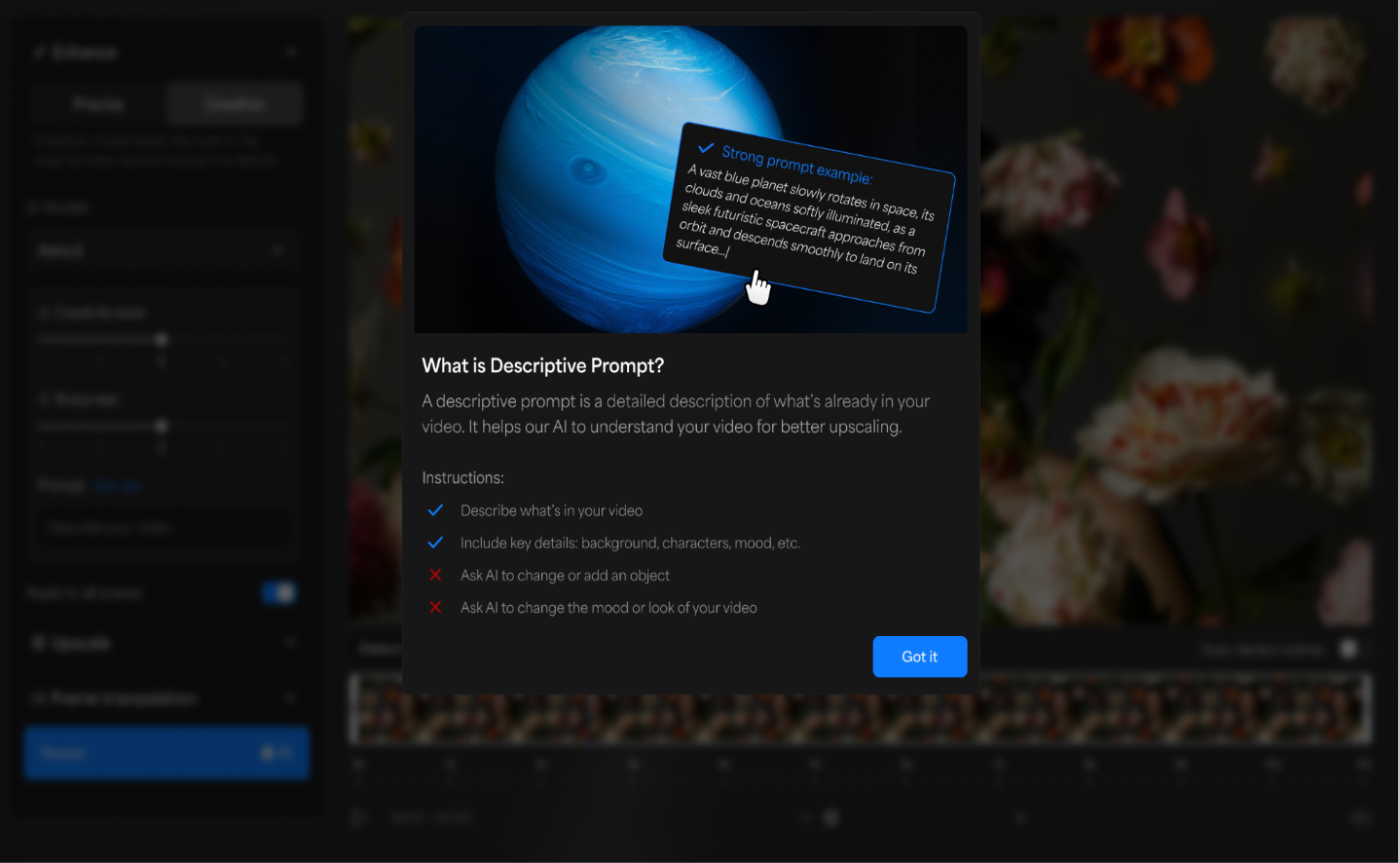
Controls the clarity and crispness of the output - Prompt (Optional)
Describe the style or mood you want to achieve
(Use descriptive phrases such as “cinematic lighting” or “soft vintage tones”)
Prompt Usage and Limits
To maintain quality, prompts are limited to shorter clips:
- With a prompt: up to 450 frames (~15 seconds)
- Without a prompt: up to 9000 frames
For longer videos
If your video exceeds 450 frames and you add a prompt, you will be prompted to:
- Detect scenes automatically
- Trim the video
- Or continue without a prompt
Scene detection allows you to apply prompts to smaller sections of your video.
When to use Astra 1 instead of Astra 2?
Astra 1 remains the better choice for stylized, experimental, or fantasy-leaning creative work where you want the model to take artistic liberty and push beyond the source. Astra 2 is the right choice when you want the final result to look like a more realistic, higher-fidelity version of what you already have.
Precise Mode (Starlight & Enhancement Models)
Precise Mode enhances video quality while preserving realism and original details.
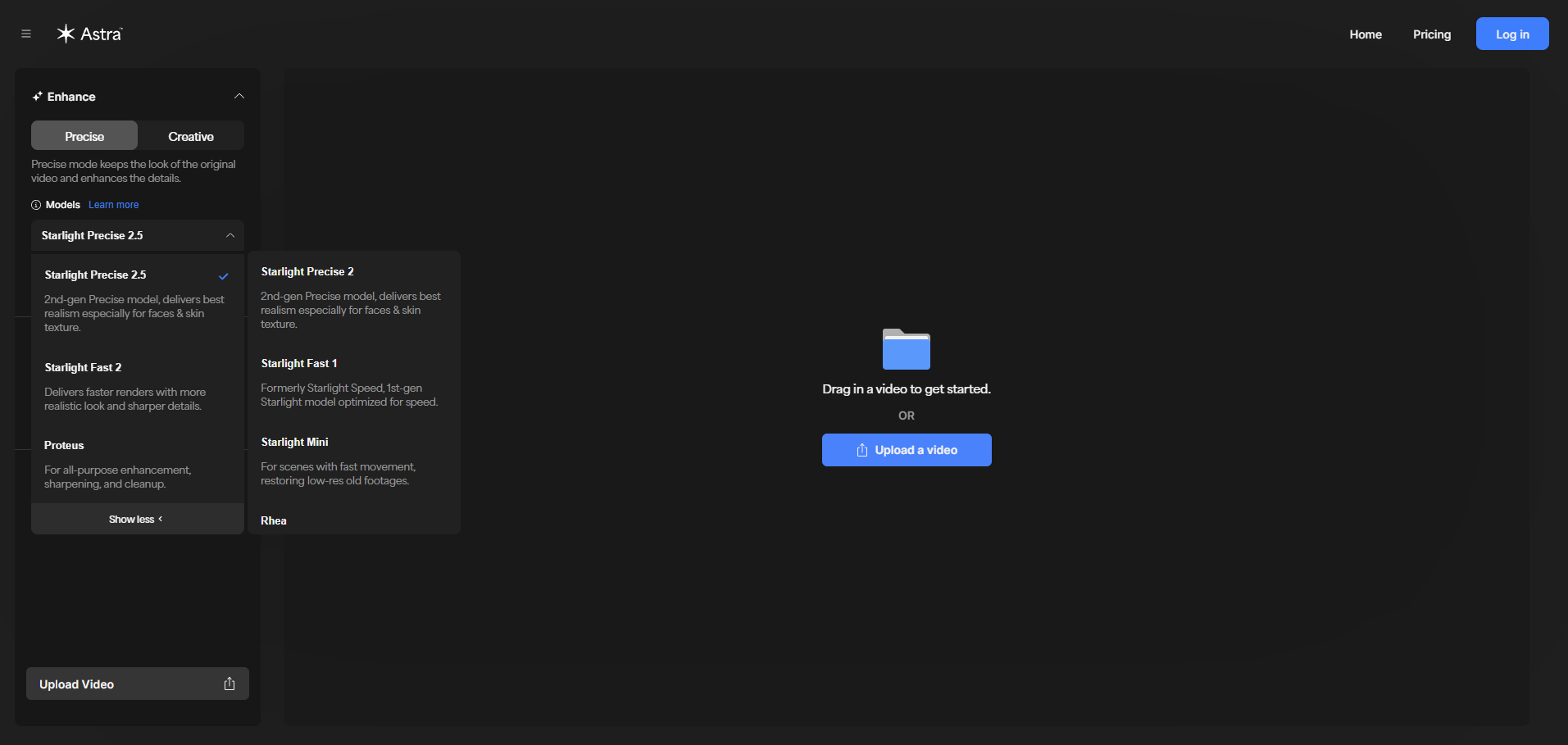
Starlight Models
- Starlight Fast 1
Optimized for speed - Starlight Fast 2
Faster performance with improved detail - Starlight Precise 2
Strong performance on faces and fine textures - Starlight Precise 2.5
Highest overall quality and detail recovery - Starlight Precise 2.6
Improved temporal consistency and 15% faster speed - Starlight Mini
Suitable for fast motion and older low-resolution footage
Specialized Models
- Proteus
General enhancement, sharpening, and cleanup - Rhea
Best for low-motion scenes such as interviews and product shots - NYX
Reduces noise and grain while preserving detail - Iris
Enhances faces in low-quality or compressed footage
Use Precise Mode when you want to improve quality while preserving the original look.
Best for:
- Professional workflows
- Restoration and cleanup
- Sharper, more detailed, natural results
- Starlight Precise 2.5 supports rendering up to 9000 frames at 30 FPS per video.
- Starlight Precise 2 supports 450 frames at 30 FPS per video
- Starlight Fast 1 & 2 is now officially released, offering fast, high-quality enhancement and supporting videos up to 5 minutes in length for quicker, more efficient results.
Scene Detection
Scene detection automatically splits your video into smaller segments, allowing more control when applying prompts.
- Each scene can be processed individually
- In Precise mode, Starlight Precise 2.5 is applied by default, and models can be selected manually
- In Creative mode, Astra 2 is applied by default
- Prompts can be used per scene only in Astra 2
How can I process longer videos?
If your video exceeds the model’s frame limit:
- Split the video into multiple segments
- Use Astra’s Scene Detection to automatically divide your video into renderable scenes
This allows longer videos to be processed in parts while remaining within the model's limits.
Tips for Best Results
- Start with default settings and adjust gradually
- Avoid excessive sharpening or processing
- Use Precise Mode for realistic results
- Use Creative Mode when stylistic changes are intended
- For large outputs (such as prints or high-resolution displays), use higher-quality models like Starlight Precise 2.5
Frequently Asked Questions
- Which model should I start with?
Start with Starlight Precise 2.5 for most use cases, or Astra 2 for creative results. - Why can’t I use prompts on long videos?
Prompts are limited to shorter clips to maintain output quality. Use scene detection for longer videos. - What is the difference between Creative and Precise Mode?
Creative Mode changes the visual style, while Precise Mode improves quality without altering the original look.
What’s Coming Next
Planned improvements include:
- Queue position visibility
- Estimated render time
- Expanded format support
- Improved file validation and error messaging
- Dedicated restoration product (Restore)