Plugin Model Load Error
You may encounter this issue if you recently installed Topaz Photo or Topaz Gigapixel on a Mac device and are using it as a plugin through a host editor such as:
- Adobe Photoshop
- Adobe Lightroom
- Capture One
- Apple Photos
This issue occurs when attempting to run AI models (e.g., Sharpen, Denoise, or Upscale) when the application is used as a plugin.
Solution
To fix this, follow the instructions in the video or written steps below.
- Open the top left Apple menu > System Settings
- In the left menu, scroll down to Privacy & Security
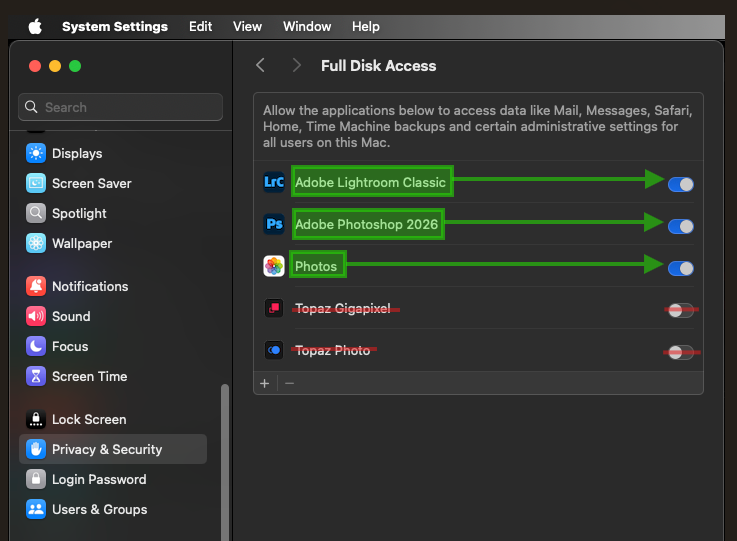
- Click Full Disk Access
- If the host application is not listed, click on the + button and select the application
- Make sure the toggle for the host application(s) you use (Adobe Photoshop, Adobe Lightroom Classic, etc) is on in the Full Disk Access menu
Once that is done, you can use Topaz Photo or Topaz Gigapixel through the host application again. The error should no longer show.
IMPORTANT: Make sure to add the host program/s you use. Example: In the Full Disk access you would add and enable access to Adobe Photoshop, not the Topaz apps
Contact Support
If you did the steps above and still get issues such as:
- Stuck Model behavior
- Error Loading Model or Error Running Model
- This can be missing or corrupted models.
It can be a missing or corrupted model. See steps below to fix this:

Steps to fix missing or corrupted model
If issues remain after all this - Please send the information below to support@topazlabs.com so we can help troubleshoot:
- A screenshot of the Full Disk Access settings showing that your host application has Full Disk Access enabled. (Example: Adobe Lightroom Classic)
- The Logs of your app (Help menu → Open Logs Folder). You can attach all log files to the email
- Confirmation of what happens when using the app as a plugin. If any errors appear, please include a screenshot.
- Confirmation that the app works correctly in standalone mode (launched from the Desktop shortcut) and that the issue only occurs when used as a plugin
- Confirmation on which exact steps you have have already done