Missing Models
This article explains what to do when you have missing models in Topaz Photo.
Missing models can cause the app to crash and exhibit inconsistent behavior. The app won't work normally until all the models are downloaded.
Potential Causes: This happens because a security setting, software or feature on your computer blocked some of the AI models from downloading during the initial installation. An inconsistent Internet connection can also be a blocker.
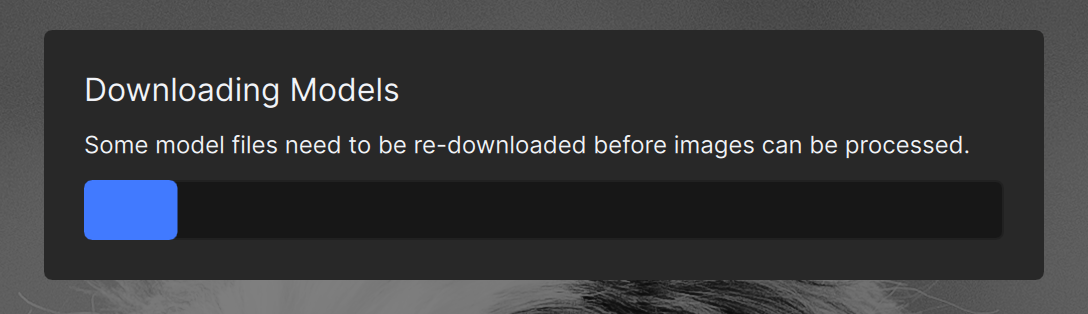
Other then crashing inconsistently, missing models can also show this 'Downloading models' progress bar when a specific image needs a specific model that is missing. It will be important to do the steps below to ensure all models are installed, not just the ones needed for a specific image.
To Install the Missing Models
Note: Because the models were previously blocked from downloading, it's very important to momentarily turn off any security software you have before rerunning the installer. This can be a firewall, anti-virus software, VPN, proxy, etc. All computers, including Macs, have at least a firewall.
- Important - Keep the current version installed. Do not do any uninstallation.
- Turn off firewall, anti-virus or any other potential blockers.
- Download a fresh installer for the app that has missing models on your Apps Page (Important - If you own a legacy app such as Photo AI, see the Legacy Apps page instead for the correct installer)
- Run the installer. If you have the option, choose the Repair option*.
*Repair is on Windows only. If you are on a Mac, rerun the installer normally, it will not have the Repair option. - Once done, retry opening the app to see if you have all the models installed.
- If there are still issues, try running the installer again using a mobile hotspot instead of your regular internet. If you don't have access to a hotspot, test another Wi-Fi connection or by connecting with an Ethernet cable. You can also test with a VPN on or off, to see if changes the behavior.
Contact Support
If you tried all the steps above and you still have issues, please write us an email at help@topazlabs.com with the below information:
- Confirmation on the completed steps: Firewall and Anti-virus off. Let us know if you need help or get stuck tuning these off. And confirm you tested with the mobile hotspot.
- Send us Logs: To gather logs, open the app, go to the menu bar at the top, and click Help > Open Log Folder menu option. Zip and attach them to the email. This will show us the number of missing models. The logs will be able to tell us how many models remain missing, but it will not bypass the blocker, as we do not have control on the blocker.
Important:
- We cannot control any blockers that may exist on your machine or network (such as router restrictions, firewall rules, or antivirus filtering).
- It’s important to complete all the steps above, including installing while connected to a mobile hotspot, as there are no additional actions we can take on our side to bypass those blockers.
- The app will continue showing the in-app downloading message and may have issues until all models are successfully installed or the blocker is identified and bypassed.
- We cannot control any blockers that may exist on your machine or network (such as router restrictions, firewall rules, or antivirus filtering).
- It’s important to complete all the steps above, including installing while connected to a mobile hotspot, as there are no additional actions we can take on our side to bypass those blockers.
- The app will continue showing the in-app downloading message and may have issues until all models are successfully installed or the blocker is identified and bypassed.